Memory Handbook: Exporting & Preserving Your Work
Step-by-step instructions on exporting memory handbooks as PDF or PNG, choosing current page, all pages, or page ranges, with sharing sheet destinations and Pro details.
Page Overview
Transform your completed handbooks into standalone files for sharing, printing, or archival
“Exporting a single page shares a fleeting moment; exporting an entire volume carries a complete story wherever you go.”
💡 Navigation Guide: This guide explains export workflows, file formats, page ranges, and plan differences. If you wish to adjust page order or cover previews before exporting, see Memory Handbook: Reading & Organizing Your Shelf.
📤 Three Things to Consider Before Exporting
- Single Image or Multi-Page Document? Choose PNG for single-page social sharing; choose PDF for full book archiving and high-res printing.
- Which Pages to Include? Export the active page, the entire handbook, or specify custom page ranges.
- Is the Page Sequence Finalized? Exported page numbers match your current reading order. Refine your sequence in Page Management first if necessary.
Exporting produces reader-friendly standalone documents. It does not alter your handbook inside the app, nor does it serve as an editable project backup.
🪜 Step-by-Step Export Guide
- Open your target handbook from the Memory Handbook shelf;
- Tap the center of the reading screen to reveal the toolbar;
- Tap “More” > “Export…” in the top right corner;
- Select your file format: PDF or PNG Image;
- Select your page scope: All Pages, Current Page, or Page Range;
- Review the summary and tap the export button;
- Wait while files render; iOS will automatically present the system Share Sheet;
- Select your destination, such as “Save to Files”, “Save Image”, AirDrop, or messaging apps.
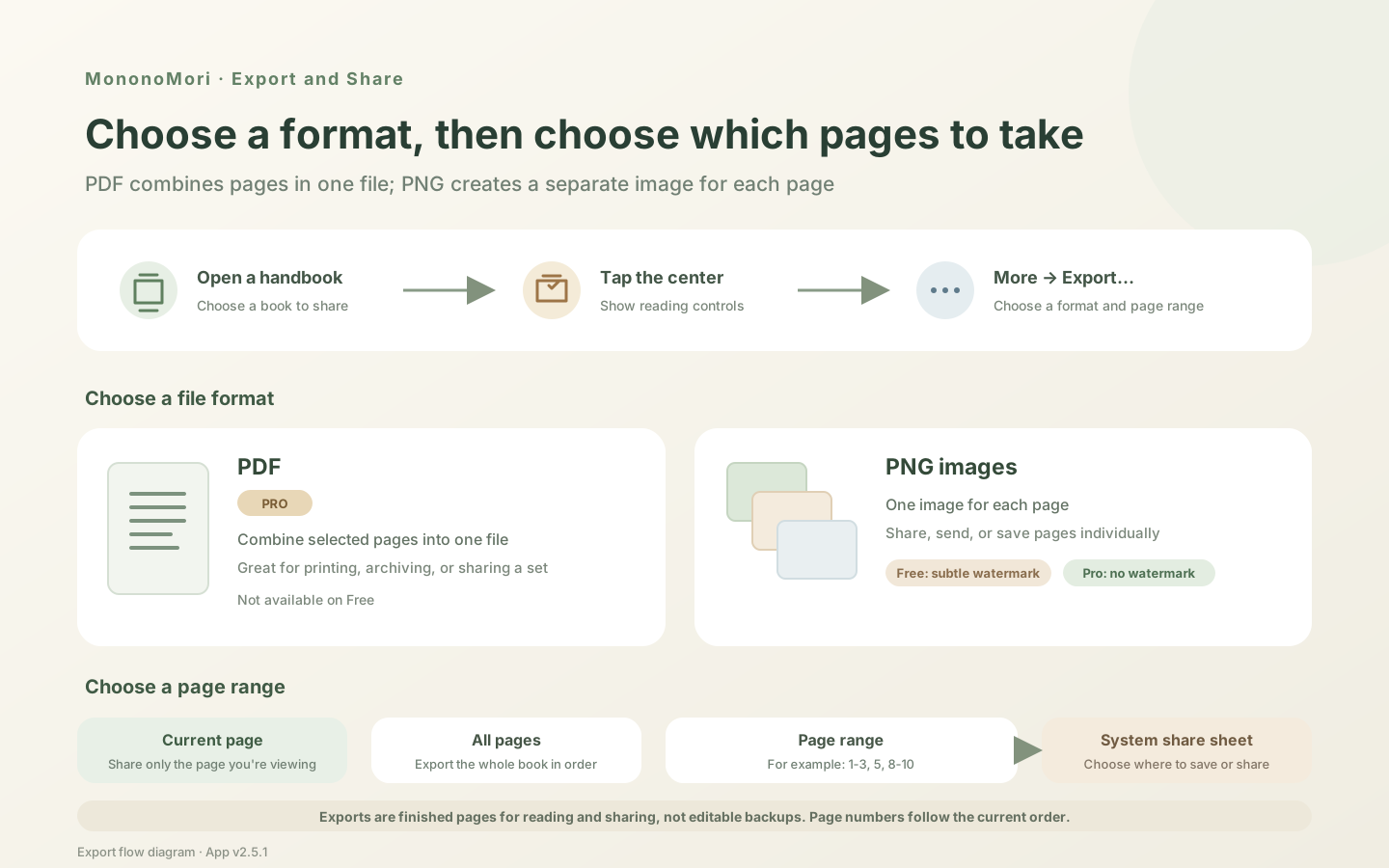
🗃️ PDF vs. PNG: Which Format to Choose?
| Format | Output | Best Suited For |
|---|---|---|
| Selected pages merged into a single multi-page document | Printing, physical binding, reading on tablets or computers | |
| PNG Image | Each selected page rendered as an individual high-res image | Social sharing, quick messaging, saving directly to camera roll |
🔢 Selecting Page Ranges
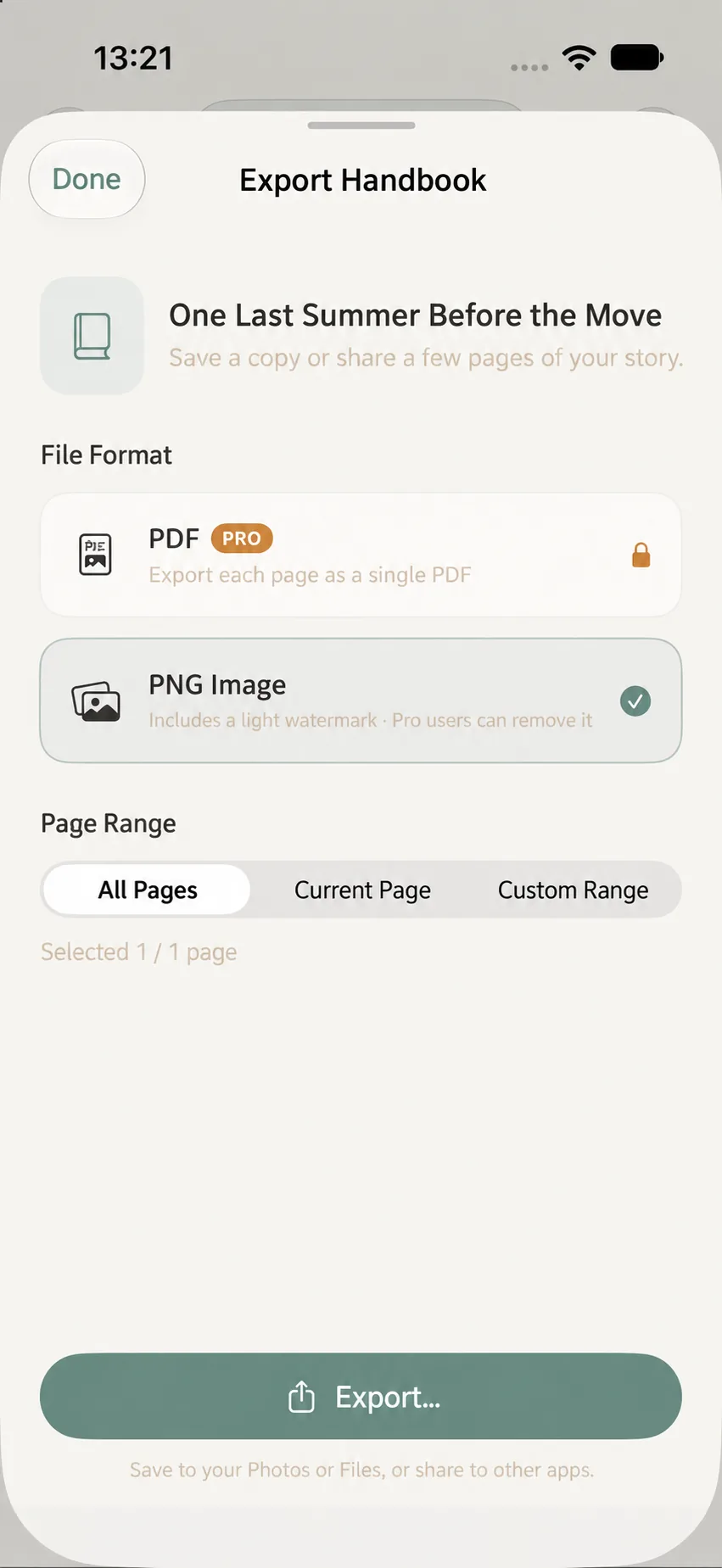
The export sheet provides three scope options:
- All Pages: Renders the complete volume;
- Current Page: Exports only the active page viewed before opening the export sheet;
- Page Range: Enter custom page numbers (e.g., 1-3, 5, 8-10).
Use commas to separate isolated pages and hyphens for consecutive spans. Numbers must start at 1 and cannot exceed total pages. Output is always compiled in natural handbook sequence regardless of input order.
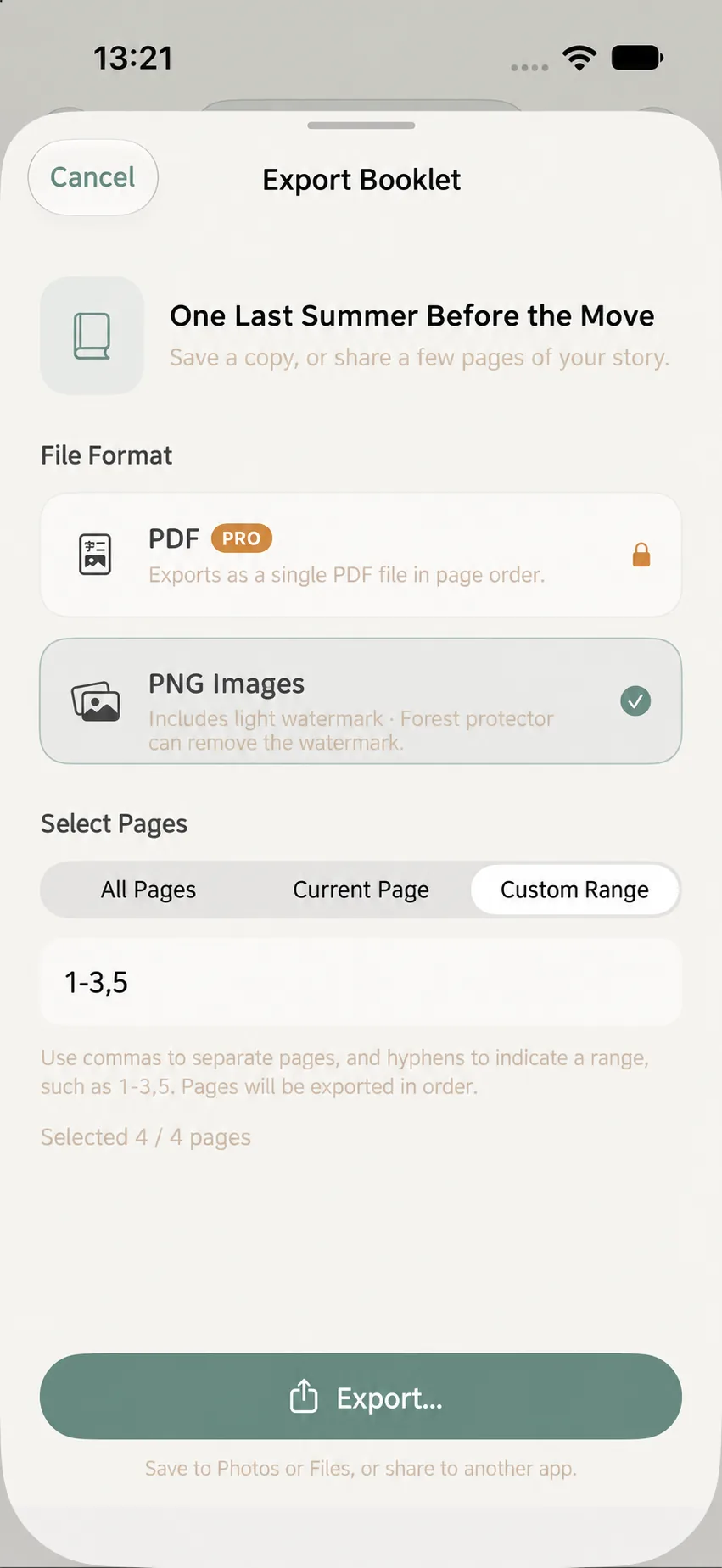
🌱 Free vs. Pro Export Comparison
| Feature | Free Plan | Pro Plan |
|---|---|---|
| PNG Export | Included (with subtle watermark) | Included (watermark-free) |
| PDF Export | Not included | Included (full multi-page PDF) |
| Scope Selection | Current Page, All, or Range (PNG) | Current Page, All, or Range (PDF & PNG) |
📁 Where Are Exported Files Saved?
Once generated, files are handed over to the iOS system Share Sheet. They are not deposited automatically into any preset folder. Always tap an explicit destination—such as “Save to Files” or “Save Image”—to store them securely on your device.
PDF and PNG files are finished documents. They cannot be re-imported as editable handbook canvases. For backing up app data and cross-device syncing, see Backup & Sync Strategy.
❓ Frequently Asked Questions
Q1: Can Free users export handbooks?
Yes. Free accounts can export high-quality PNG images featuring a subtle watermark. PDF export and watermark removal require Pro.
Q2: Does exporting to PNG stitch everything into one ultra-long vertical image?
No. Each page is exported as an individual image file. For multi-page unified documents, select PDF.
Q3: Can exported files restore my handbook if deleted?
No. Exports are flattened reading files. To safeguard raw app data, use Backup & Sync Strategy.