Memory Handbook: Reading & Organizing Your Shelf
From reading gestures to page reordering, cover management, and bookshelf organization, learn how to browse, expand, rearrange, and manage memory handbooks.
Page Overview
Master reading, continuing, and organizing, keeping multiple volumes and long narratives clear and harmonious
“A handbook can be continuously expanded. A page created today becomes a guiding landmark when you look back on life tomorrow.”
💡 Navigation Guide: If you are not yet familiar with designing pages, start with Memory Handbook: Adding Content & Designing Pages. To export or share your completed work, see Memory Handbook: Exporting & Preserving Your Work.
📖 Opening and Reading a Handbook
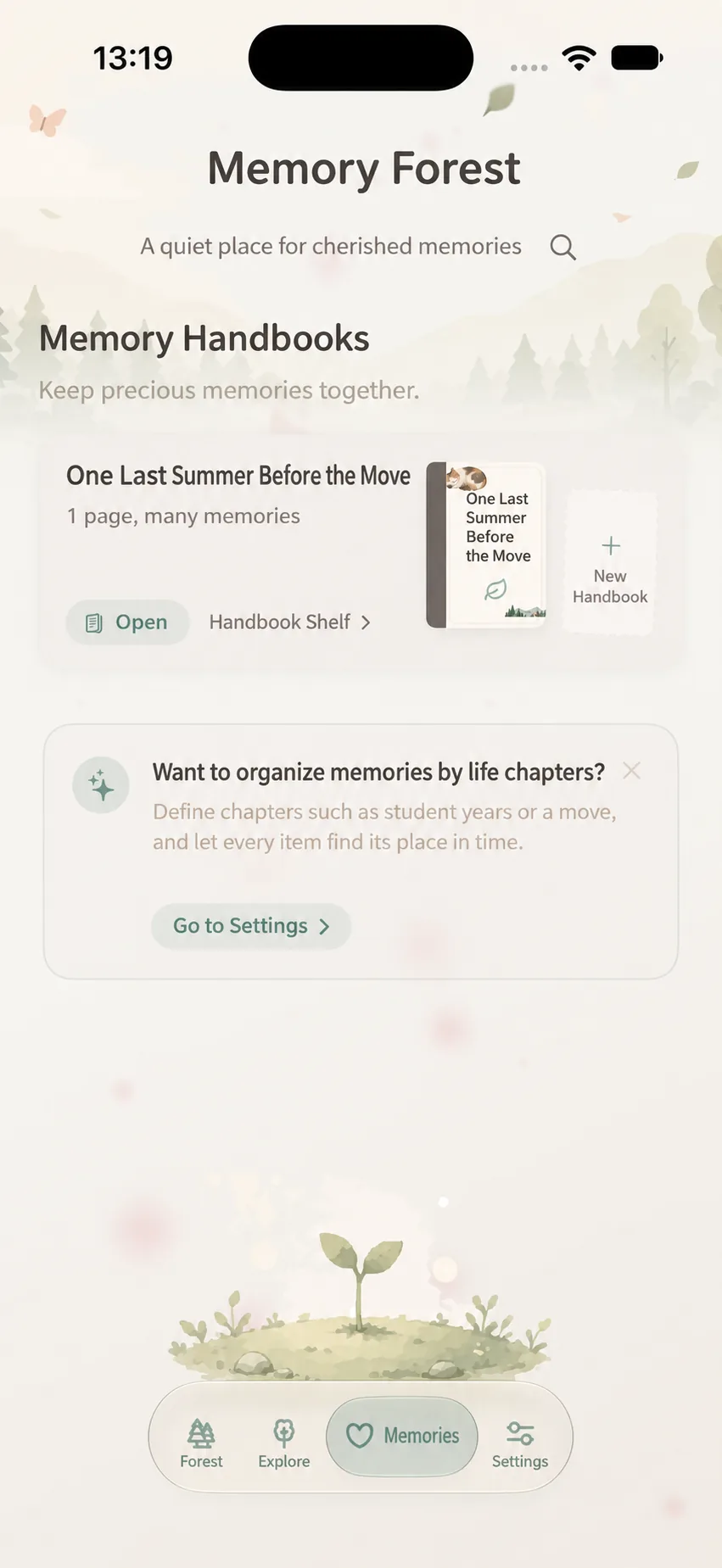
- Navigate to the “Memories” tab in the bottom bar and locate the Memory Handbook shelf;
- Tap the cover of the handbook you wish to open;
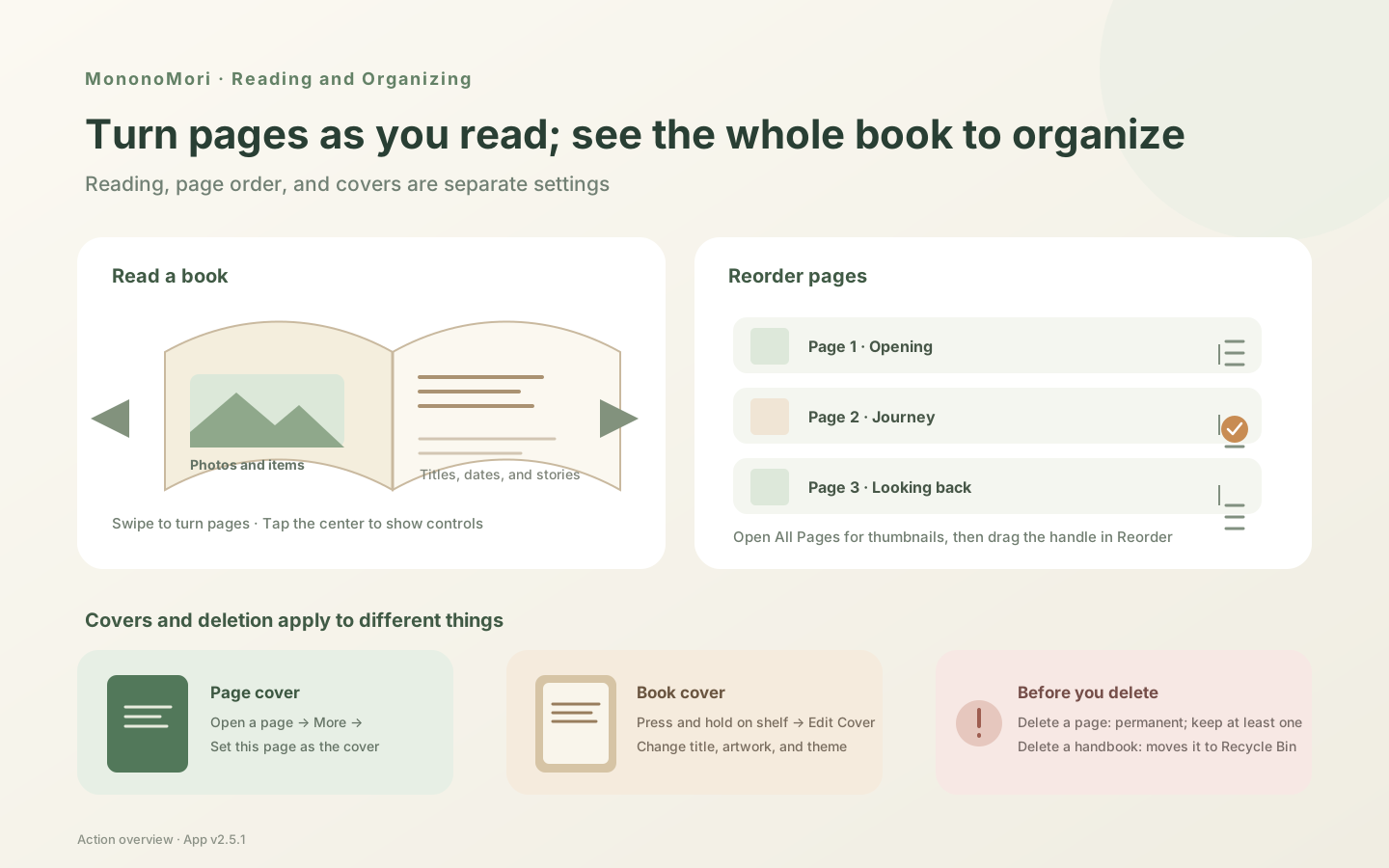
- Swipe left or right across the screen to turn pages forward or backward;
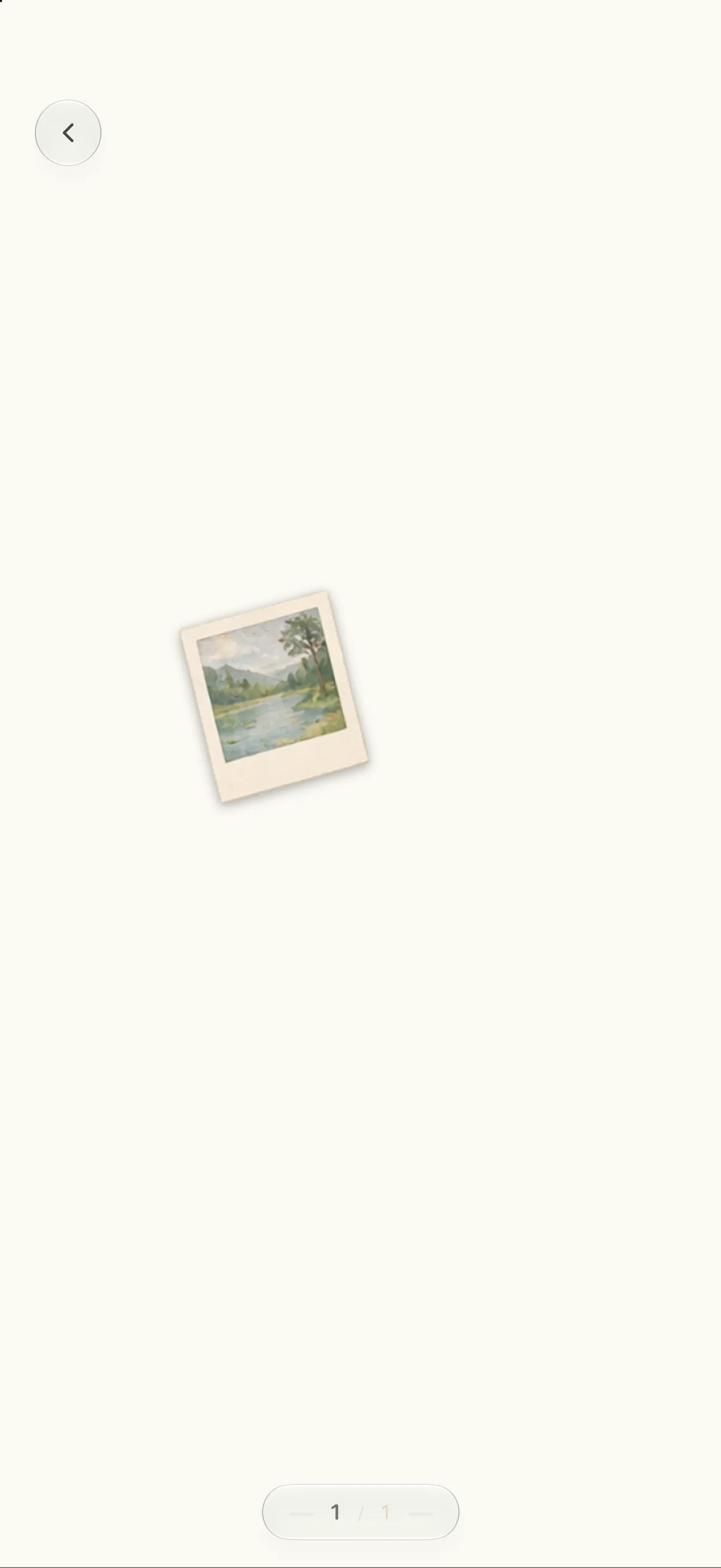
- Tap the center of the screen to reveal the reading toolbar; tap again to hide it.
Hiding the toolbar provides an immersive reading experience. When visible, the toolbar shows handbook title, active page index, and action menus. Pinch to zoom in on intricate photo details, and zoom out to view the full page.
Jumping Between Pages
- Drag the Scrubber Bar: Reveal the toolbar and drag the bottom scrubber to skim through pages with live thumbnail previews;
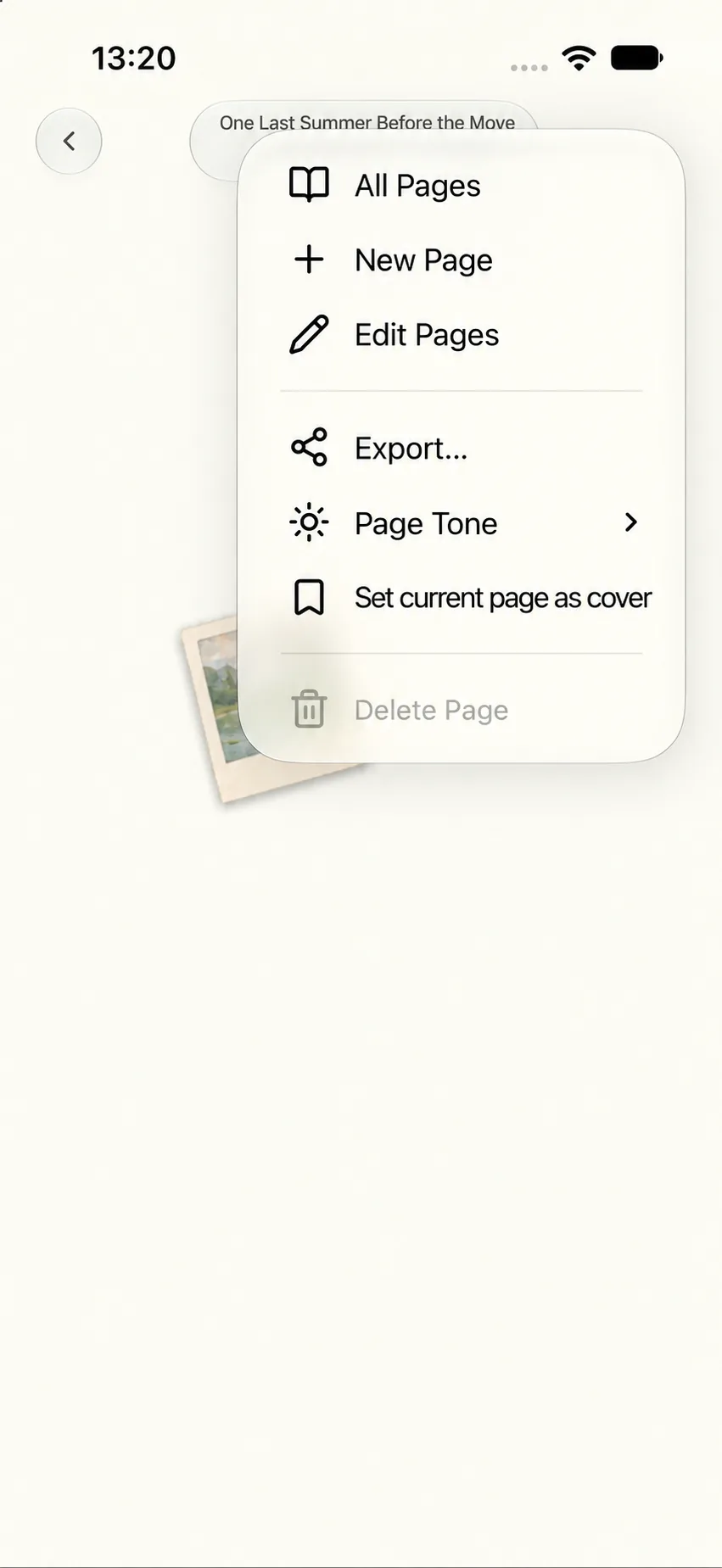
- Overview Grid: Tap “More” > “All Pages” to browse thumbnails of the entire volume and tap any page to jump directly to it.
🗂️ Browsing and Reordering Pages
Opening “More” > “All Pages” displays an overview grid with page numbers and modification dates.
Reordering Pages
- In the “All Pages” sheet, tap “Reorder”;
- Drag the grab handle on the right of any row to move the page to its new position;
- Tap “Done” to save the sequence.
You can also long-press any individual page in the grid to shift it forward or backward by one slot. Reordering immediately updates reading flow and page numbering during export.
Deleting Pages
Tap “Select” in the page grid and choose pages to delete. A handbook must always retain at least one page; selecting all pages disables the delete button until at least one page is unselected.
⚠️ Page Deletion Is Irreversible Deleting a page permanently erases its elements and text. To reuse a layout safely, duplicate the page instead.
➕ Continuing the Story: New & Duplicated Pages
Add a Blank Page
Open the reading toolbar, tap “More” > “New Page”, and confirm to start fresh on a new canvas.
Duplicate an Existing Page
To preserve typography and layout styles across pages, open “More” > “Duplicate Page” inside the page editor.
🏷️ Setting & Customizing Covers
Handbooks support both book exterior designs and page-featured covers:
Set an Interior Page as Cover
- Open the page you want to showcase;
- Tap the screen center to reveal the toolbar;
- Select “More” > “Set Current Page as Cover”.
The Memory Shelf thumbnail will now reflect this page’s design.
Edit Book Exterior
On your Memory Shelf, long-press the handbook and tap “Edit Cover” to adjust title, summary, palette theme, or cover motifs.
📚 Organizing Your Bookshelf
Tap the shelf header to browse your full handbook collection:
- Move Position: Long-press a cover and choose move forward or backward;
- Reorder Entire Shelf: Tap the organize button at the bottom of the shelf to drag volumes into place;
- Rename: Long-press and select “Rename”;
- Edit Cover: Long-press and select “Edit Cover”;
- Delete Handbook: Long-press and choose “Delete” to move the handbook into the Recycle Bin.
❓ Frequently Asked Questions
Q1: Can I jump directly from page 1 to the final page?
Yes. Open “All Pages” and tap the final page thumbnail, or drag the scrubber bar to the far right.
Q2: Does setting a page as cover move it to page 1?
No. It only updates the cover preview on your shelf without shifting reading order.
Q3: Does reordering pages affect exported page numbers?
Yes. Exports reflect the active handbook sequence.
🌲 Next Step
Ready to export and share your handbook? Continue to: Memory Handbook: Exporting & Preserving Your Work.