Basic Features
App Version v2.5.1Continuous Add Mode
Add multiple items smoothly in a single organization session, verifying next record details after each save.
Updated on Sep 27, 2026 ~9 min read
On this page
When to Use Continuous Add
Continuous Add mode is ideal when you are organizing a batch of items at once—such as logging books on a bookshelf one by one or adding a collection of stationery into the app. It keeps the add form open after saving an item, eliminating the friction of repeatedly reopening the add sheet.
If you are only logging one or two items, the standard save workflow is simpler and quicker.
Enabling Continuous Add
- Open the Add Item sheet from Forest or Items.
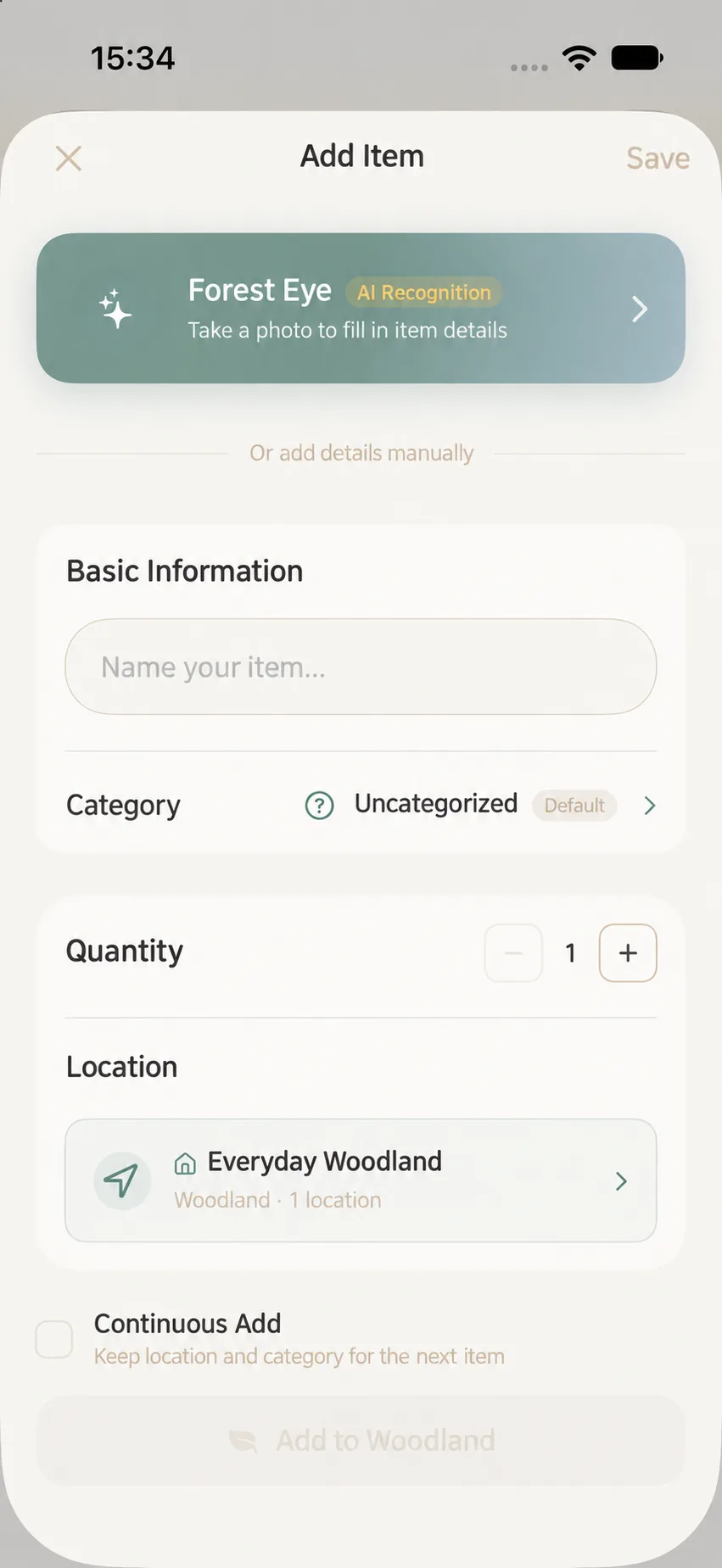
- Scroll to the bottom of the form and toggle on Continuous Planting Mode.
- Fill in the details for your first item and save as usual.
This toggle is located inside the Add Item form itself. If you do not see it, dismiss your on-screen keyboard or scroll down to the bottom of the form; do not look in the app Settings screen for a non-existent global switch.
What to Check During Batch Entry
After a successful save, the form stays open and handles the previous item’s details like this:
- Cleared: name, notes (Its Little Story), photos, attachments, batches (lots) and connected items.
- Kept: category, grove and location, quantity, tags, dates, status and custom fields.
The kept details speed up batch entry, but they may not fit the next item. Before saving the next item, check:
- Are the grove and location correct? Different items may live in different spaces.
- Do the quantity, category, and tags match this specific item?
- Do the dates (purchase, expiry and others) and status need changing?
- Have you added the photos, attachments and connected items this item needs?
Exiting Continuous Add
Once you have recorded and saved your final item, tap the close or cancel button on the add form to exit. If the current form contains unsaved edits, the app may ask whether you wish to keep or discard them; make sure your intended item has already been saved before discarding.
Frequently Asked Questions
Why does the form stay open after saving?
This is the intentional behavior of Continuous Add mode. Once an item is saved successfully, the form immediately prepares for the next item rather than closing.
What should I do if the next item shows the category or location of the previous one?
Simply verify and change it to the correct value before saving. Continuous Planting Mode keeps the category, grove and location, quantity, tags, dates, status and custom fields to speed up batch entry; this does not mean the next item should share the same values.
How can I minimize mistakes when adding multiple items from the same cabinet?
First confirm that the location picker is set to that specific cabinet, then turn on Continuous Add. After each save, follow a consistent check sequence: “New Name → Quantity → Location → Photo/Attachment”. If an item belongs to a different spot, change the location before entering other details. For distinct items with similar appearances, never bypass verification.
10-Second Pre-Save Checklist
Continuous Add speeds up repetitive steps, but it will not verify whether your next item matches the previous one. Before tapping “Plant into Forest”, always glance at the item name and location. When managing quantities, expiration dates, or attachments, double-check against the physical item in your hands. Once finished, return to Forest or Items to spot-check your newly created entries.