Personalization
NEW · Added in v3.1.0Subcategories: Organize Similar Items More Clearly
Learn how main categories and subcategories differ, then create, assign, batch-organize and filter groups. Understand renaming, ordering, disabling, deleting and merging.
Updated on Oct 6, 2026 ~22 min read
On this page
Give the groups you often browse a place within a familiar main category
‘Start with a broad home for each item, then add detail when it helps. Organization can grow with your life.’
A subcategory is a group within one main category: Clothing might contain Summer and Winter, while Books might contain Fiction and Reference. It separates similar items while sharing the main category’s attributes.
If categories, locations and tags are new to you, read Item Categories first. This guide follows Books → Fiction, from creating a group to finding an assigned item.
These illustrations are based on real iPhone 17 screenshots of v3.1.0. AI was used to localize labels and example names. Your records, counts and progress may differ.
What Should You Use?
| Question | Use | Example |
|---|---|---|
| What kind of item is it? | Main category | Books |
| Which group within that category do I browse separately? | Subcategory | Fiction or Reference |
| Where is it physically kept? | Grove and location | Home → Study → Shelf 2 |
| How can I find a theme across categories? | Tag | Travel, On Loan, Moving |
| Do these items need substantially different fields? | Separate main categories and templates | Lens mount for cameras, size for clothing |
Current rules:
- Subcategories have one level; you cannot create a third category level.
- An item has one main category and may choose one of its subcategories, or No Subcategory.
- Subcategories share the main category’s fields, icon and color; they do not have independent templates.
- System Uncategorized has no subcategory management. Choose another main category first.
You do not need to subdivide every category. Create groups when you frequently browse them separately.
Create Your First Subcategory
- Open More → Categories.
- Open the main category to edit it, for example Books.
- Find Subcategories and tap Manage.
- Ensure Use Subcategories is on.
- Tap Add Subcategory, enter Fiction and save.
- Confirm it appears in the list; add Reference if useful.
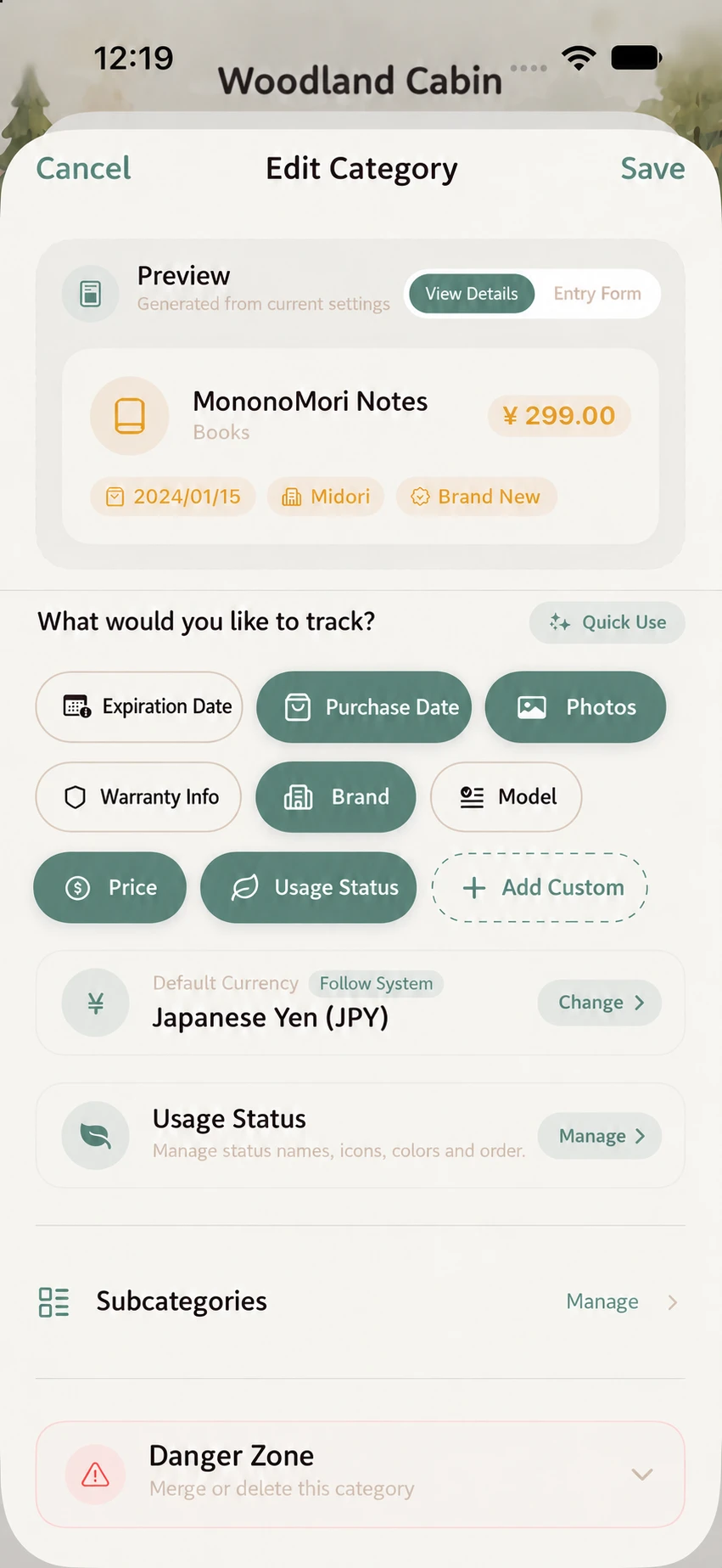
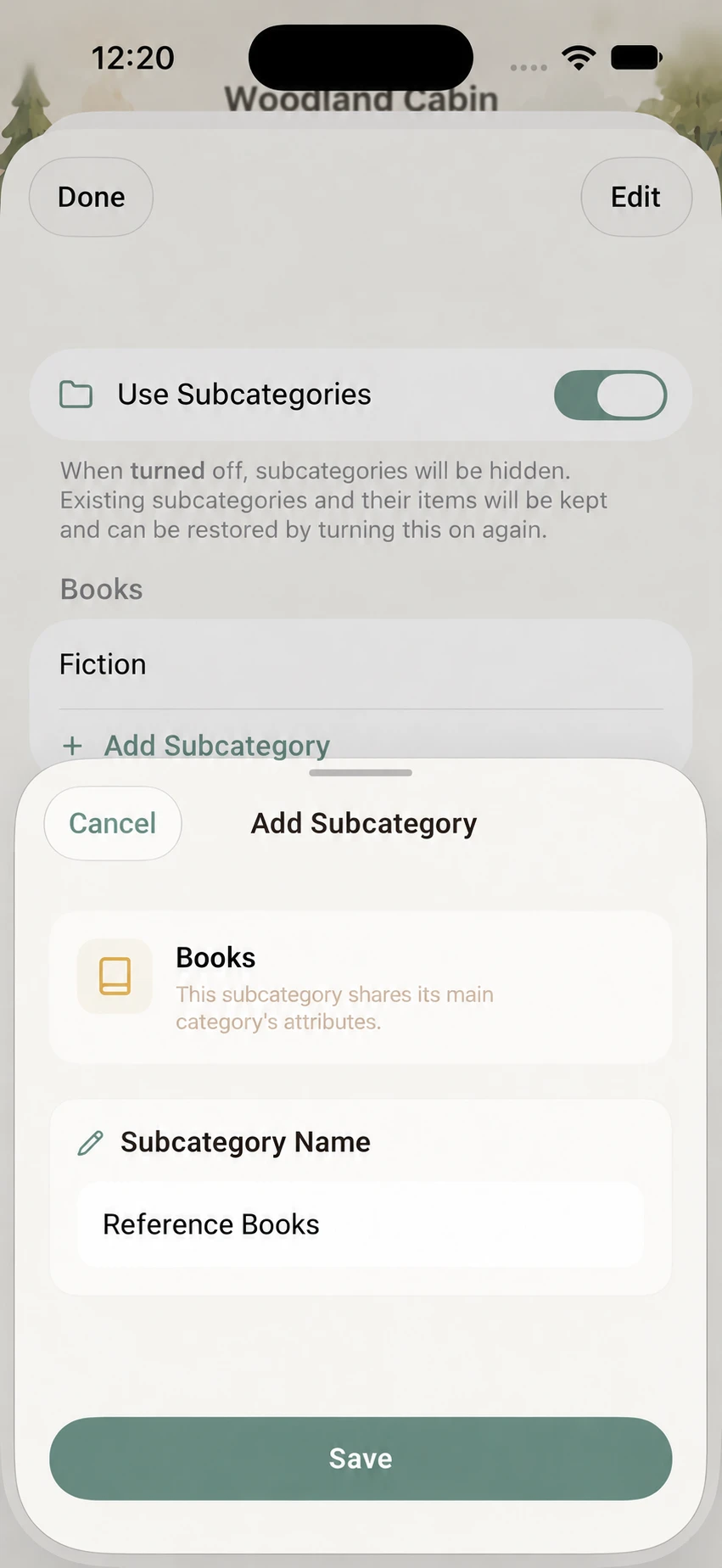
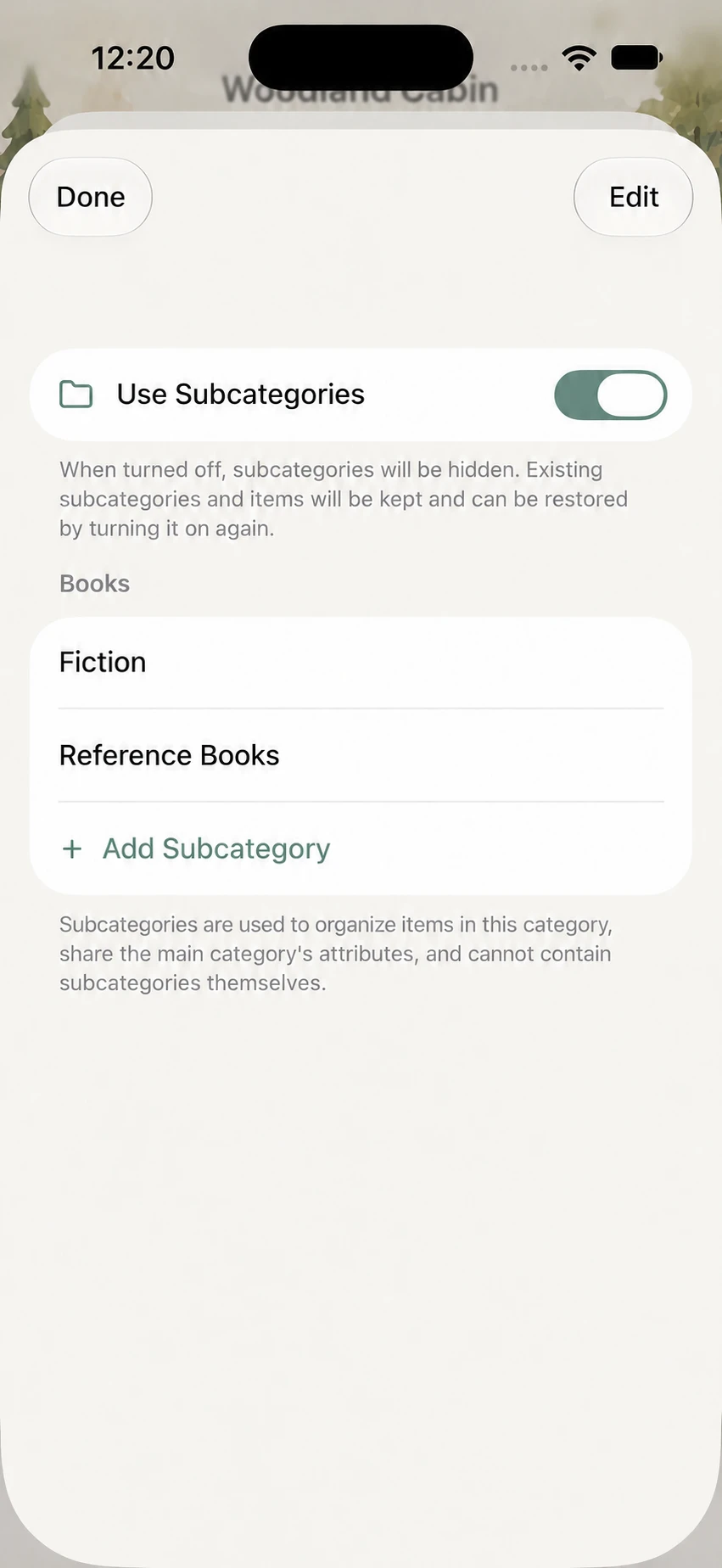
Names must be nonempty and unique within the same main category. Do not create look-alike groups by adding spaces or changing English capitalization.
Creating a subcategory does not assign existing items. Books already saved still need an edit or batch assignment to join Fiction.
Adding and renaming each save in the management page. Tap Done to return. If you also change the main category’s name or template, save those changes in the main category editor.
Assign an Item
When Adding an Item
- Open Add Item and enter a name.
- Choose Books as the main category.
- Choose Fiction in the category picker or Subcategory (Optional) area of the form.
- Check the main category, subcategory and physical location, then save the item.
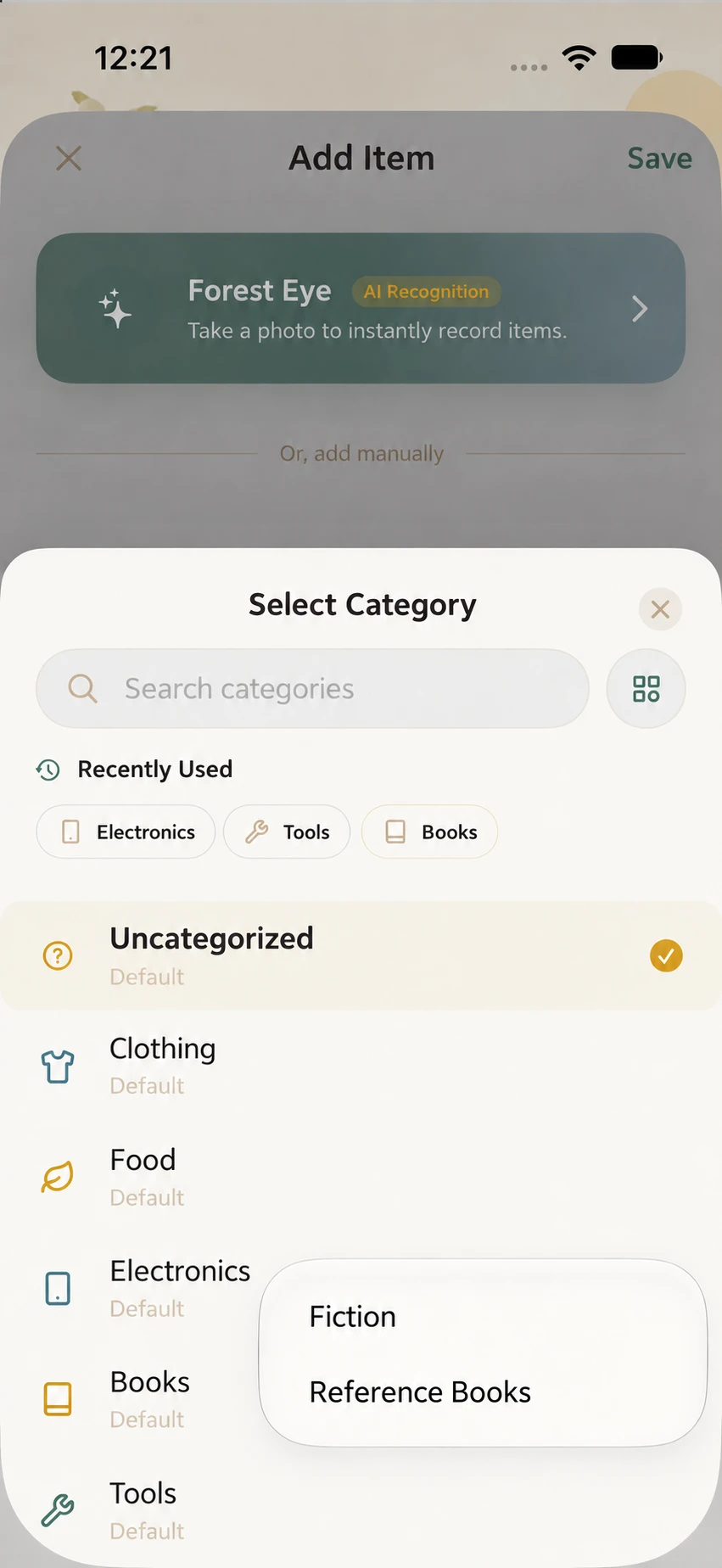
Choose No Subcategory if undecided. This is optional information; you do not need to build every group before saving your first item.
Editing an Existing Item
- Open its details and choose Edit from the action menu.
- Confirm the main category is Books.
- Choose Fiction and save.
- In the Items tab, filter Books and then Fiction to find it.
Selecting a group is not enough: save the item. Creating a group or closing the editor does not complete assignment.
After Changing the Main Category
A subcategory belongs to its main category. Changing Books to Clothing cannot retain Fiction. Choose a Clothing subcategory or No Subcategory, and check that the new fields suit the item.
Batch-Organize Existing Items
Narrow the Items tab to the items you want, then enter multiselection:
- Select a few records that genuinely belong together, such as several novels.
- Tap Category in the batch toolbar.
- Choose the destination main category and its subcategory.
- Wait for the update, then inspect a few records.
This sets both fields for every selected record. Selecting only a main category places them in No Subcategory; it does not preserve their different previous subcategories.
Start with a small batch and check the result before continuing. For important data, make a full backup first.
Find Items by Subcategory
Quick Filters in the Items Tab
Choose a main category. When subcategories are enabled and choices are available, another filter row appears:
- All: every record in that main category, including unassigned items.
- A named subcategory: only items assigned to that group.
- No Subcategory: records not yet subdivided. It appears only when that main category has items without a subcategory (or when it is already selected).
Choose Books, then Fiction. To see all books again, choose All in the subcategory row. To see the entire forest, also clear the main category and any other filters.
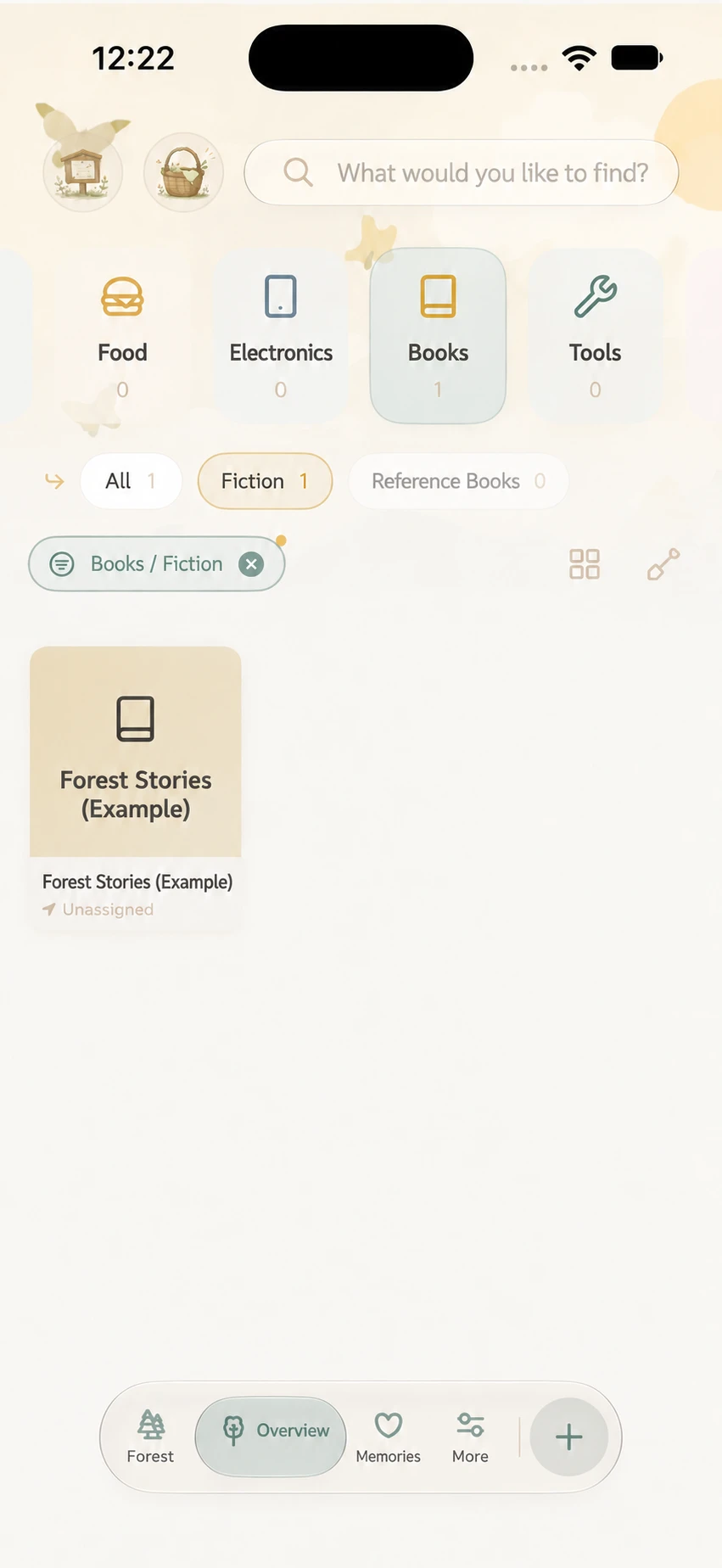
Multiple Groups in Advanced Filters
Open the filter panel and choose a main category under Basic → Category. You can select several of its subcategories, including No Subcategory. Fiction plus Reference means either group qualifies; location, tag and other conditions still narrow the result. Apply the panel’s changes as indicated. See Search and Filters.
View from Management
Touch and hold a subcategory and choose View Items to browse its inventory records and open details. An empty group shows an empty state; it does not mean creation failed.
Rename and Reorder
Tap a name to rename it, or use Rename in its long-press menu. Saving changes the same group; existing items do not need reassignment.
With Use Subcategories enabled, tap Edit in management, drag the order and finish editing. This controls subcategory options, not the sort order of the items themselves.
Disable, Delete or Merge
Turn Off Use Subcategories
Selection and filtering disappear and filters return to the main category’s scope. Groups and item assignments remain, ready to use when you enable it again. This is useful for temporarily simplifying a form; it does not clear every item.
Delete a Subcategory
Swipe the group left, or use Delete in its long-press menu. Read the confirmation before proceeding. Items remain in the main category under No Subcategory; their attributes, photos and history remain. Creating a new group with the same name does not restore previous assignments. Assign them again individually or in a batch.
Merge Main Categories
Subcategories and their items move into the destination main category. If both categories have a subcategory with the same name, rename one first. For example, distinguish two Fiction groups before merging Reading into Books if you need to keep them separate. Afterwards, check fields and assignments. Follow the category merge confirmation: this is more than renaming a group.
Common Questions
Why Is There No Subcategory Option?
Check whether you chose Uncategorized, disabled Use Subcategories, or have not created any groups. Some compact pickers show the section only when choices exist. Return to More → Categories to manage them.
What Does ‘Waiting for Subcategory Sync’ Mean?
The item has a saved association but its group details have not arrived locally. Wait for sync and reopen the page. Do not recreate the same group or switch to No Subcategory just because it is waiting; the latter changes the item’s assignment.
Why Can I Not Find an Assigned Item?
Confirm the edit was saved, then clear extra location, tag or status filters. Check the main category and whether the current list excludes hibernation, memories or the recycle bin. An absent row does not prove deletion.
Can Groups Have Independent Fields or Another Level?
No. Set fields in the main category template. Use separate main categories for different templates, or a tag for a theme spanning categories.
A Beginner’s Finish Line
Create Books → Fiction, save two books in Fiction and find them with the Items tab filters. Change one to No Subcategory and confirm it remains in Books → All. You now understand main categories, groups and unassigned records.
Continue with Categories and Custom Attributes, Tags and Backup and Restore.