Getting Started
App Version v2.5.1Create Your First Grove
Start by establishing a Grove for an intuitive living area, and understand the natural hierarchy between Groves, Locations, and Items.
Updated on Sep 27, 2026 ~10 min read
On this page
What Is a Grove?
A Grove is a primary organizing space in MononoMori. You can name it after broad real-life environments—such as “Home”, “Office”, “Studio”, or “Storage Unit”—to group your belongings naturally.
Two common ways to structure Groves:
- By Physical Territory: e.g., Home, Office, Vehicle.
- By Lifestyle Domain: e.g., Camping Gear, Photography Equipment, Seasonal Decor.
When starting out, choose whichever method feels most intuitive. There is no need to plan complex hierarchies right away; Grove names and appearances can always be updated later.
Creating a Grove
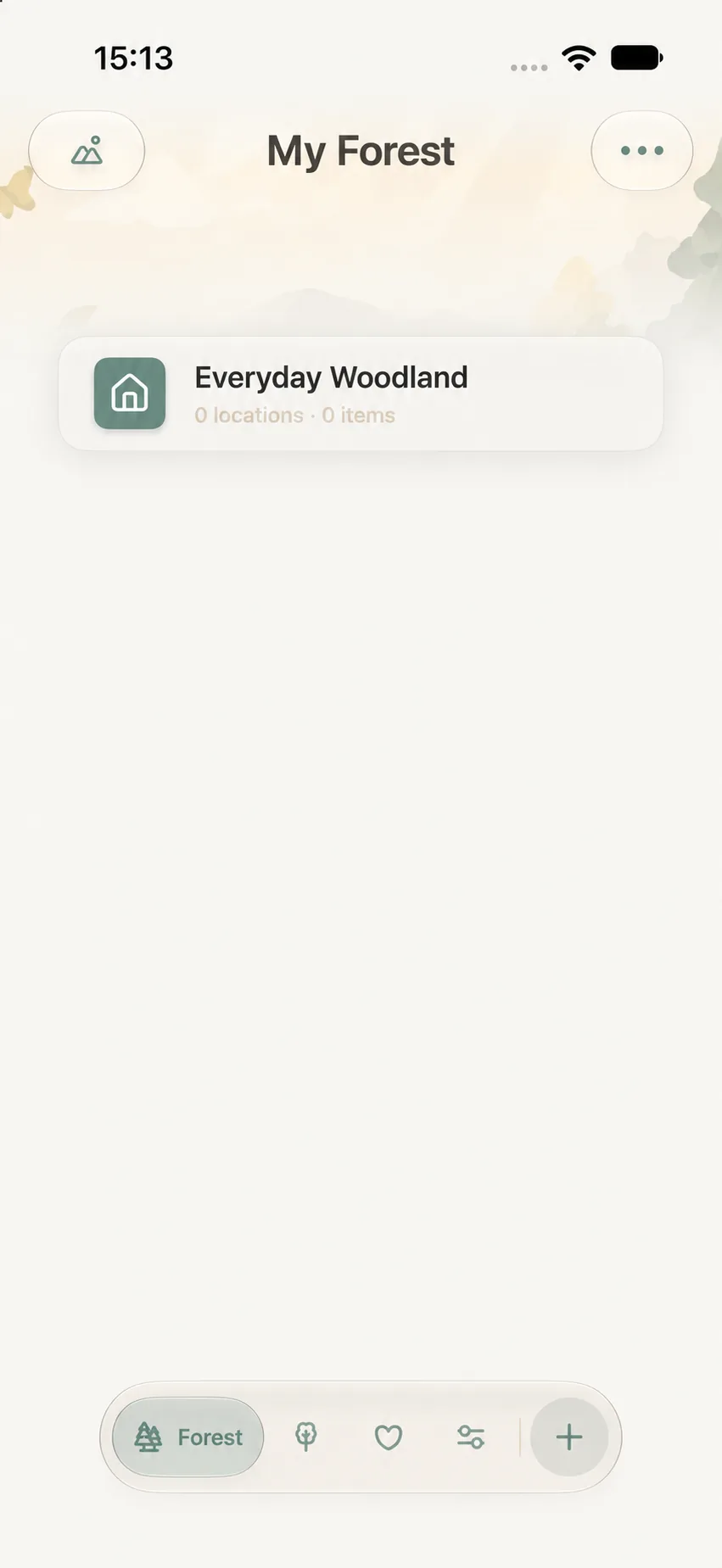
- Tap Forest on the bottom navigation bar to open the Forest view.
- Tap the ··· more menu in the top-right corner.
- Select Create Grove.
- Enter a clear, easily recognizable name. The name is the primary required field.
- Optionally choose an icon, color, or cover photo.
- Tap Save in the top-right corner.
Once saved, return to the Forest screen to confirm your new Grove appears.
Deciding When to Add Locations
Inside a Grove, you can create one or more Locations to pinpoint specific storage spots, like “Entryway Drawer”, “Bookshelf Tier 2”, or “Blue Storage Bin”. Locations can be nested further, but you don’t need to over-complicate things right away.
Create a location when it genuinely helps you find things:
- If an item lives permanently in a specific drawer or bin, creating that location makes finding it effortless.
- If an item doesn’t have a fixed spot yet, save it directly to the Grove first and assign a detailed location later.
- If a cabinet holds only a few items, simply name the location “Cabinet”—there’s no need to subdivide into “Top Left Tier”.
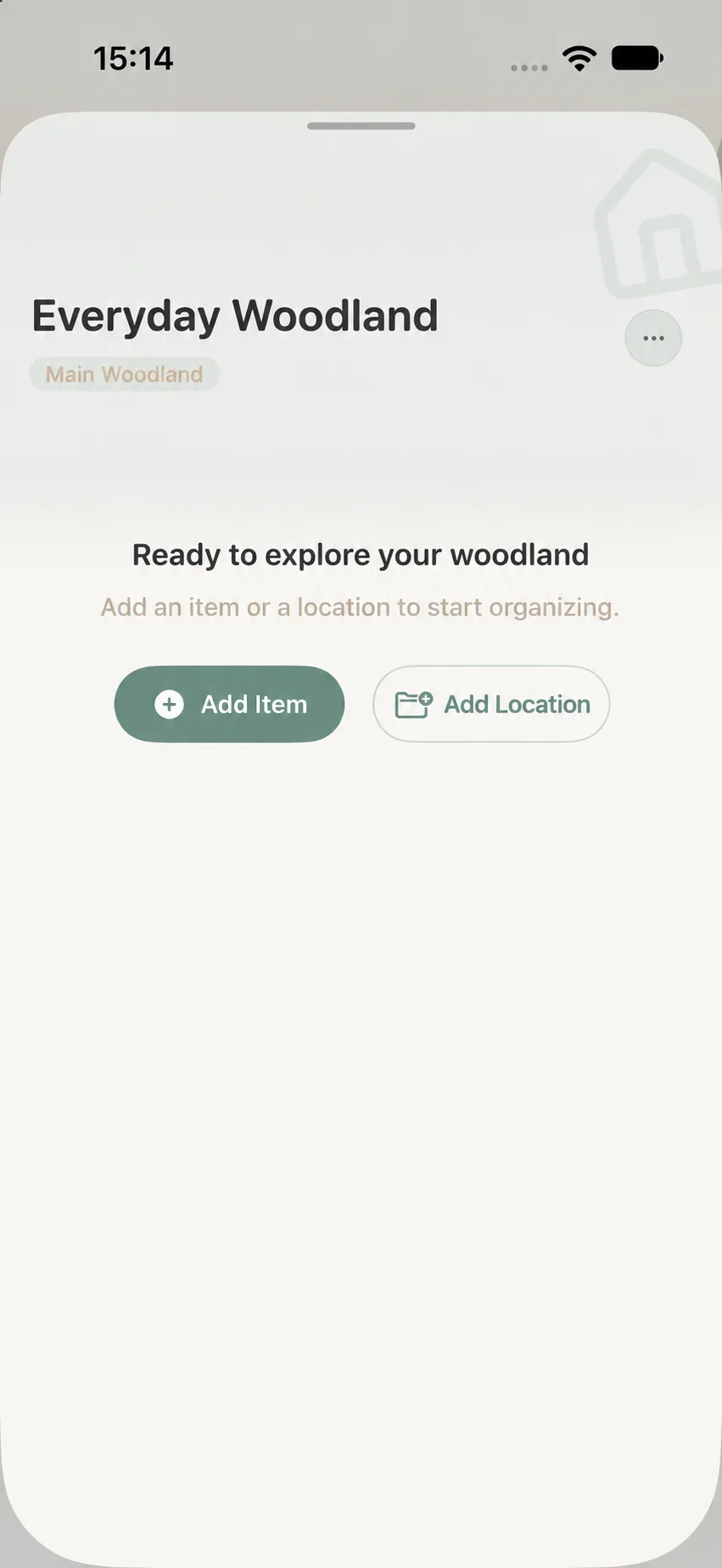
To add a location, open the target Grove, tap Add Location, enter a name, and save.
A Gentle Beginner Example
If you want to start by organizing your study:
- Create a Grove named “Study”.
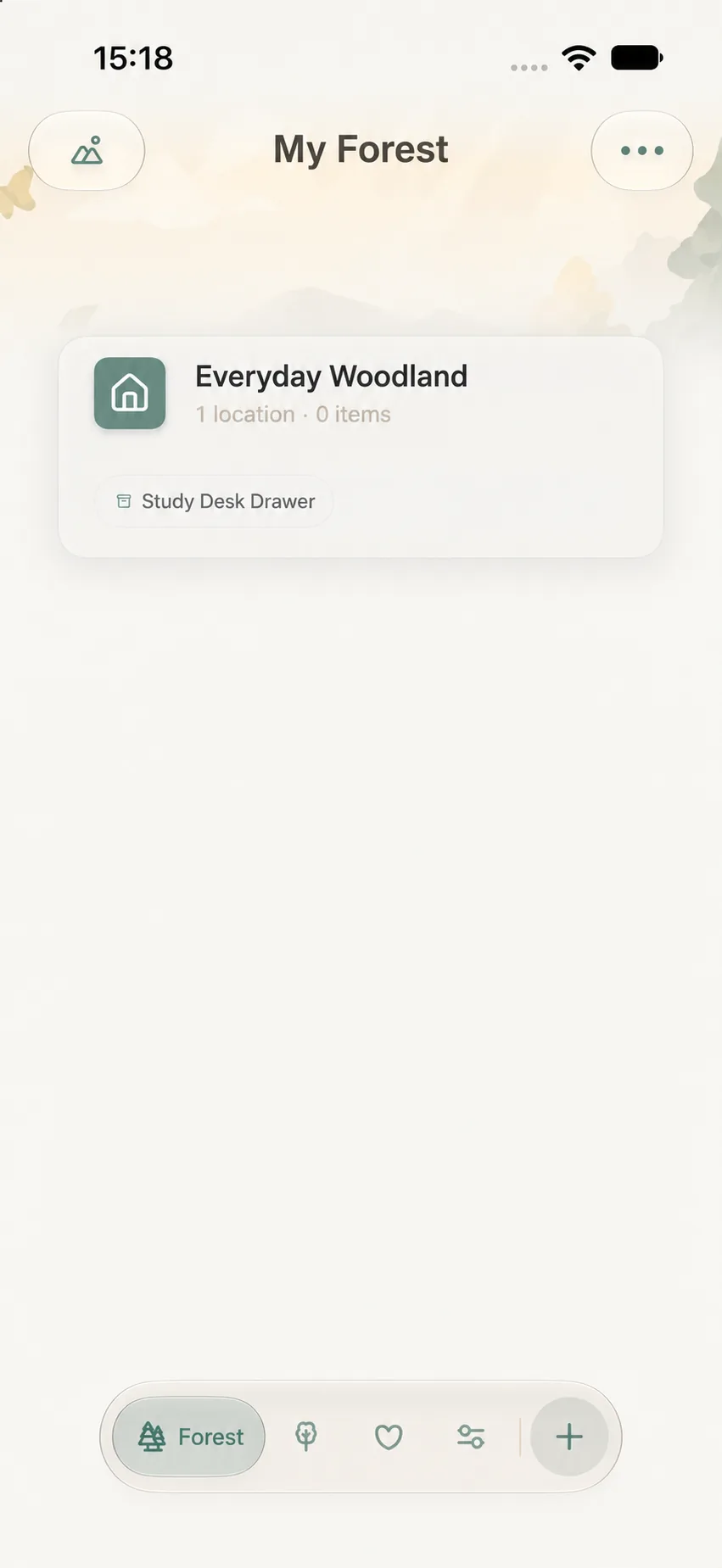
- When you want more precision, add “Desk Drawer” or “Bookshelf” as Locations.
- When adding items, choose the corresponding Location. If you prefer to stay fast, you can simply record the item’s name first.
This allows your cataloging to take root immediately without having to map out your entire home beforehand.
Managing Your Groves Later
- Edit Name & Theme: Open a Grove card, tap ··· and select Edit to update its name, icon, color, or photo.
- Pin Important Groves: In Forest list view, swipe left on a Grove card and tap Pin Grove to keep it at the top of your list. You can also long-press the card and choose Pin Grove from the menu. Use Unpin Grove to undo it.
- Reorder Groves: In list view, tap ··· in the top-right and choose Reorder to drag Groves into your preferred sequence.
- Deleting with Care: In Forest list view, long-press a Grove card and choose Delete Grove. As the confirmation dialog says, all Locations and items inside it are deleted too; these items do not go to the Recycle Bin. Always export a backup and move items you wish to keep to another Grove before deleting.
Next Steps
Now that your Grove is established, proceed to Add Your First Item or explore Groves and Location Architecture.