Memory Handbook: Create Your First Handbook
Discover Woodlands, Memory Forest, and Memory Handbook from a fresh perspective. Learn how to navigate to the feature, create your first handbook, and select the ideal page dimensions and cover themes.
Page Overview
Start with a single object, photo, or thought, and personally weave fragments of your life into a keepsake handbook
“Memory Forest preserves every departed object; Memory Handbook lets you handpick materials to craft chapters of your living story.”
💡 Navigation Guide: This guide begins from your very first encounter with Memory Handbook, introducing core concepts, navigation entries, and handbook creation. Continue with: Adding Content & Designing Pages, Reading & Organizing Your Shelf, and Exporting & Preserving Your Work.
🌱 Before You Begin: Distinguish Three Spaces
MononoMori features several concepts with related names. Clarifying what each does prevents confusing “recording belongings” with “creating handbooks”:
| Space | Mental Model | Primary Contents |
|---|---|---|
| Woodland | Your active storage realms | Items currently in use or preserved across home, office, and hobbies |
| Memory Forest | Memorial archive for departed belongings | Departure reasons, stories, dates, and Moments in Time for retired items |
| Memory Handbook | Personally curated thematic journals | Handpicked item elements, photos, writings, and decorative stickers |
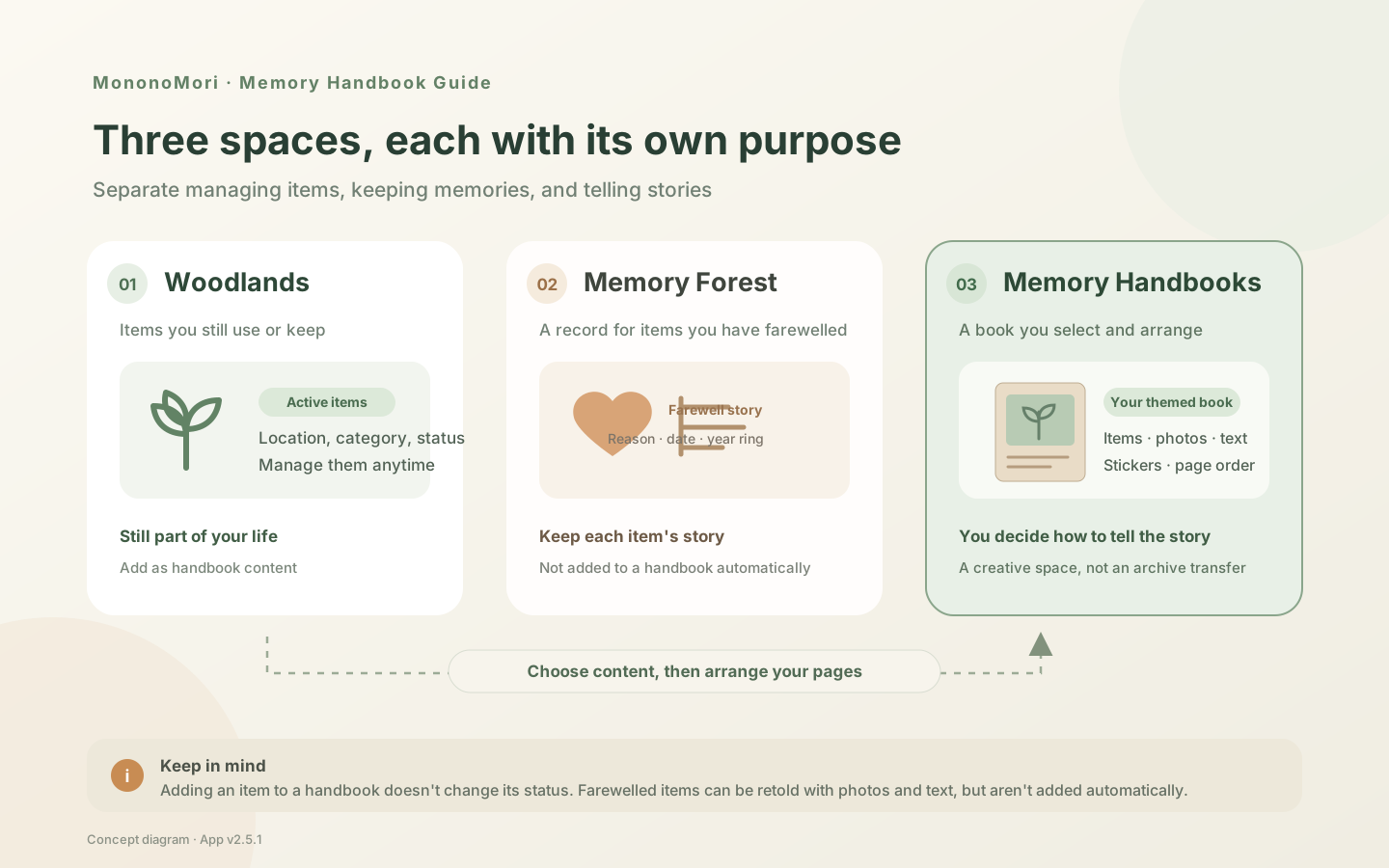
An “active item” is a possession still living in your woodlands. You can place it as an element on a handbook page, but doing so will never move it out of its woodland or alter its inventory status.
Memory Handbooks do not automatically compile all Memory Forest records into a book. Instead, they act as freeform digital scrapbooks: you decide the theme, select elements, and design the layout. For details on how departed items are archived, read Memory Forest & Moments in Time.
Can I Start Without Any Items?
Yes. You do not need existing item records to create a handbook; you can add photos, text notes, and stickers directly onto blank pages. If you wish to embed an item element, add it to your woodland first; see Adding Your First Item.
📍 Finding Memory Handbook
- In the bottom navigation bar, tap “Memories” (heart icon) to enter Memory Forest;
- Scroll down through the page to locate the “Memory Handbook” section;
- Here you will see recently edited handbooks alongside the Memory Shelf entry. Tap any handbook cover to open it, or tap the shelf entry to view all books, start a new project, or organize your collection;
- If you are currently searching through memories, cancel search mode to reveal the handbook shelf.
If you are visiting for the first time, the shelf displays an invitation. Tap “New” to begin.
📖 Creating Your First Handbook
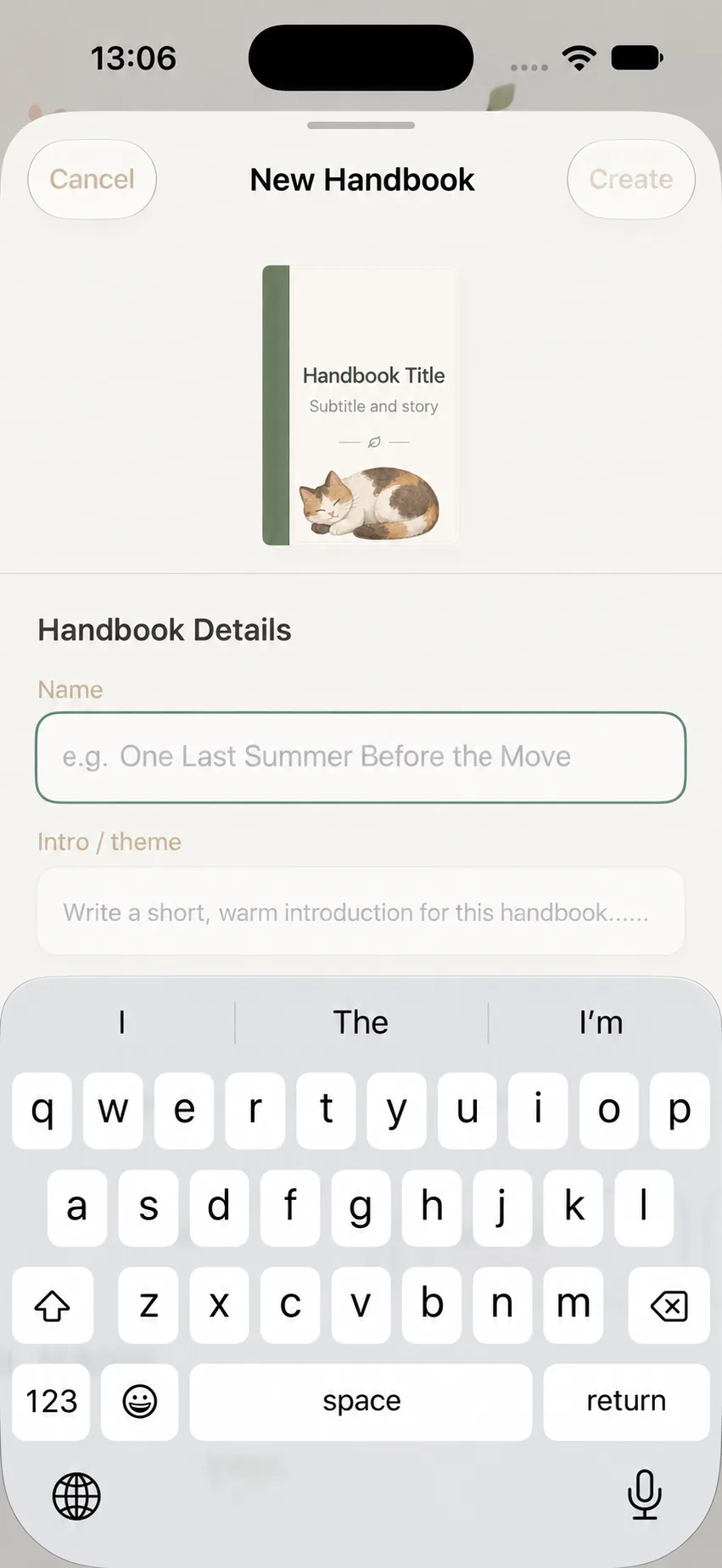
Tapping “New” reveals the creation sheet. The top features a live cover preview, while book details and theme settings are configured below.
Step 1: Name Your Handbook
The title is required. Choose a clear, distinct theme rather than a generic name like “My Memories”. For example:
- “First Year in Our New Home”
- “Hokkaido Winter Journey”
- “Grandmother’s Treasured Keepsakes”
- “Little Milestones of Childhood”
You can rename your handbook at any time.
Step 2: Add an Optional Introduction
The summary or dedication is optional. Write a thoughtful message like “Documenting the journey of turning an empty apartment into our cozy home.” You can always add or refine this later from “Edit Cover” on the shelf.
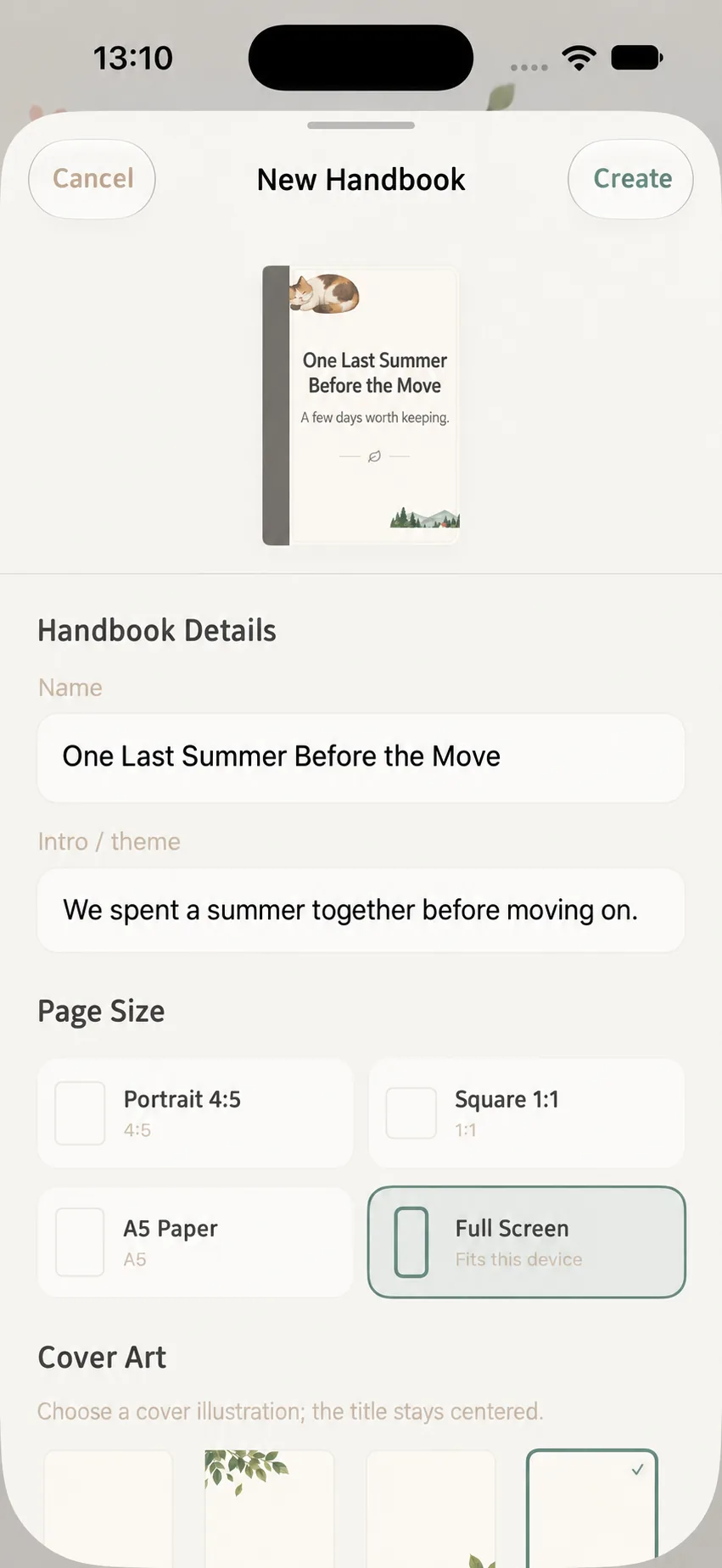
Step 3: Choose Page Dimensions
Select from the following canvas aspect ratios:
- Full Screen: Matches vertical smartphone displays, ideal for mobile reading;
- Portrait 4:5: Classic photo and story layout;
- Square: Perfect for pairing individual photos with brief reflections;
- A5 Paper: Matches traditional paper journal dimensions.
Page dimensions set the shape of your canvas and guide layout placement. You can also adjust dimensions later in the page editor.
Step 4: Choose Cover Design & Theme
Pick decorative cover motifs and color palettes. Check the live preview at the top to choose a style that reflects your project’s tone.
This configures the book exterior. Once created, you can also designate any interior page as the cover preview; see Reading & Organizing Your Shelf.
Step 5: Create and Open
Tap “Create”. Your new handbook opens with an initial blank canvas, ready for your thoughts, photos, and belongings.
🧭 Planning Your First Handbook
Beginners often wonder where to start. Choose a small, focused theme and map out what each page will explore.
For example, “Moving Into Our First Home”:
- Page 1: The Beginning — Note the moving date and your excitement;
- Page 2: Spaces Transforming — Side-by-side photos of empty rooms becoming lived-in spaces;
- Page 3: Faithful Companion — Feature an everyday item you love using in your new space, with a note on why it matters;
- Page 4: Reflection — Capture your favorite sunny corner today.
Even a single page with one photo and a thoughtful note is a complete and meaningful start.
✨ Free vs. Pro: Understanding Limits
The Free plan allows 1 handbook with up to 5 pages. Pro members enjoy unlimited handbooks and pages.
Free plans support PNG export with a gentle watermark; PDF export and watermark-free exports require Pro. See Exporting & Preserving Your Work for details.
If subscription status changes and existing counts exceed free limits, existing handbooks are never deleted, though creation and export may prompt for upgrades.
❓ Frequently Asked Questions
Q1: What is the difference between Memory Handbook and Memory Forest?
Memory Forest stores archives and Moments in Time for departed items. Memory Handbooks are creative books where you curate and design custom story pages.
Q2: Does adding an item to a handbook move or duplicate it?
No. The item is simply embedded as an illustrative element; its woodland location and active status remain unchanged.
Q3: What if I selected the wrong page dimensions?
Open the page editor and tap “More” in the top right corner to switch dimensions.
🌲 Next Step
Ready to design your first page? Continue to: Memory Handbook: Adding Content & Designing Pages.