Data Management
Updated for v3.1.0Forest Backup & Restoration
Learn about Data Management entries, backup health status, in-app backup retention rules, and how to verify records and changes before restoring.
Updated on Oct 6, 2026 ~20 min read
On this page
“Backups help you retain a reliable, restorable copy of your records before switching devices, conducting major decluttering, or in case of accidental deletions. Always keep copies outside the app for critical data.”
In MononoMori, logging belongings not only brings order to daily life but also safeguards important personal memories and documentation. Data Management provides synchronization, backup, restore, and storage utilities; understanding their scopes helps you protect and migrate your data seamlessly.
Whether preparing to upgrade devices, creating an archive before home reorganization, or sharing data with family members, all tools are unified within Data Management.
Finding Data Management
Accessing Data Management takes just two simple steps:
- Open the “More” tab in the bottom navigation bar.
- Under the “Care Tools” section, tap “Data” to open the Data Management page.
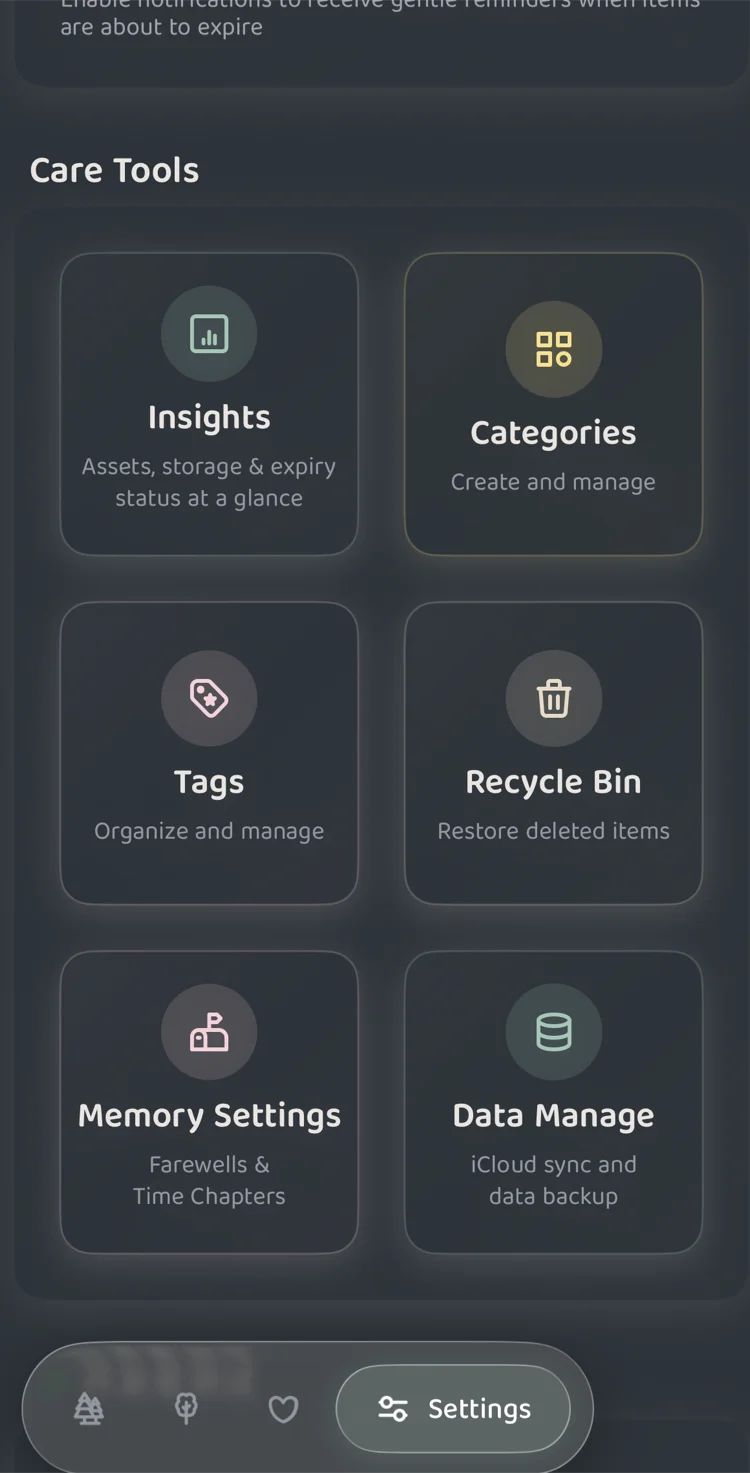 Figure 1: Tap "Data" under Care Tools on the More page
Dashboard Overview: Your Data Command Center
The dashboard presents a transparent layout where all critical statuses are visible at a glance:
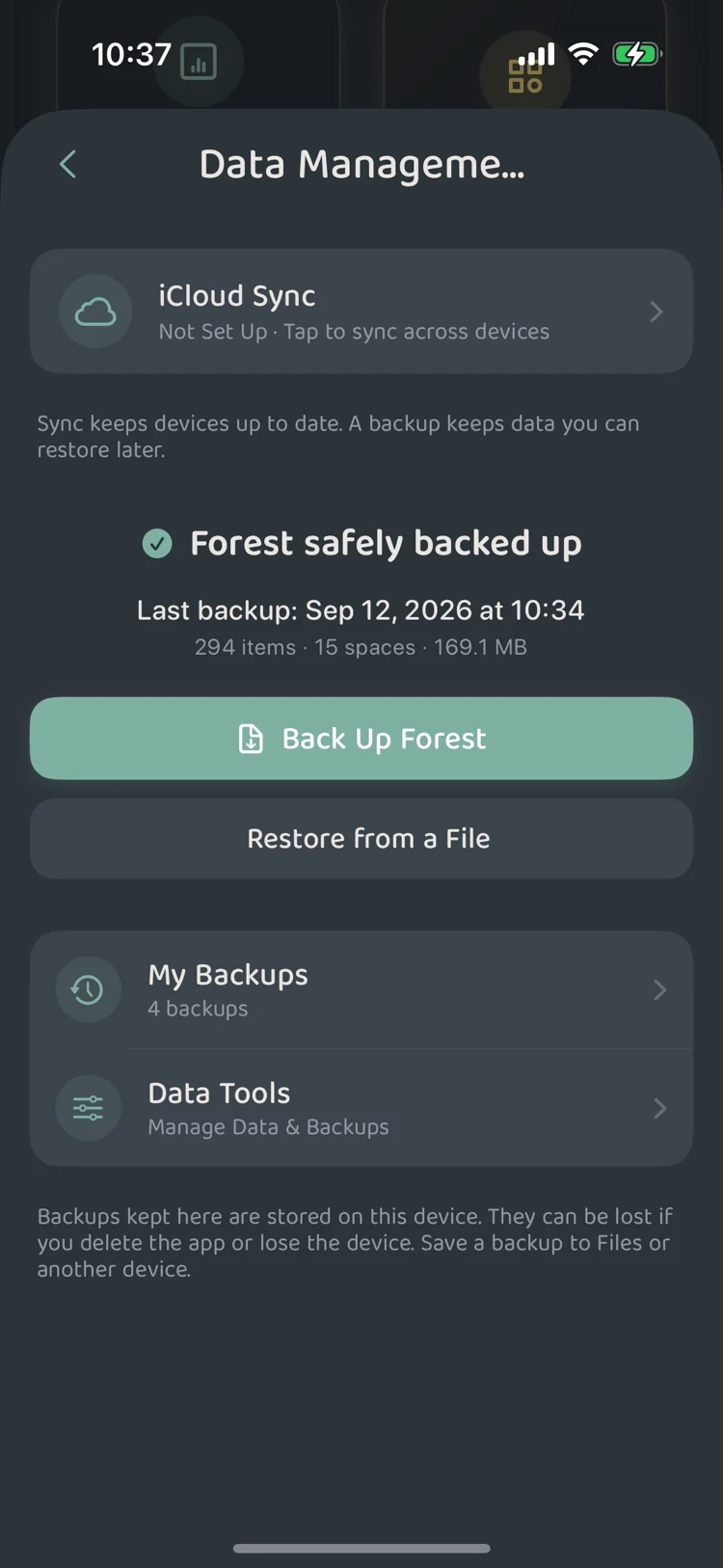 Figure 2: Data Management center main interface
Core Features
- iCloud Sync: Displays whether synchronization is set up, in progress, or facing network or storage constraints.
- Backup Status Card:
- Highlights the most recent manual backup timestamp, item count, space count, and file size.
- Verification badges indicate that the file was generated and validated successfully.
- Two Primary Action Buttons:
- Back Up Forest: Packages an instant full backup of current forest data and original attachments.
- Restore from a File: Runs pre-checks on selected backup files and displays an import preview before applying changes.
- Quick Management Entries:
- My Backups: Review historical backups stored locally on this device.
- Data Tools: Access storage breakdowns, “Export as Spreadsheet” (a CSV file), and maintenance utilities.
Important Note: In-app backups reside in local app storage; uninstalling the app or losing your device can prevent retrieval. For vital archives, open backup details, tap “Save to Files”, and confirm storage in a safe location such as iCloud Drive or an external drive.
Creating & Inspecting Backups
Tapping “Back Up Forest” packages all current grove data, high-res photos, and attachments. Keep the app in the foreground during packaging and ensure sufficient device storage.
Once compiled, tap the backup entry to inspect its detailed card:
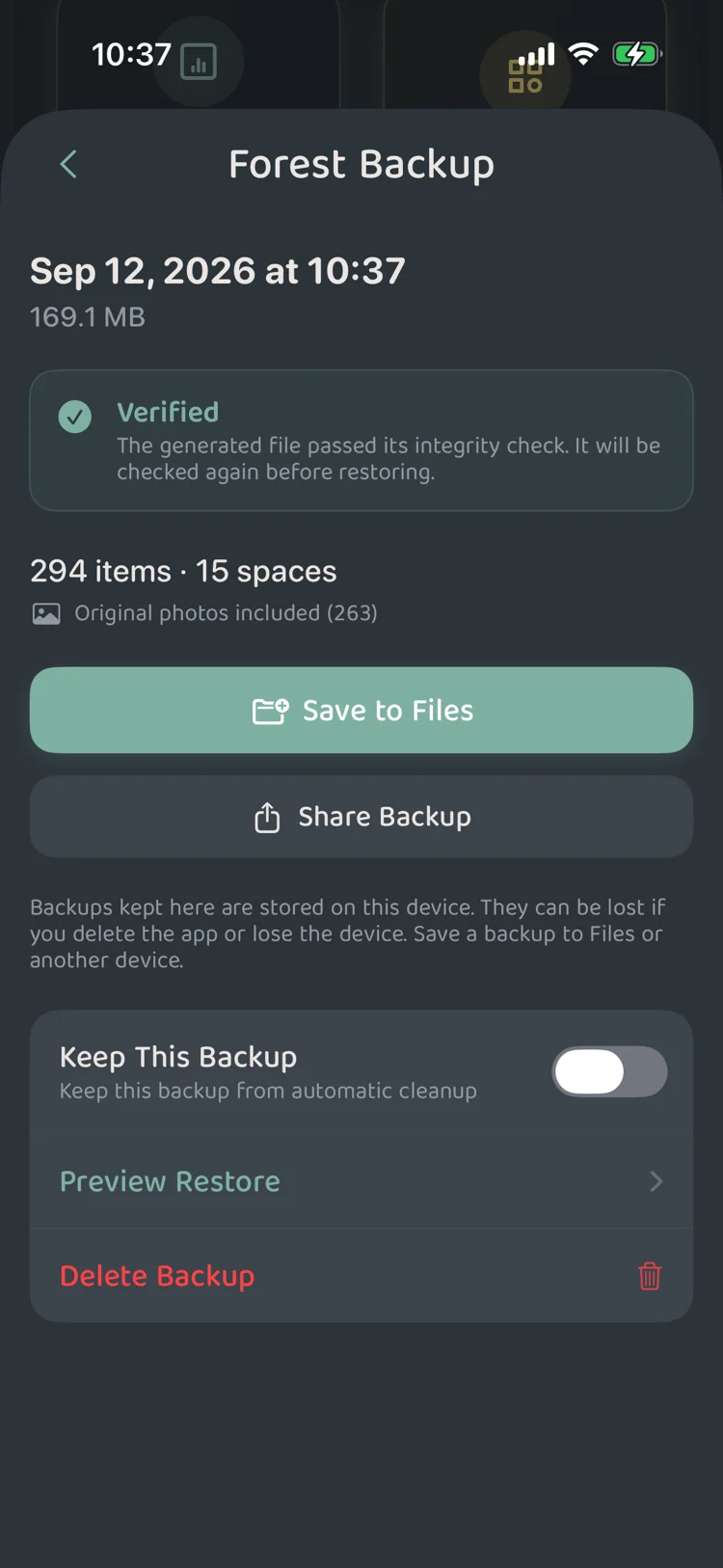 Figure 3: Backup details and safety actions
Preserve new category and stamp data
A complete .forest backup in the new version includes subcategory definitions, item assignments and collected stamps. The receiving device needs a compatible version. Update an older app before inspecting the restore preview if it cannot read the new format. CSV files and exported Memory Book PNG/PDF pages do not replace this complete backup.
Successfully creating a complete manual backup meets the Forest Safekeeping stamp condition. MononoMori never creates backups automatically. The protection backup made before a restore, incomplete backups and CSV exports do not count. Check completeness first, then view the Forest Stamp Book. A stamp does not replace checking the file and where you saved it.
Status & Operations Inside Backup Details
- Integrity Status:
- “Verified” indicates the backup passed internal checksum validation and will be validated again prior to restore.
- Photo Counts & Attachments:
- Displays the count of included original photos and documents.
- Export & Sharing:
- Save to Files: Save the backup directly into Apple’s Files app or external cloud storage.
- Share Backup: Share via AirDrop or messaging apps with family members.
- Pin to Keep This Backup 📌:
- Toggling this on exempts the backup from automatic lifecycle cleanup rules.
- Preview Restore:
- Inspect the contents and simulated merge changes before deciding to import.
My Backups: Reviewing Stored Backups
Tap “My Backups” to browse historical archives stored on your device:
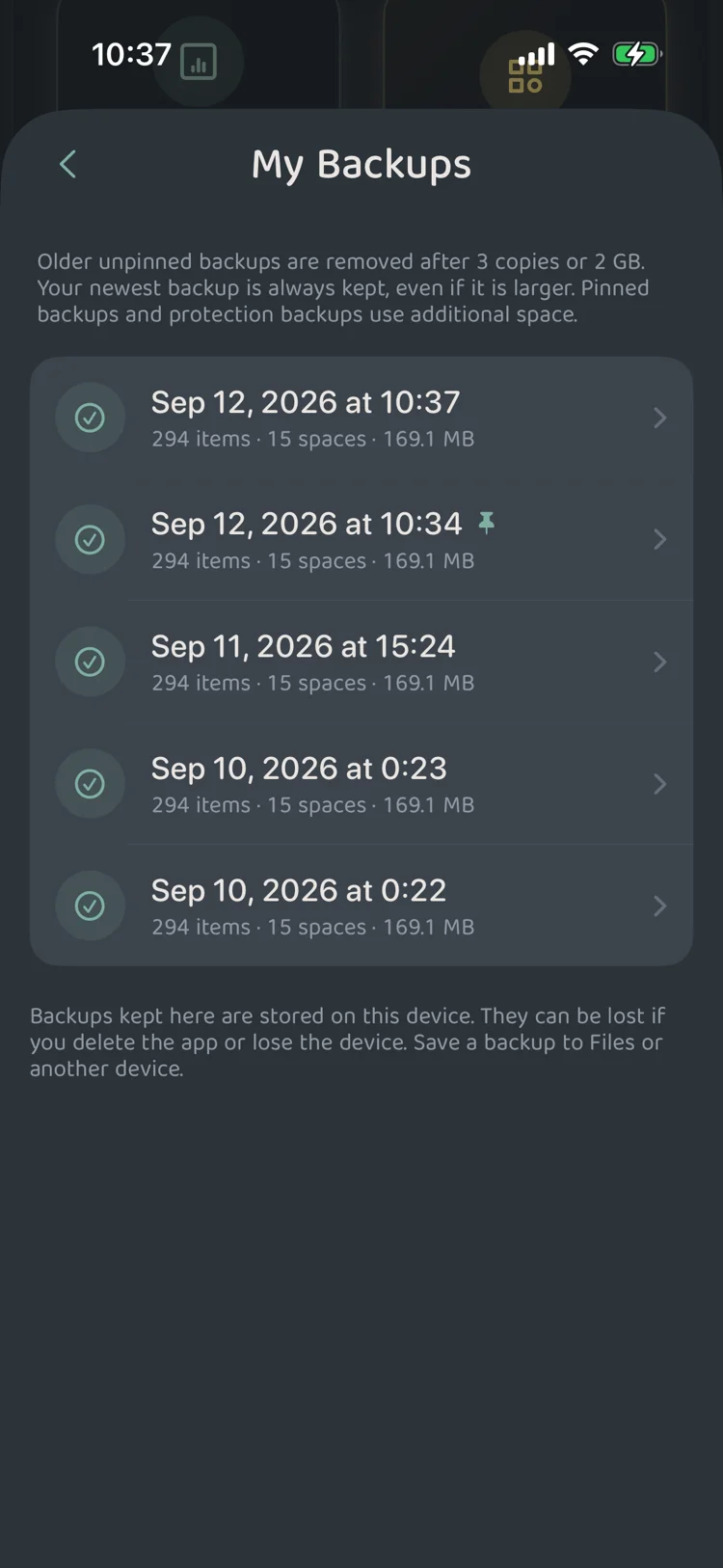 Figure 4: Historical backup list with pinned (📌) protection
Lifecycle & Cleanup Rules
Backups consume local storage. Unpinned older backups follow automated lifecycle rules:
- Unpinned Backups: When exceeding 3 copies or reaching 2 GB in cumulative size, older unpinned copies are systematically cleaned up.
- Latest Backup: The most recent backup is always preserved by lifecycle rules.
- Pin Significant Milestones:
- Always pin backups taken after whole-house reorganization or moving into a new home.
- Exporting a secondary copy to the Files app offers dependable protection against device loss.
Restore Previews: Inspect Before You Merge
Many people hesitate when restoring data, fearing overwritten recent items or duplicate records. MononoMori introduces transparent Import Previews before applying any changes:
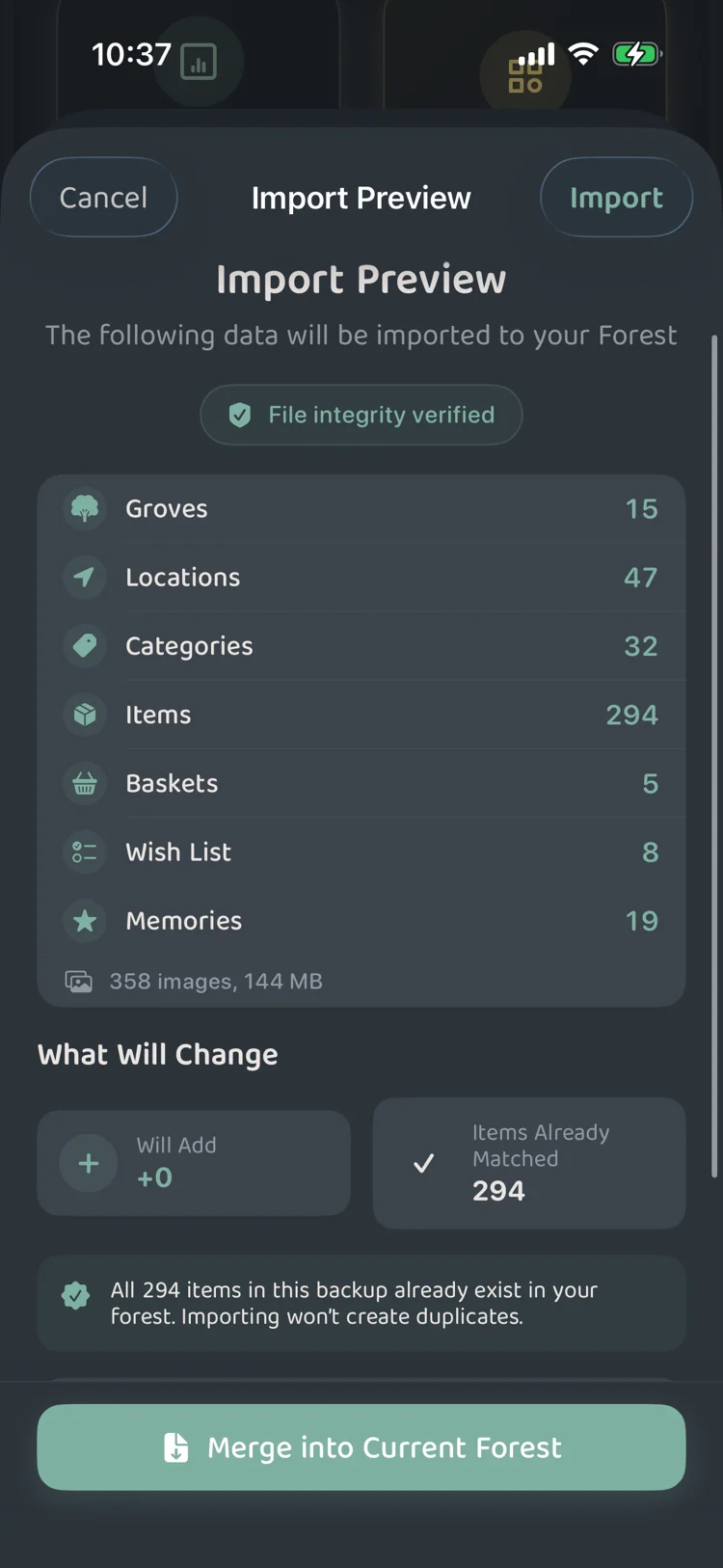 Figure 5: Transparent import manifest and comparison preview
Restoration Steps
- Select File: Tap “Restore from a File” or tap “Preview Restore” from an existing backup card.
- Pre-Check Analysis: The app inspects file readability, format version, and payload integrity.
- Review Manifest:
- Lists what the file contains: Groves, Locations, Categories, Items, plus Baskets, Wish List and Memories when the file has any, and the total number and size of photos.
- Inspect Changes:
- Shows projected additions and matches. Stable identifiers prevent duplicating identical records.
- Confirm Merge:
- MononoMori automatically creates a pre-restoration safety snapshot before merging records into your active forest.
- On the free plan, if importing would go over the free limits (30 items counted by quantity, 3 groves, 10 locations), the preview says the file cannot be imported and offers “Become a Forest Guardian to Import”.
Best Practices
- Archive Before Decluttering: Create a pinned backup before major seasonal purges or spring cleaning.
- Device Upgrades: Confirm iCloud Sync status or AirDrop a verified backup to your new device. If the new device is on the free plan and the backup exceeds the free limits, you need to become a Forest Guardian before you can import it.
- Sharing with Family: Remember that backups represent full forest datasets rather than isolated single baskets.