Getting Started
Updated for v3.1.0Explore the Forest
Explore MononoMori's built-in guide, including Home Screen Widgets, Subcategories, the Forest Stamp Book and everyday organizing tools. Find useful features, understand their entry points and try them at your own pace.
Updated on Oct 6, 2026 ~35 min read
On this page
Illuminating Grove Paths: Uncover Thoughtful Hidden Details and Practical Techniques at Your Own Pace
“In the depths of the forest, quiet wonders await. A gentle breeze at just the right moment, a sheltering haven waiting in silence—they reveal themselves softly as you wander. We light every trail through the woods, so that whenever you need it most, you will cross paths with just the right design.”
MononoMori honors visual restraint and the quiet beauty of white space. In everyday use, many powerful capabilities and subtle delights (such as two-way Item Connections, Zen swipe gestures, Basket Checklists, AI background cleanup, and batch management) are intentionally kept off the front screen, preserving an uncluttered and serene sanctuary.
However, this restraint sometimes brings a small challenge:
- Newcomers to the forest: Often stay limited to basic item records, unaware of the delightful companion tools hidden just around the corner;
- Longtime companions: As new features and nuances arrive with app updates, subtle enhancements are easy to overlook.
Explore the Forest first appeared in MononoMori 2.5.0 and continues to grow with the app. The current guide includes Home Screen Widgets, Subcategories and Memory Book. Browse practical ideas, learn where to find them and try those you need.
The Philosophy of Exploration: Unhurried Wandering
Unlike conventional software that bombards you with anxious “onboarding progress bars” or demanding red badge checklists, “Explore the Forest” is rooted in mindful serenity:
“Choose one that feels helpful right now. Save the rest for later.”
- Zero-Pressure Discovery: You are never pressured to master everything at once. Organizing is a lifelong companionship—simply glance at one or two relevant features whenever your daily life calls for them;
- Read First, Then Decide: Each card explains what the feature does, when it helps and where to find it. Some offer a button such as Try This Feature; others first show what needs to be set up or how you will meet the feature in normal use;
- Living and Growing with Every Update: This is not a static manual. With every MononoMori update, newly released capabilities and workflow tips are immediately added to “Explore the Forest,” lighting new paths for your journey.
How to Enter “Explore the Forest”
You can enter “Explore the Forest” at any time from your settings cabin:
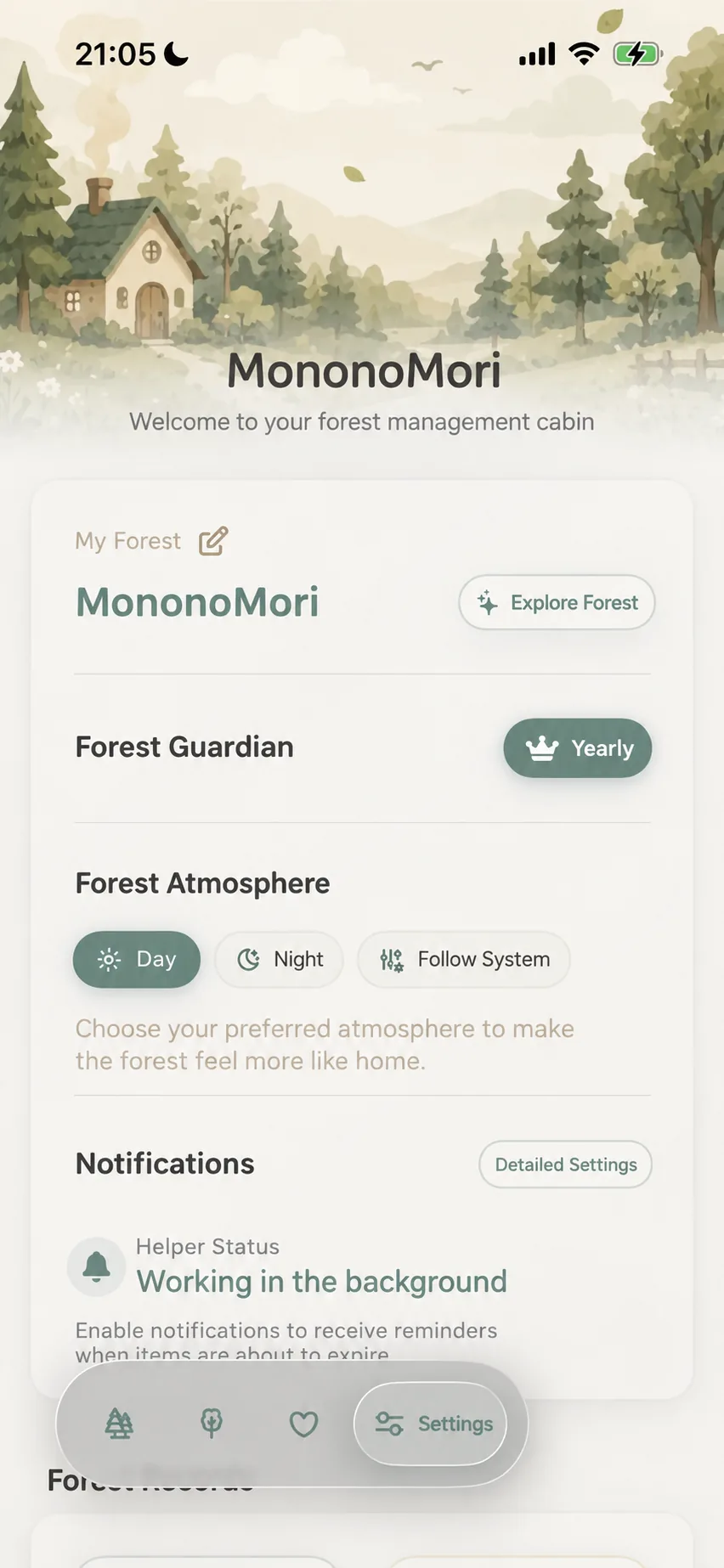 Permanent entrance: In Settings, tap 'Explore the Forest' next to your forest name
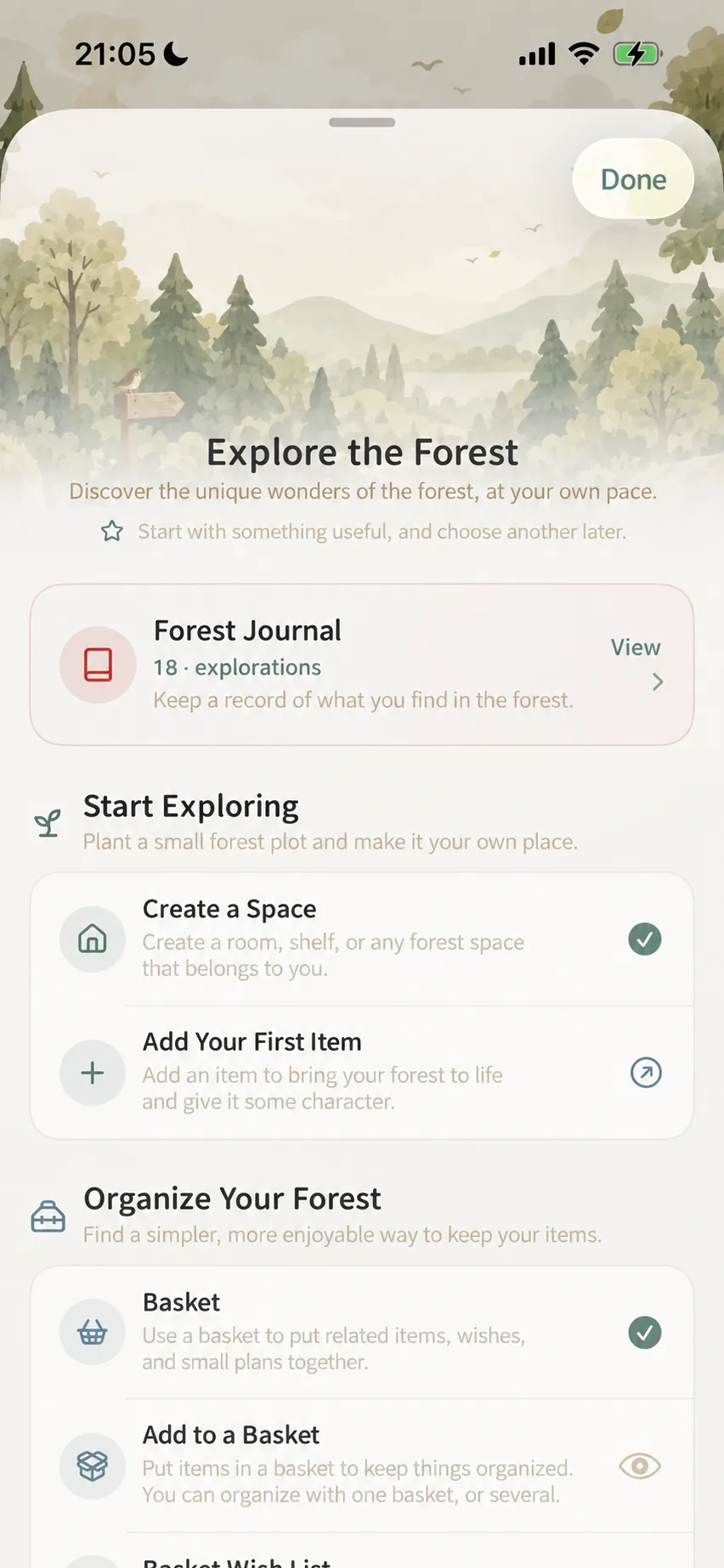 Main sheet: Top Forest Goshuin-cho stamp book with progressive modules below
- Tap the “Settings” icon (Forest Management Cabin) on the far right of the bottom navigation bar;
- At the top of the page, right beside your forest’s name, you will see an elegant capsule button: “Explore the Forest”;
- Tap the capsule, and the full exploration panel will gently glide up from the bottom of your screen.
Decoding “About This Discovery”: 3 Questions Answered
Tapping any entry in the exploration list opens a tailored “About This Discovery” card. Using three intuitive, life-centered perspectives, it answers all your practical questions:
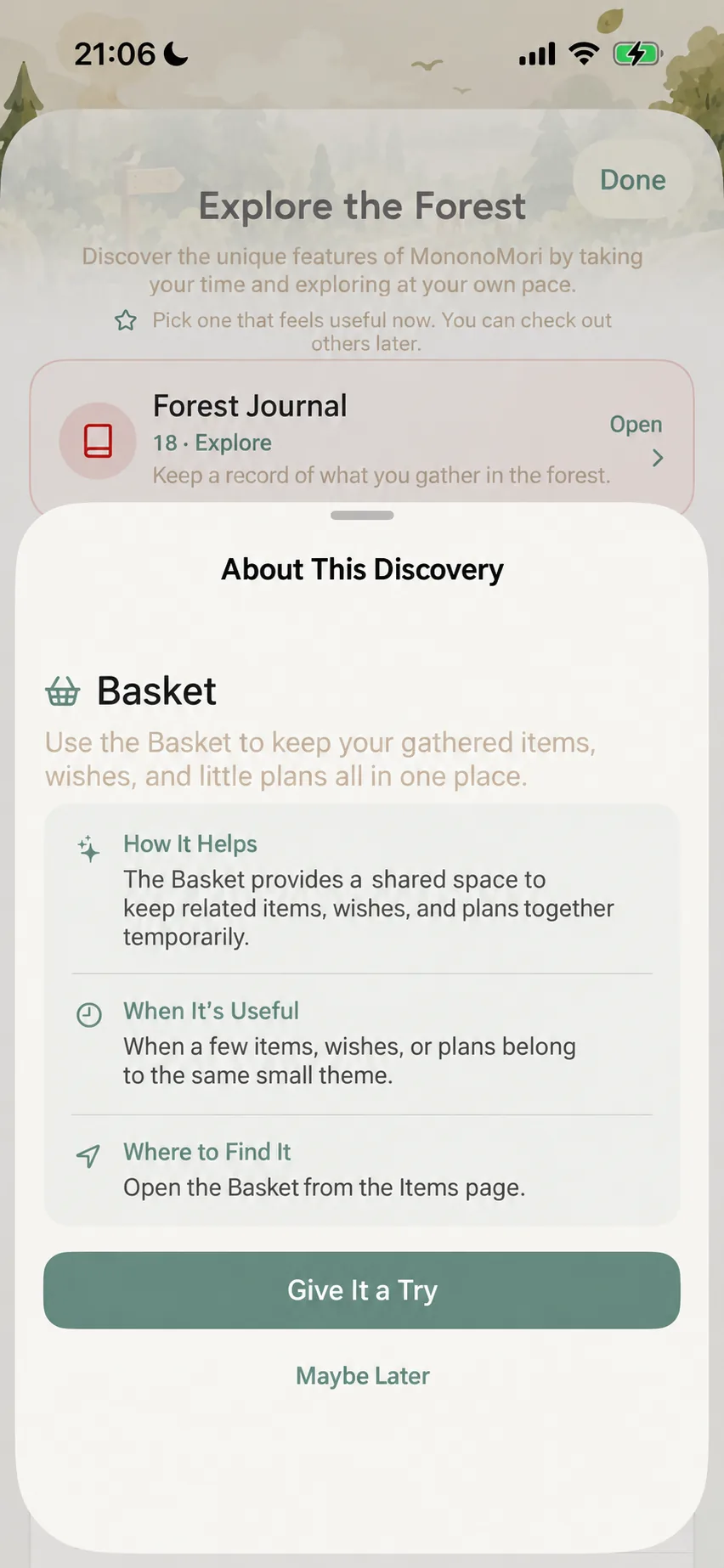 Discovery card: 3-dimensional life guide with a one-tap direct jump button
Take our beloved “Baskets” as an example:
- How It Helps You: “Baskets provide a shared temporary space for related items, wishes, and plans.” Cutting through jargon, it highlights the immediate value of the feature in simple daily terms;
- When to Use It: “When a cluster of belongings, wishes, or plans temporarily share a common theme.” Points directly to real-life triggers (packing for a trip, camp shopping, apartment remodeling);
- Where to Find It: “Open Baskets from the All Items overview.” Provides clear signposts so you always know where to locate it in the app;
- Direct Action: At the bottom of the card you will find the main action (such as Try This Feature) and an I Understand This for Now button. Depending on the feature, the main action opens the screen directly, walks you through a setup step first, or explains where you will meet it.
The Forest Map: 5 Exploration Realms
“Explore the Forest” thoughtfully organizes dozens of features—from first steps to advanced mastery—into 5 progressive realms:
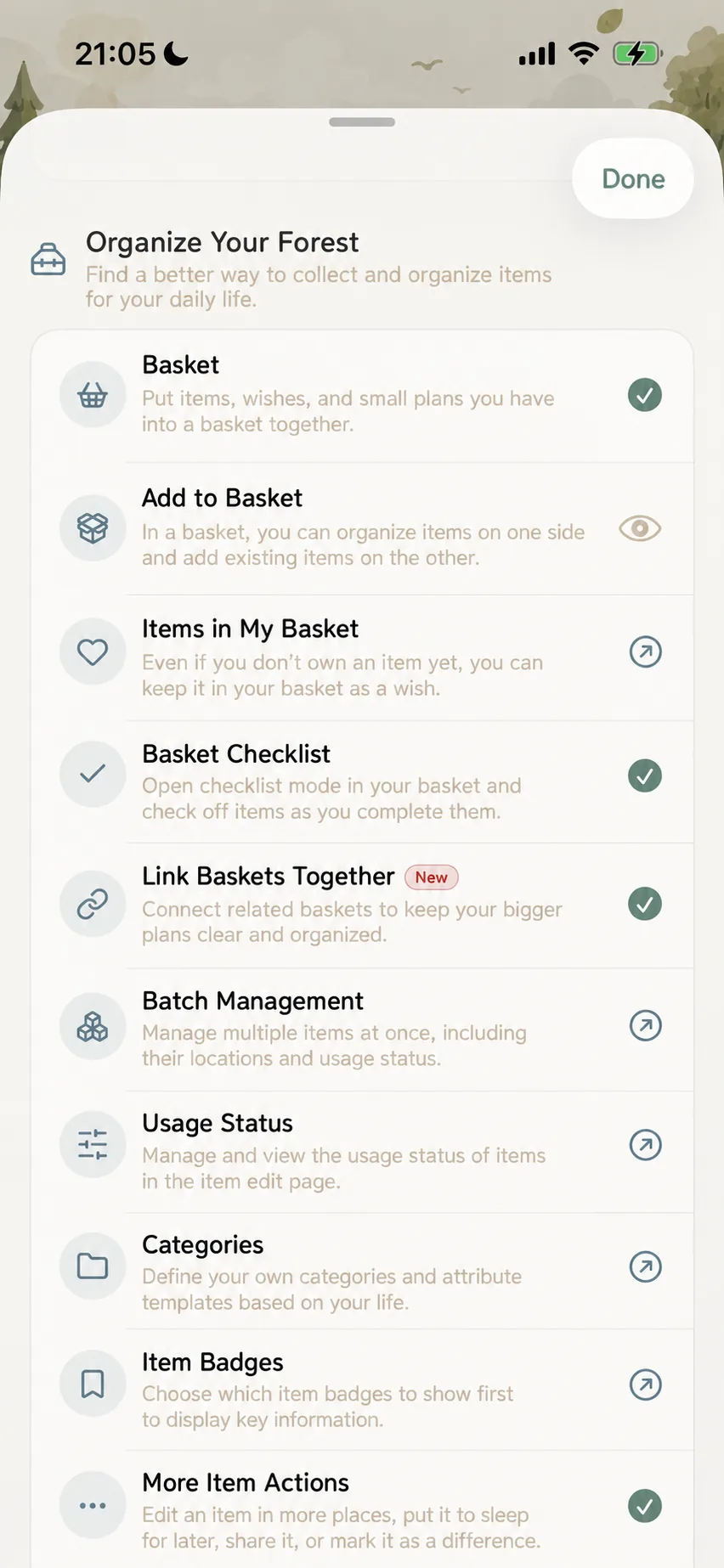 Organize the Forest: From Baskets and Connections to Batches and Custom Categories
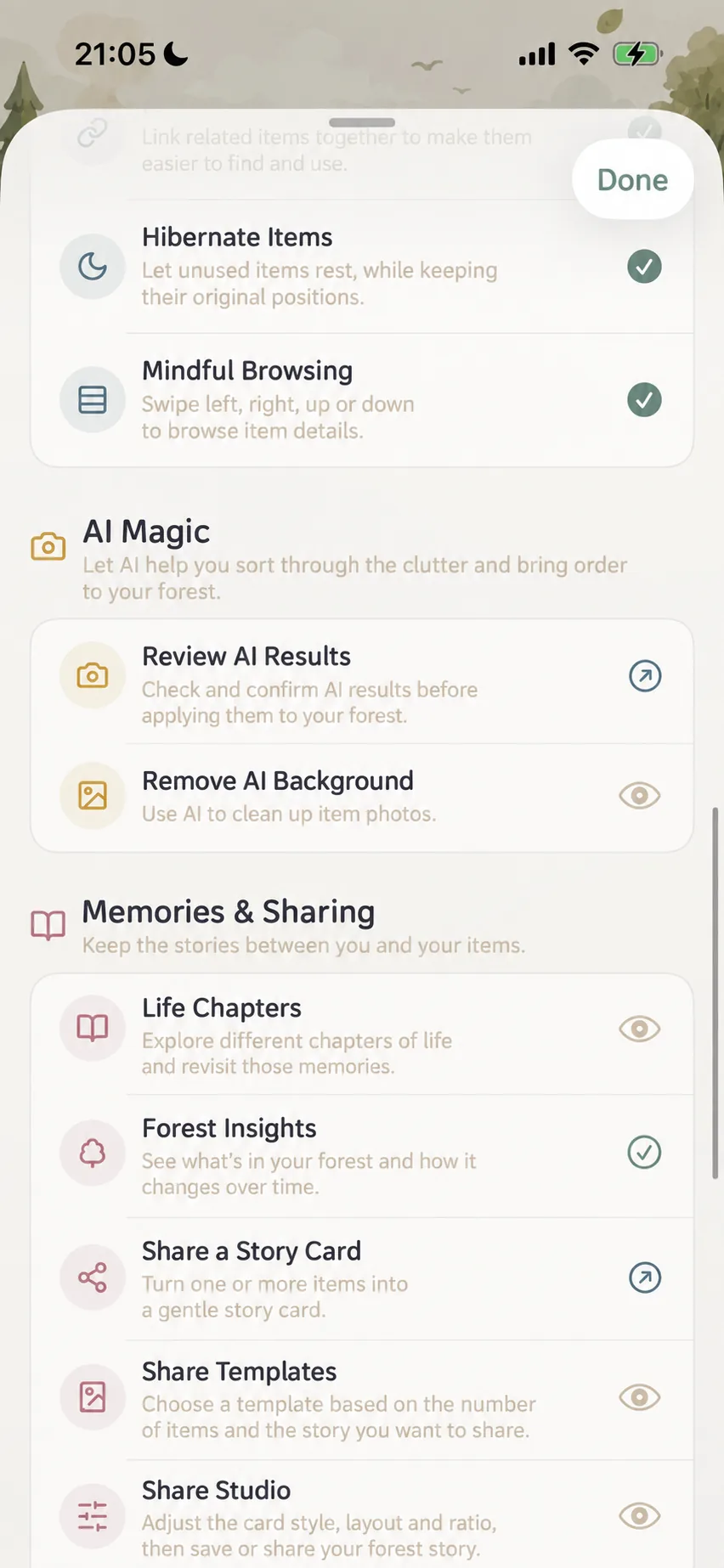 AI & Reflection: AI background cleanup, Life Chapters, and Story Share cards
1. Getting Started: Planting Your First Sapling
Designed specifically for newcomers:
- Create Space: Build rooms, shelves, or any sanctuary in your forest;
- Add Your First Item: Take photos and write names, filling your digital forest with daily warmth.
2. Organize the Forest: Mindful Custody of Daily Objects
The deep toolbox of MononoMori’s organization philosophy:
-
Baskets & Wishes: Gather existing items, future wishlists, and temporary project gear into one light vessel;
-
Basket Checklist: Toggle checklist mode to check off packed gear or purchased groceries;
-
Basket Connections: Link interdependent scenarios (checked luggage ⇄ carry-on backpack) for crystal-clear journey tracking;
-
Batch Manager: Track separate storage locations and usage statuses for batches of the same supplies or consumables;
-
Usage Statuses & Categories: Customize service status badges and tailored attributes to fit your lifestyle;
-
Card Badges: Choose which key details (price, expiration, or room) take center stage on your item cards;
-
Item Connections & Hibernation: Establish two-way companionship or let off-season items rest in quiet concealment;
-
Zen Item Browsing: Glide smoothly left, right, and down with natural gestures to browse item details.
-
Subcategories: Create optional groups within a main category, share its attributes and filter them in the Items tab. See Subcategories.
-
Home Screen Widgets: Add Forest Today, Falling Leaves, Today’s Reunion or Today’s Treasure to your Home Screen, with scope and visibility settings. See Widgets.
3. AI Magic: Entrusting Mundane Tasks to the Forest
Let gentle intelligence reduce manual friction:
- Review AI Results: Comfortably inspect and fine-tune recognized item details before committing them to your forest;
- AI Background Removal: Automatically strip away cluttered backgrounds with one tap, leaving crisp, elegant silhouettes.
4. Memory & Sharing: Cherishing Human-Object Resonance
Possessions are not mere tools—they are vessels of memory:
- Life Chapters: Group items by life eras (student days, new homes, career shifts) to revisit nostalgic milestones;
- Forest Insights: Gain bird’s-eye views of total counts, category distributions, and growth timelines;
- Share Cards & Studio: Select cherished items and compose warm story cards using refined templates to share with loved ones.
5. Forest Guardian: Unwavering Peace of Mind
Protecting your digital foundation:
- Data Management: Keep memories safe through multi-device synchronization, periodic backups, and seeding imports.
Forest Stamp Book: Collecting Footsteps in Time
At the top of “Explore the Forest,” you will find a serene “Forest Stamp Book” card:
Inspired by collecting shrine seals, the Forest Stamp Book commemorates actions that meet their conditions and are successfully saved—for example assigning locations, placing a real item in a basket, or saving a Memory Book page with creative elements. Each stamp has its own condition. Reading an explanation or tapping Try This Feature does not necessarily earn a stamp.
You can open the Forest Stamp Book card now to see collected counts, groups, dates and locked-stamp progress. Open a stamp to swipe between pages; newly earned stamps have a reveal animation.
This version has 19 stamps, including 10 new ones such as Woodland Neighbors, Everything at Home, Timely Care, Close at Hand, A Gentle Rest, Ready for the Journey, A Page Takes Root and Forest Safekeeping. See the Forest Stamp Book tutorial for all conditions. Exploration reading/usage markers and stamp collection are recorded separately.
- Status Icon Meanings:
✓Green Checkmark: You have already practiced and mastered this feature in your daily organizing;↗Arrow Icon: Direct jump available—tap to immediately open and experience the feature;👁️Eye Icon: Tap to expand the “About This Discovery” card and learn its design philosophy.
Explore the Forest Navigation Overview
| Realm | Representative Feature | Ideal Life Scenario | Core Exploration Value |
|---|---|---|---|
| Getting Started | Create Spaces, Add First Item | Newly downloaded app, moving to a new home, or starting a declutter journey | Establish your own digital groves and lay down your first footprints. |
| Organize the Forest | Baskets & Checklists | Short trip packing, camping gear prep, weekend shopping lists | Gather temporary, dynamic tasks together; pack, check off, and clear out. |
| Organize the Forest | Basket Connections | Checked luggage ⇄ carry-on bag synergy, shelter kit ⇄ camp cooking kit | Coordinate multiple scenario lists so larger plans stay structured. |
| Organize the Forest | Batch Manager & Usage Statuses | Skincare stockpiles, seasonal wardrobe turnover | Track the location and usage status of each batch of an item, avoiding overbuying. |
| Organize the Forest | Item Connections & Hibernation | Camera with multiple lenses, winter coats and outdoor gear | Form two-way companion bonds; let dormant seasonal items rest out of sight. |
| Organize the Forest | Subcategories | Browse Fiction / Reference Books or Summer / Winter clothing separately | Group within a main category, share attributes and filter by group. |
| Organize the Forest | Home Screen Widgets | Check expiring items, revisit memories or notice belongings | Choose card type, scope and name/photo visibility. |
| AI Magic | Background Removal & Smart Capture | Photographing gear on busy desks, rapid cataloging of new purchases | Clean up visual clutter automatically for clean, catalog-grade imagery. |
| Memory & Sharing | Life Chapters, Story Cards | Graduations, inherited heirlooms, sharing favorite daily essentials | Record the human stories behind objects and craft serene cards for friends. |
| Forest Guardian | Data Sync & Multi-format Backups | Upgrading phones, cross-device viewing, periodic cold backups | Your data belongs entirely to you, offline-ready and fully secure. |
Frequently Asked Questions
Q1: How does the green checkmark ✓ light up? Do I have to check it manually?
Usage markers are recorded automatically after relevant actions; manual checking is unnecessary. These markers describe feature usage. Stamp conditions are separate and may require a saved record or a specific milestone.
Q2: Am I required to try out every single feature? Are there red notification badges?
You do not need to try every feature. Choose what helps you. New-feature labels and new-stamp markers can appear; they provide discovery information and do not require you to complete a task list.
Q3: Why do some items show a jump arrow ↗ while others show an eye 👁️?
↗Jump Arrow: Appears on concrete, operational settings (e.g., “Add First Item”, “Category Templates”, “Card Badges”). Tapping it immediately takes you to the relevant screen;👁️Eye Icon: Appears on conceptual, multi-step, or scenario-based features (e.g., “AI Background Removal”, “Life Chapters”, “Add to Basket”). Tapping it opens the “About This Discovery” card to gently explain when and why it shines.
Q4: When new features launch, how can I find them here?
With every new release of MononoMori, new capabilities are immediately cataloged in “Explore the Forest” with a distinct New badge (such as “Basket Connections” in version 2.5.0). Whenever you update the app, take a leisurely stroll through “Explore the Forest” to see what new paths have emerged!