Personalization
App Version v2.5.1Status Management & Multi-Dimensional Evaluation
Master MononoMori's Status Management and evaluation system: built-in states, custom statuses, batch-specific status assignment, and expansive multi-dimensional rating mindsets.
Updated on Sep 27, 2026 ~25 min read
On this page
From lifecycle stages to personal sentiments, redefine every chapter shared with your belongings
“Your connection with an object is never a binary choice between ‘owned’ or ‘not owned’. It might be newly unboxed greeting your mornings, lent to a close friend for a creative project, or resting quietly in storage waiting for next season.”
In ordinary inventory apps, belongings are crudely stamped as “new” or “used”. Real living is far more nuanced:
- For a favorite perfume, you might have one open bottle active on your vanity and an unboxed spare waiting in a storage closet;
- A beloved camera lens is temporarily on loan to a friend learning photography, returning next month;
- A wool coat isn’t abandoned—it’s at the dry cleaners for seasonal care;
- For many items, what you truly care to track isn’t physical wear, but seasonal wearability, joy and satisfaction, or repurchase intent.
In MononoMori, Status Management maps real-life circulation. When paired with the Batch Manager, it lets you assign independent statuses to separate batches of identical items. More importantly, it breaks out of the narrow “condition” mindset, functioning as a multi-dimensional canvas for personal evaluation.
Overview: Core Capabilities of Status Management
Want to configure custom attributes or foreign currencies for categories?
Status management is deeply integrated within category configurations.
Quick Access: Manage Anytime
Access status management directly during item editing or category setup:
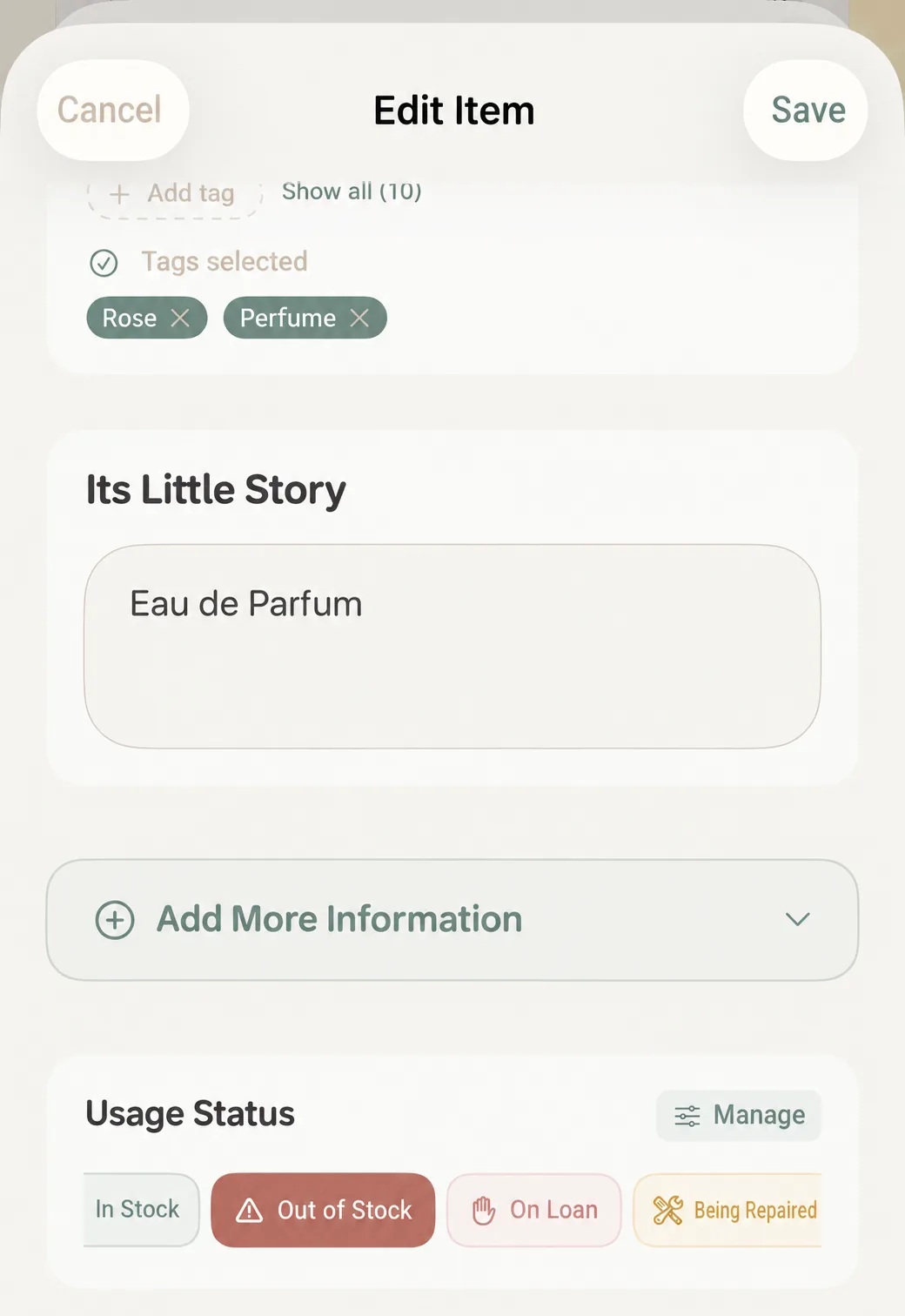 Path 1: Tap "Manage" next to Status while editing an item
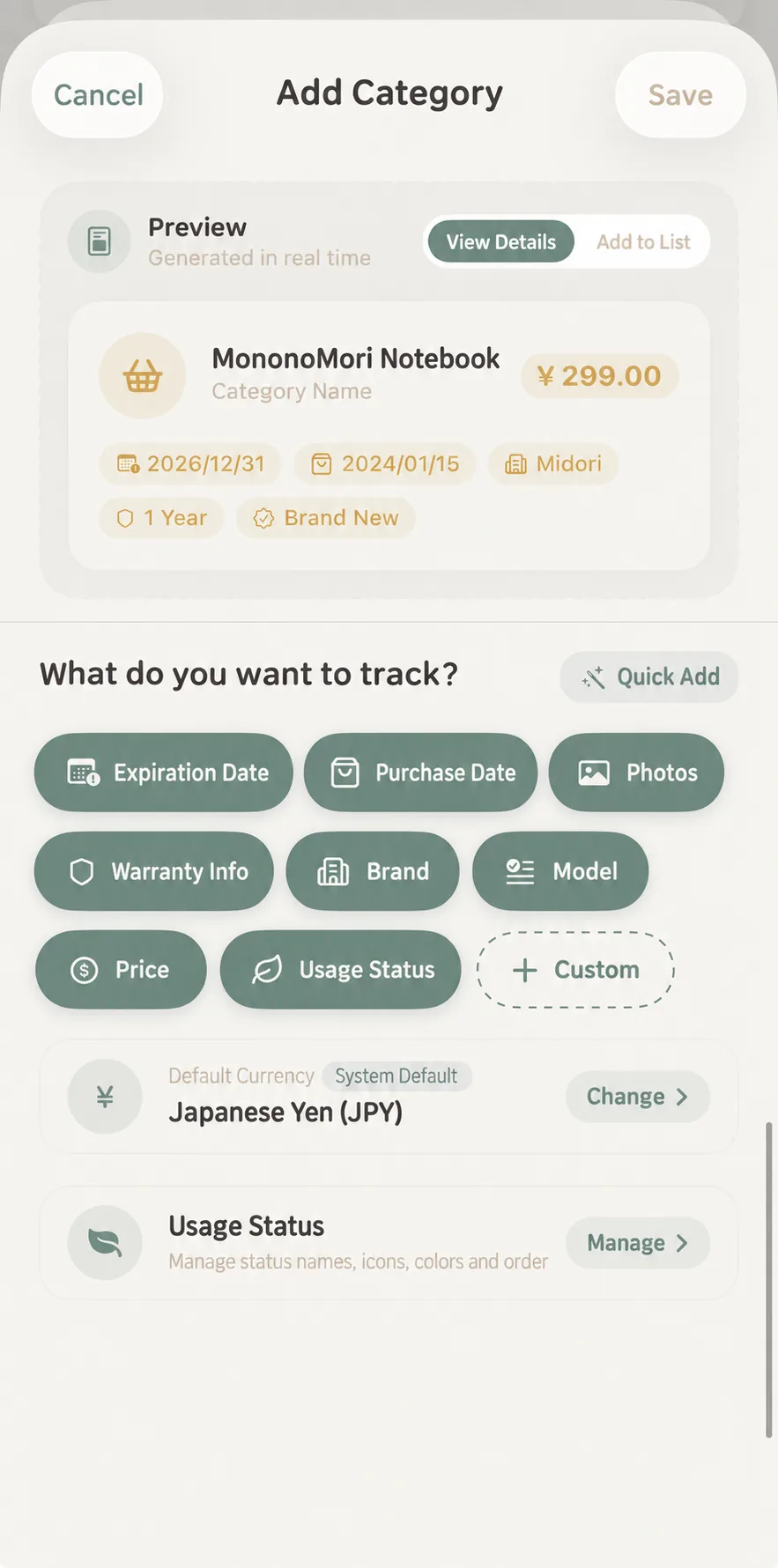 Path 2: Open "More > Category Management" and access Status
- Entry A (Everyday Convenience): While adding or editing any item, scroll to the Status section and tap the “Manage” button in the upper right. Customize your status library without leaving your active form.
- Entry B (Template Setup): Navigate to “More” > “Category Management” and open the Status manager to configure defaults across your whole forest.
Seven Built-in Statuses & Flexible Sorting
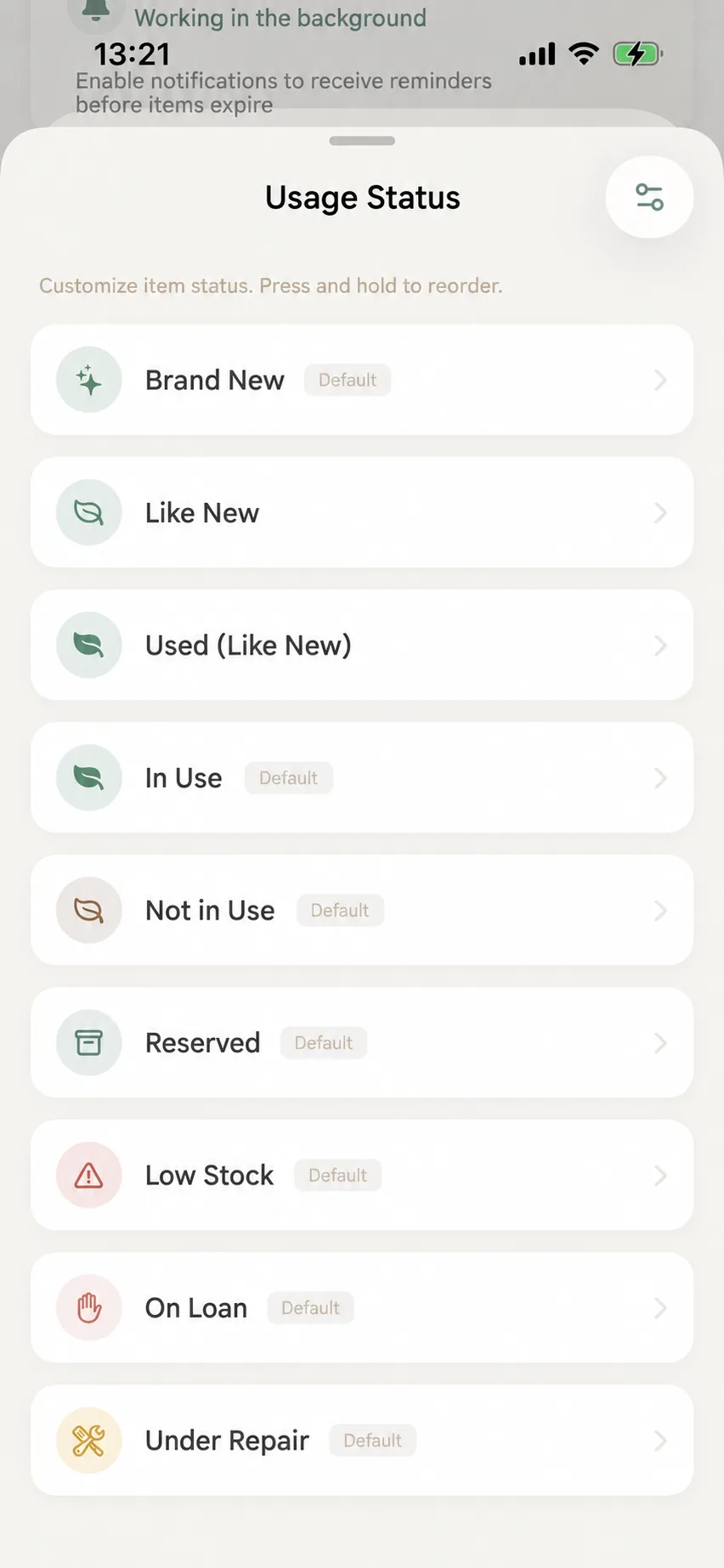 Status List: Long-press and drag to reorder statuses freely
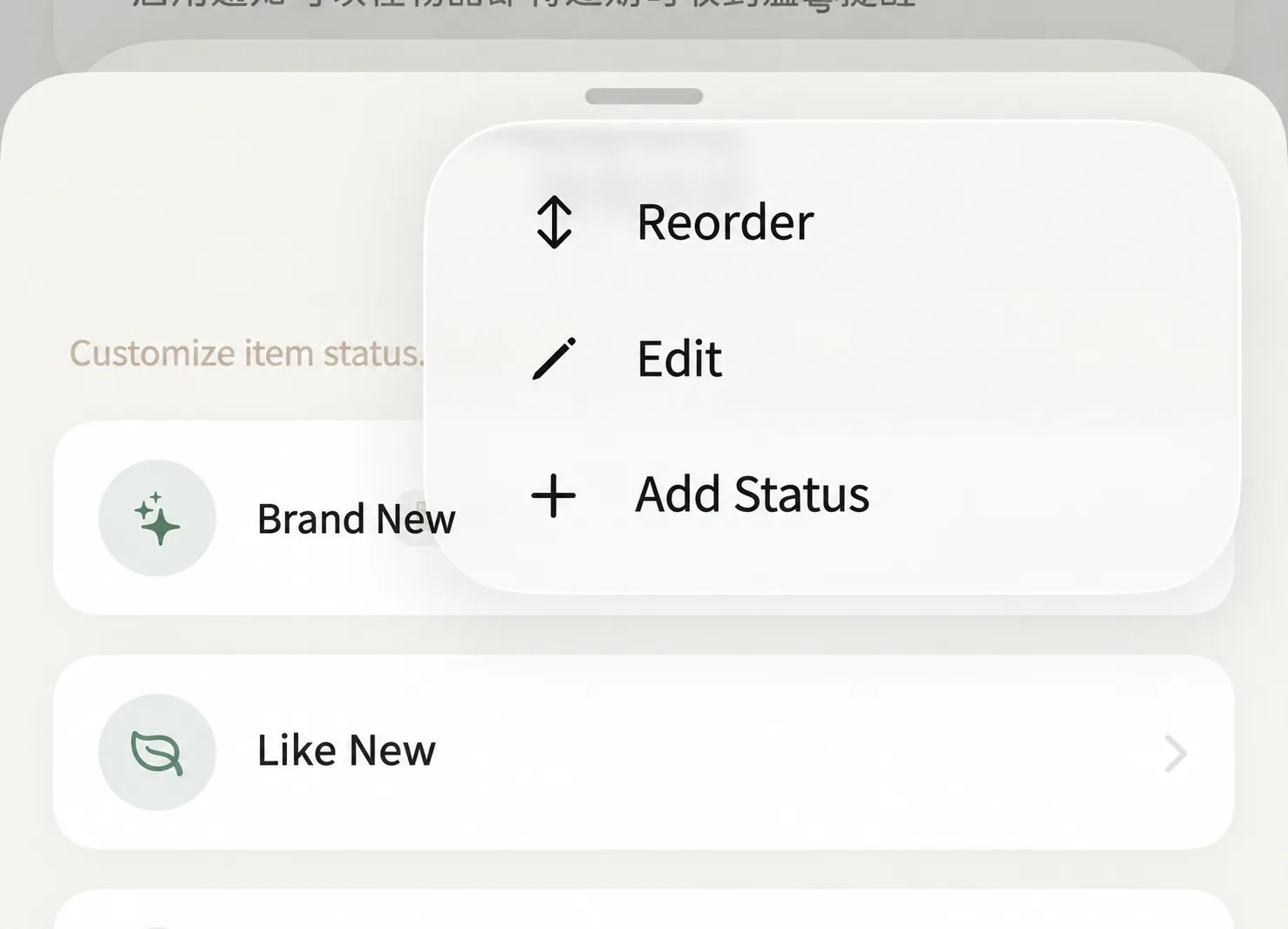 Tap top-right menu for Reorder, Edit, and Add Status
1. Ready-to-Use Built-in States
| Status Name | Everyday Context | Visual Icon |
|---|---|---|
| Brand New | Unopened purchases, newly acquired gear | Sparkling Star |
| In Use | Daily drivers, active essentials | Forest Leaf |
| Idle | Seldom-used belongings in closets (candidates for hibernation) | Autumn Leaf |
| Spare | Emergency supplies, spare cables, backup filters | Storage Box |
| Low Stock | Consumable replenishment alerts | Alert Triangle ⚠️ |
| On Loan | Books, tools, or gear lent to friends | Open Hand |
| In Repair | Gear sent for warranty repair or servicing | Crossed Wrench |
2. Drag to Reorder
Long-press any status to reposition it, or choose “Reorder” from the top-right menu to position frequently used tags at the top.
Crafting Custom Statuses: Nature Colors & Micro-Icons
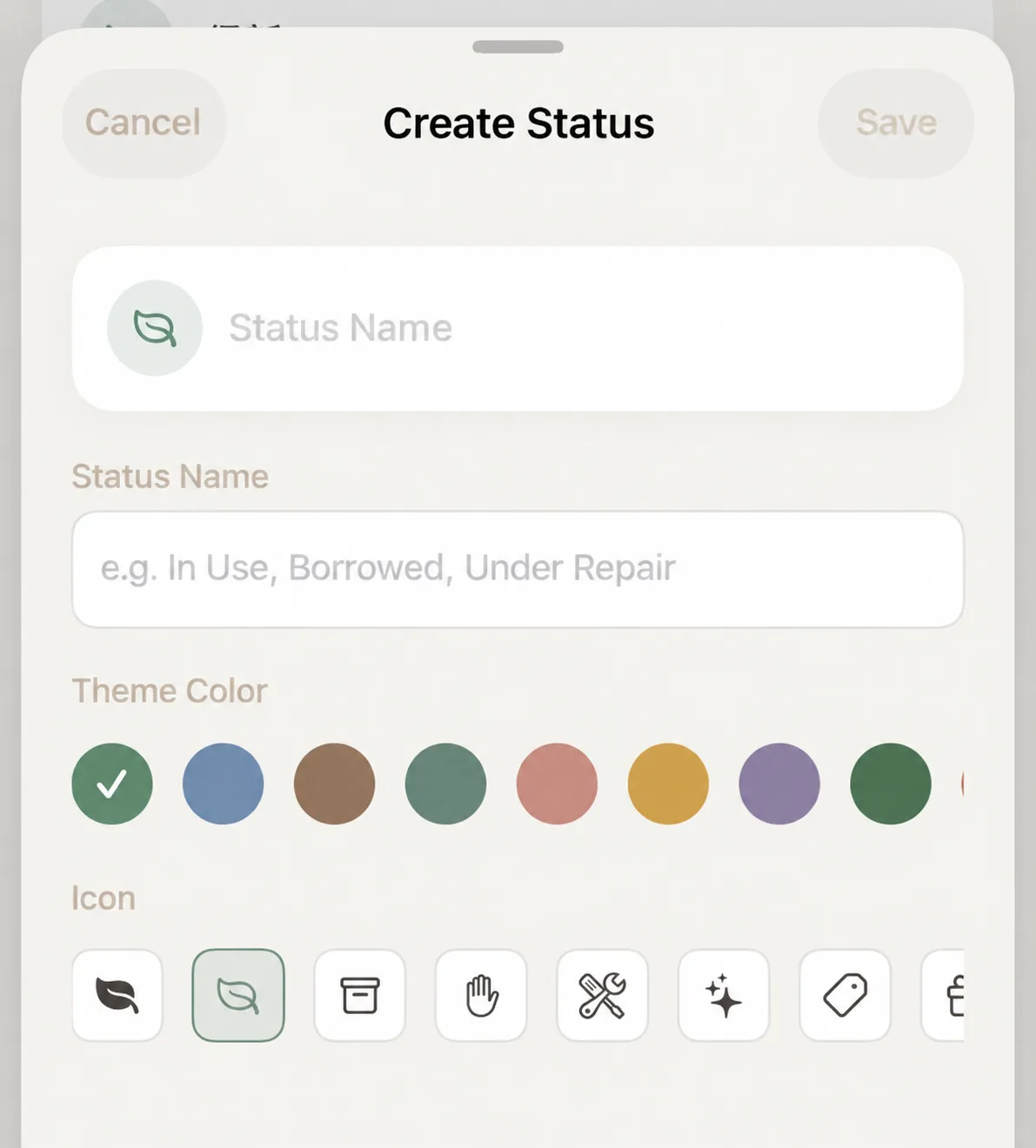 Create Status: Live capsule preview, custom names, botanical hues
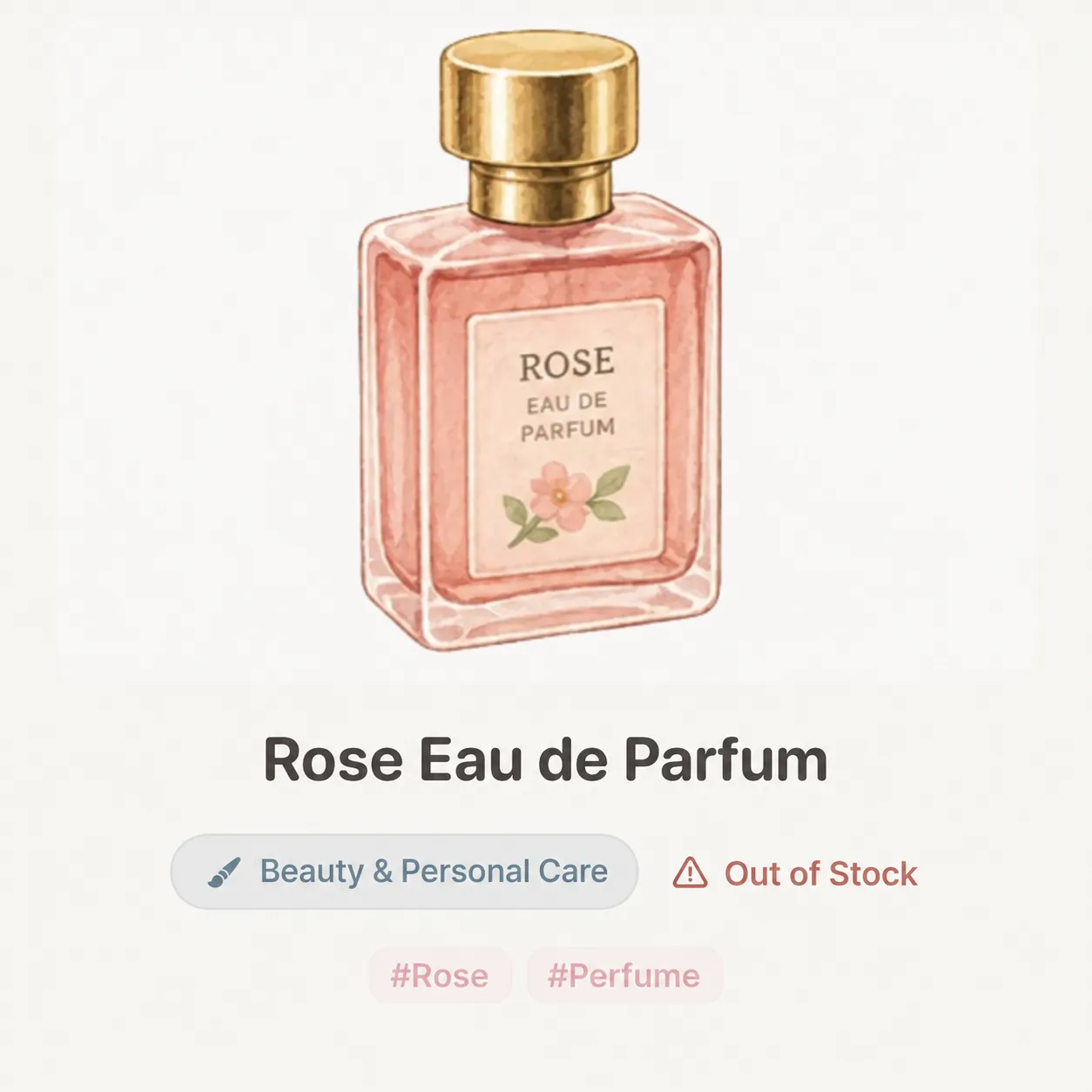 Visual Display: Distinctive capsule badge shown on cards and details
- Tap “Add Status” in the overflow menu;
- Name: Enter custom tags like “Dry Cleaning”, “Second Reading”, or “Listing for Sale”;
- Palette Theme: Choose from botanical greens, celadon blues, warm chestnuts, and subtle vermilions;
- Micro-Icon: Choose leaves, boxes, hands, stars, or shopping tags;
- Review the live pill preview and tap “Save”.
Batch Manager: Independent Statuses Per Batch
In everyday life, identical items often exist in different states and locations:
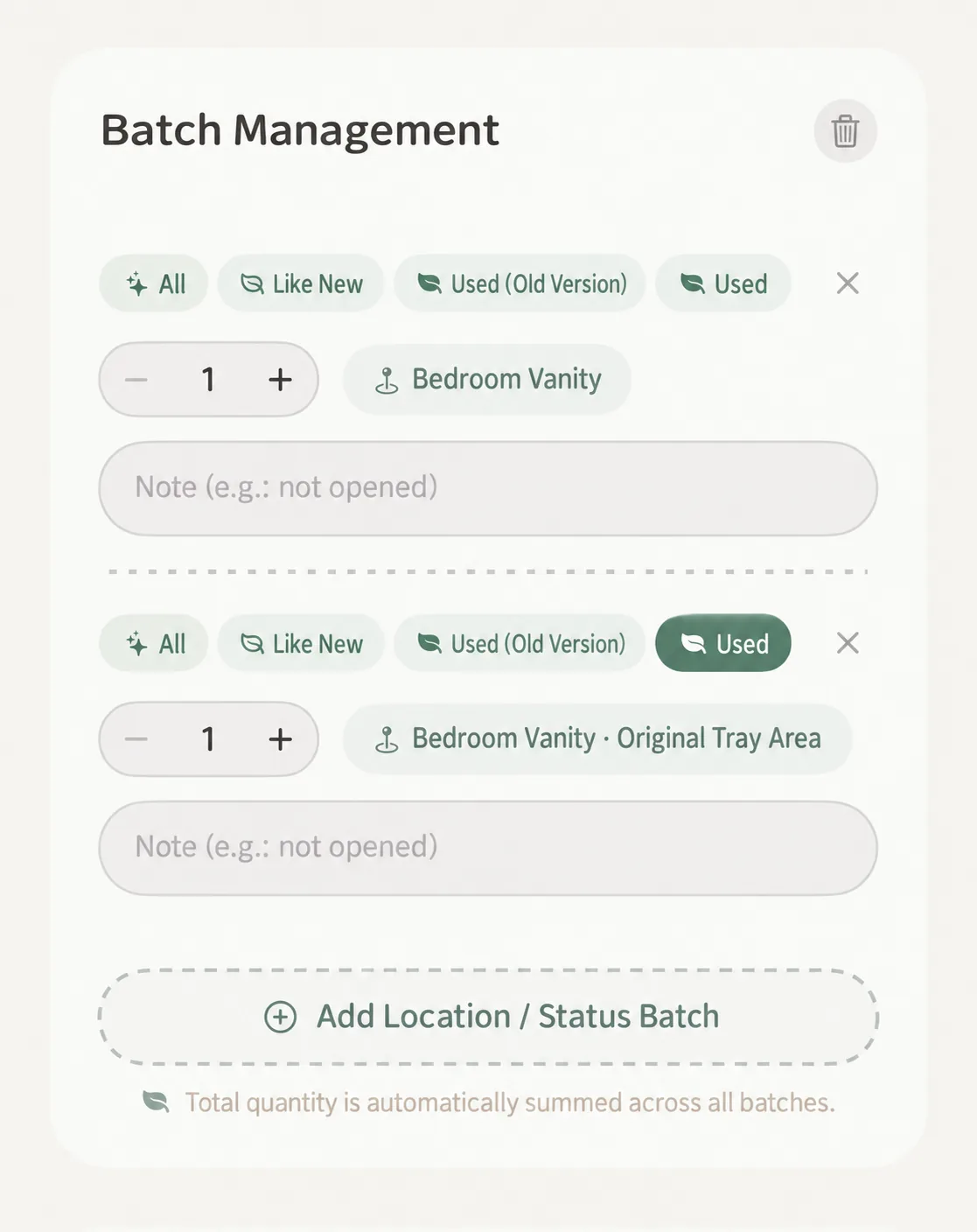 Batch Manager: Set independent quantities, locations, notes, and statuses per batch
Practical Example: Managing Signature Perfume
You stock up on 3 bottles of your favorite fragrance during a seasonal sale:
- Batch 1: Quantity
1, Status “In Use” (Green), Location:Bedroom Vanity · Tray, Note:Daily morning scent - Batch 2: Quantity
1, Status “Low Stock” (Alert), Location:Work Tote, Note:5ml remaining - Batch 3: Quantity
1, Status “Brand New” (Star), Location:Closet · Deep Storage, Note:Sealed box, expires 2028
The system automatically calculates the total count (3) while keeping locations and statuses distinct.
Expansive Thinking: Multi-Dimensional Evaluation
You are never restricted to conventional “physical wear” states. Turn Status into a bespoke rating system:
Frequently Asked Questions
Q1: What happens if I delete a custom status currently assigned to items?
The app asks whether to clear the status from associated items or migrate them to another status before deletion.
Q2: Can an item hold two statuses simultaneously?
In single-item mode, items hold one primary status. With the Batch Manager, you can assign different statuses to each individual batch.
Q3: How does Status differ from Hibernation?
- Status: Describes active circulation (In Use, Spare, Low Stock); items remain in daily lists.
- Hibernation: Deeply conceals off-season or paused items from everyday views, restoring visual calm.