Getting Started
Updated for v3.1.0Interface Overview
Familiarize yourself with the four primary destinations in MononoMori and understand where to begin on day one.
Updated on Oct 6, 2026 ~8 min read
On this page
The Bottom Navigation Bar
The heart of MononoMori’s navigation lives in the bottom bar, dividing your experience into four clean destinations: Forest, Items, Memories, and More.
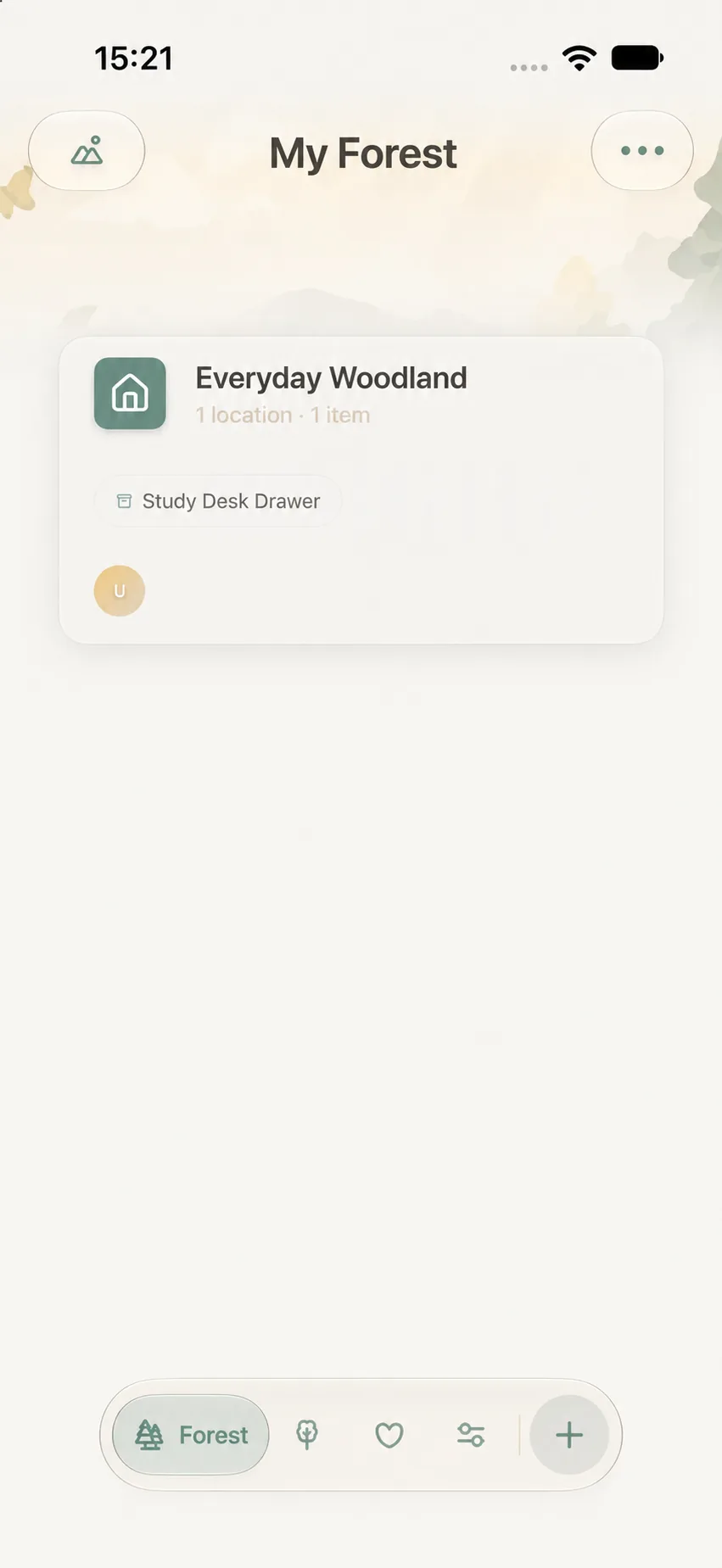
1. Forest: Managing Spaces and Locations
The Forest tab is your spatial home, organizing Groves and physical Locations. You can switch between two views:
- Map View: Arranges Groves and Locations across a spatial landscape, perfect for seeing overall layouts.
- List View: Displays Groves in an orderly list, ideal for rapid scanning and manual reordering.
- The ··· menu in the top-right provides context-sensitive actions, such as creating new Groves or entering Gardening Mode.
2. Items: Browsing All Your Belongings
The Items tab brings all your belongings together in one cohesive feed without needing to drill down through individual rooms. Here you can search, multi-filter, group, and sort items across all spaces. See Smart Search & Multi-Dimensional Filter.
3. Memories: Celebrating Past Belongings and Stories
The Memories tab is your reflective archive:
- Memory Forest & Moments in Time: Honor items that have completed their life purpose with farewell stories, companionship statistics, and “Today’s Reunion”.
- Memory Books: Handcraft personalized digital scrapbooks with photos, text, and sticker decorations.
4. More: Settings and Care Tools
The More tab houses your care toolbox:
- Categories & Tags: Customize item templates and attributes.
- Data Management: iCloud Sync diagnostics, manual backups, file restoration, and storage analysis.
- Trash & Preferences: Review soft-deleted items, switch themes, and send feedback.
Where to find the new features
| Feature | Starting point | Full tutorial |
|---|---|---|
| Subcategories | More → Categories → Edit main category → Subcategories / Manage | Create and use groups |
| Forest Stamp Book | More → Explore the Forest → Forest Stamp Book card at the top | Stamps and collection |
| Home Screen Widgets | Device Home Screen → Edit → Add Widget → Monomori | Add and configure widgets |
Add widgets on the device’s Home Screen. More → Explore the Forest → Home Screen Widgets provides the explanation. Choose subcategories when adding or editing items, and filter them from the Items tab.
Common Gestures and Interactions
- Tap: Open a Grove, Location, Item, or setting detail.
- Back / Swipe Back: Return to the previous screen via the top-left button or standard iOS edge swipe.
- ··· Menu: Reveal contextual actions for the active screen.
- Save / Done: Commit your edits or dismiss a modal sheet.