Categories & Custom Attributes
Explore MononoMori's category system and custom attributes: from Japanese nature palette themes and transparent SVG icons to multi-field configs, multi-currency logging, and daily cost tracking.
Page Overview
From visual aesthetics to multi-dimensional data models, tailor bespoke homes for every possession
“Every belonging lives at its own rhythm. You would never audit a book collection the same way you manage fresh groceries, nor organize an artisan cashmere sweater like a digital camera body.”
In conventional inventory apps, every item is crammed into the same rigid spreadsheet cells—forcing an heirloom fountain pen, specialty single-origin coffee beans, and handmade ceramics from a trip abroad into identical rows of “Name, Quantity, Notes”.
In MononoMori, we created an expressive Category and Custom Attribute System. Beyond outfitting each category with Japanese nature-inspired color themes and custom transparent vector icons, it empowers you to tailor data dimensions, log prices in original overseas currencies, and track daily cost of ownership.
🧭 Overview: What Categories Offer
Looking to track item condition, seasonal rotation, or satisfaction ratings?
Categories and statuses intertwine seamlessly, enabling independent statuses across batched inventory.
🗂️ Category Management: Built-in & Custom Spaces
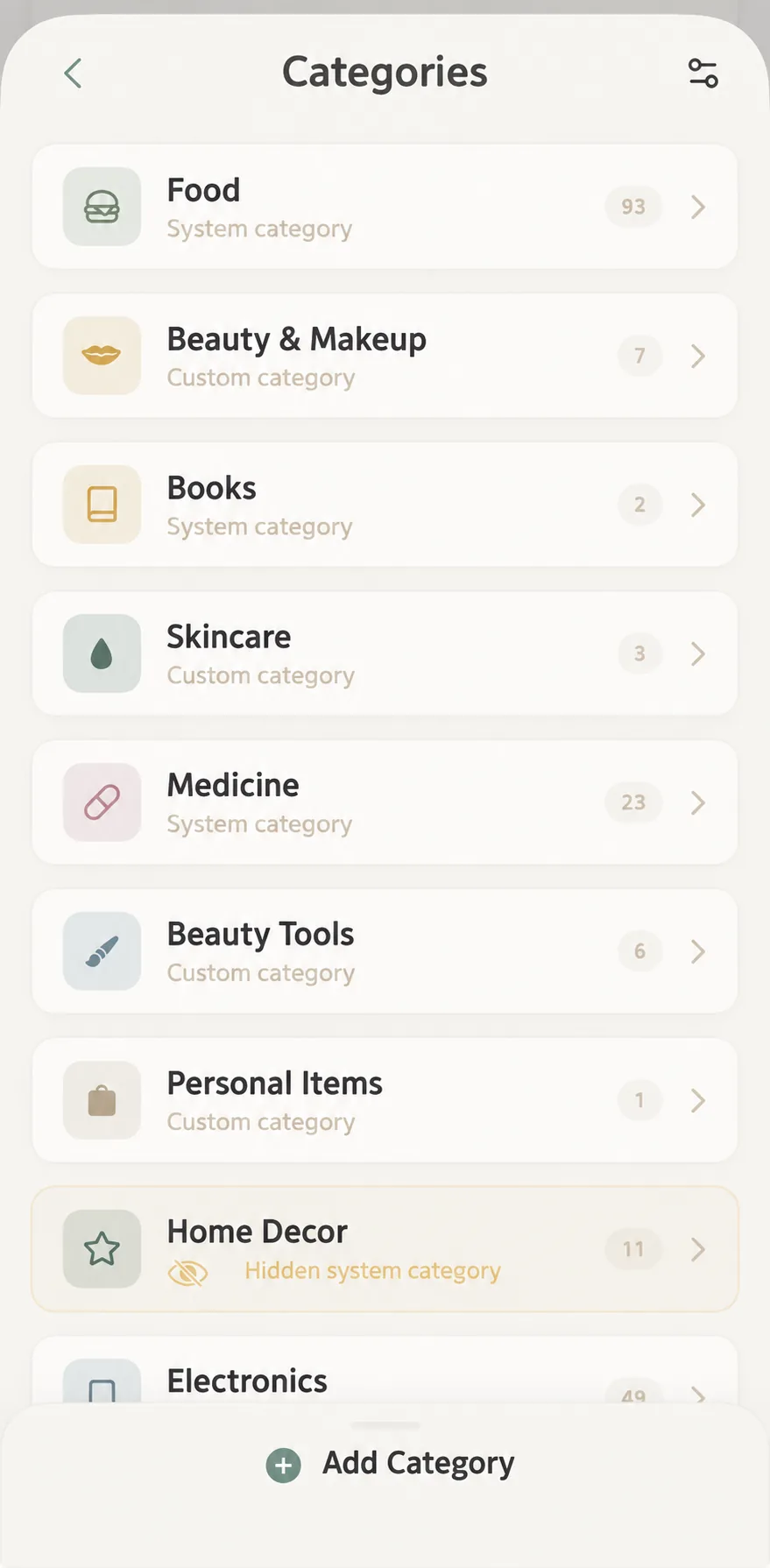
Navigate to “More” > “Category Management” to inspect existing categories and customize templates:
1. Preset & Custom Categories
- Turnkey Presets: Thoughtfully equipped with Foods, Books, Medicine, Electronics, and Clothing so beginners can start right away.
- Custom Categories: Tap ”+ Add Category” at the bottom to build custom categories like “Coffee Corner”, “Camping Gear”, or “Skincare”.
- Hide Unneeded Categories: For minimalist setups, hide unused default presets without deleting any underlying data.
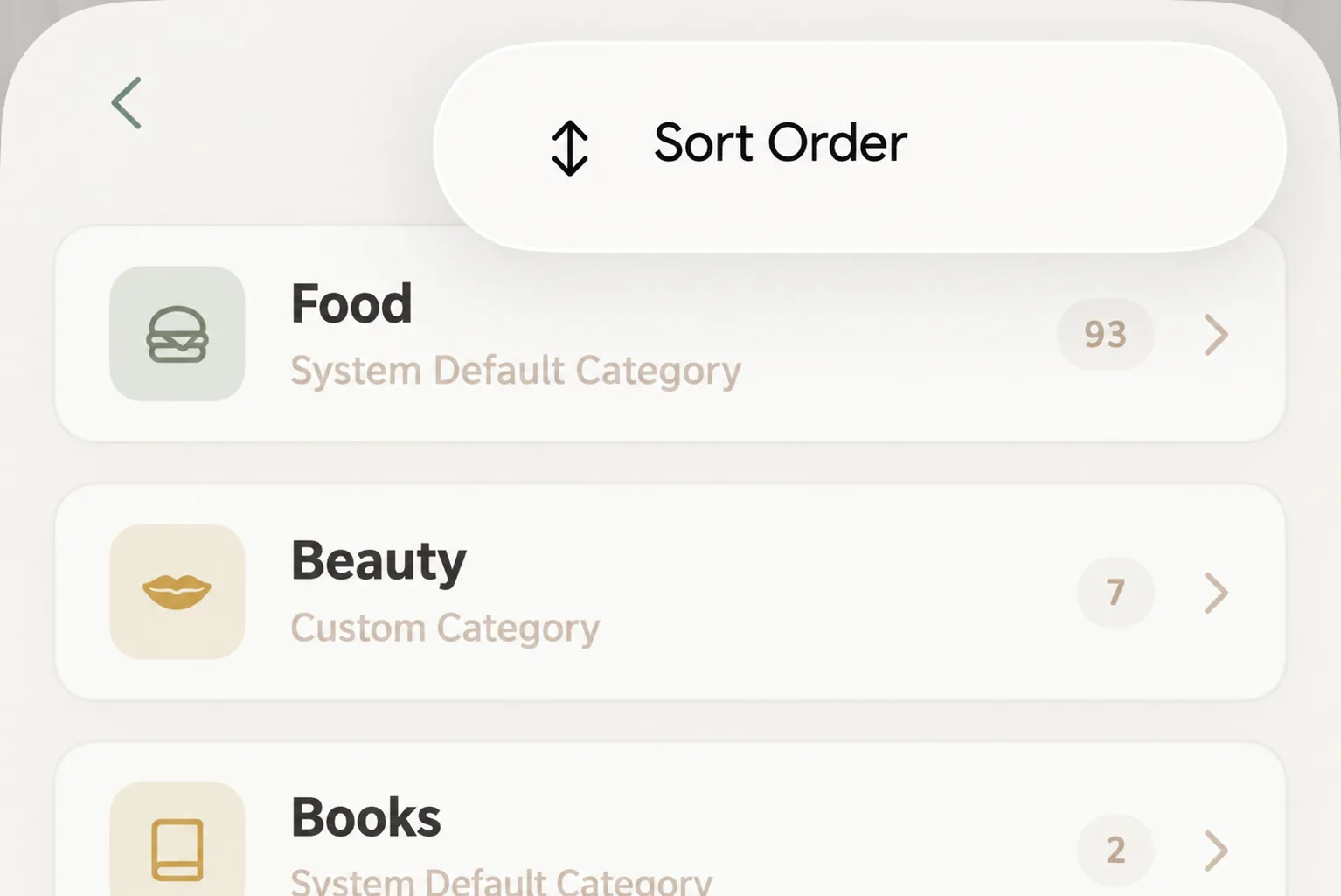
2. Custom Sorting
Tap the top-right menu and choose “Reorder” to drag categories into your preferred sequence, placing high-frequency categories within immediate reach.
🎨 Visual Customization: Nature Palettes & SVG Icons
1. Curated Color Palettes
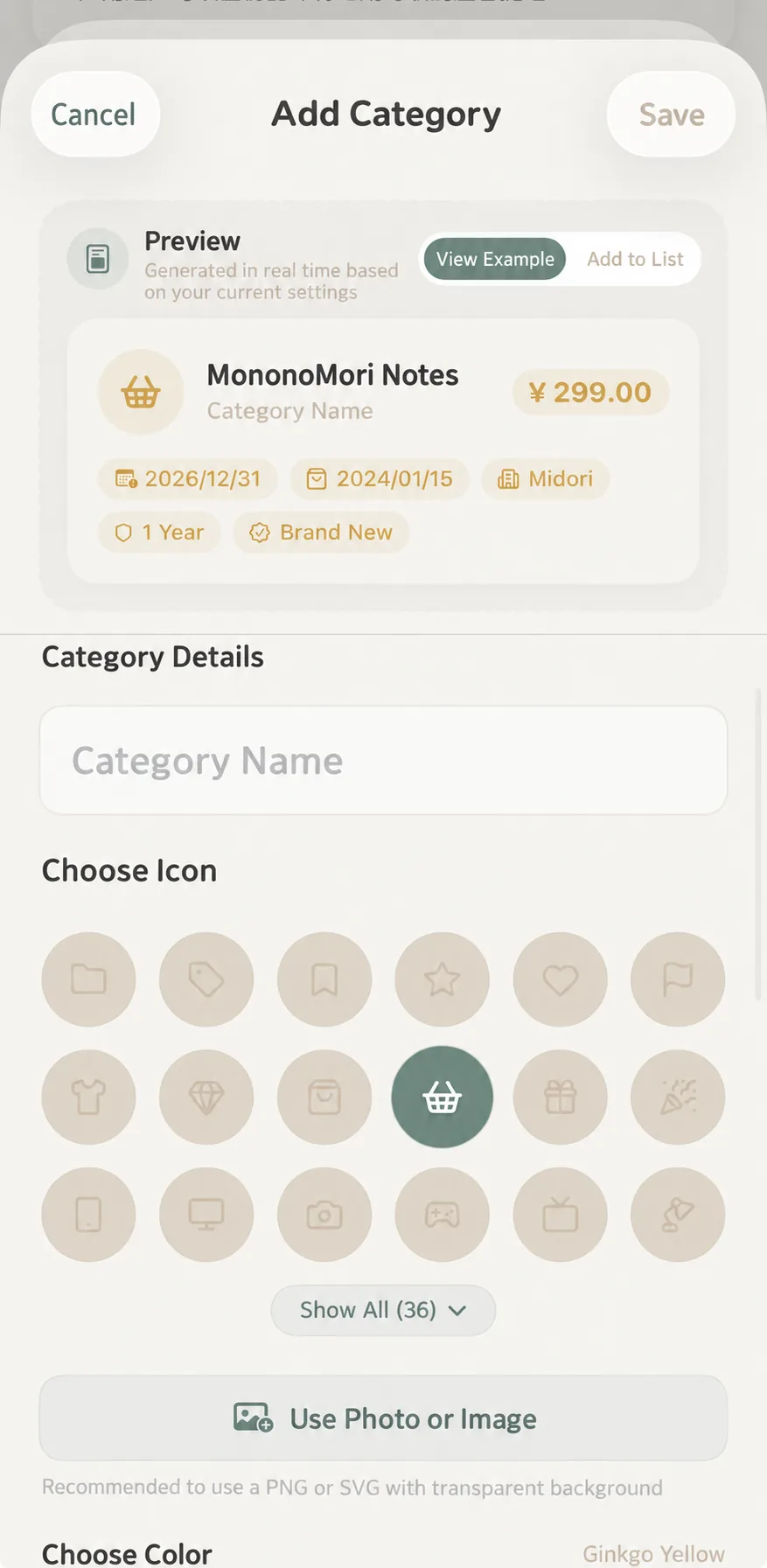
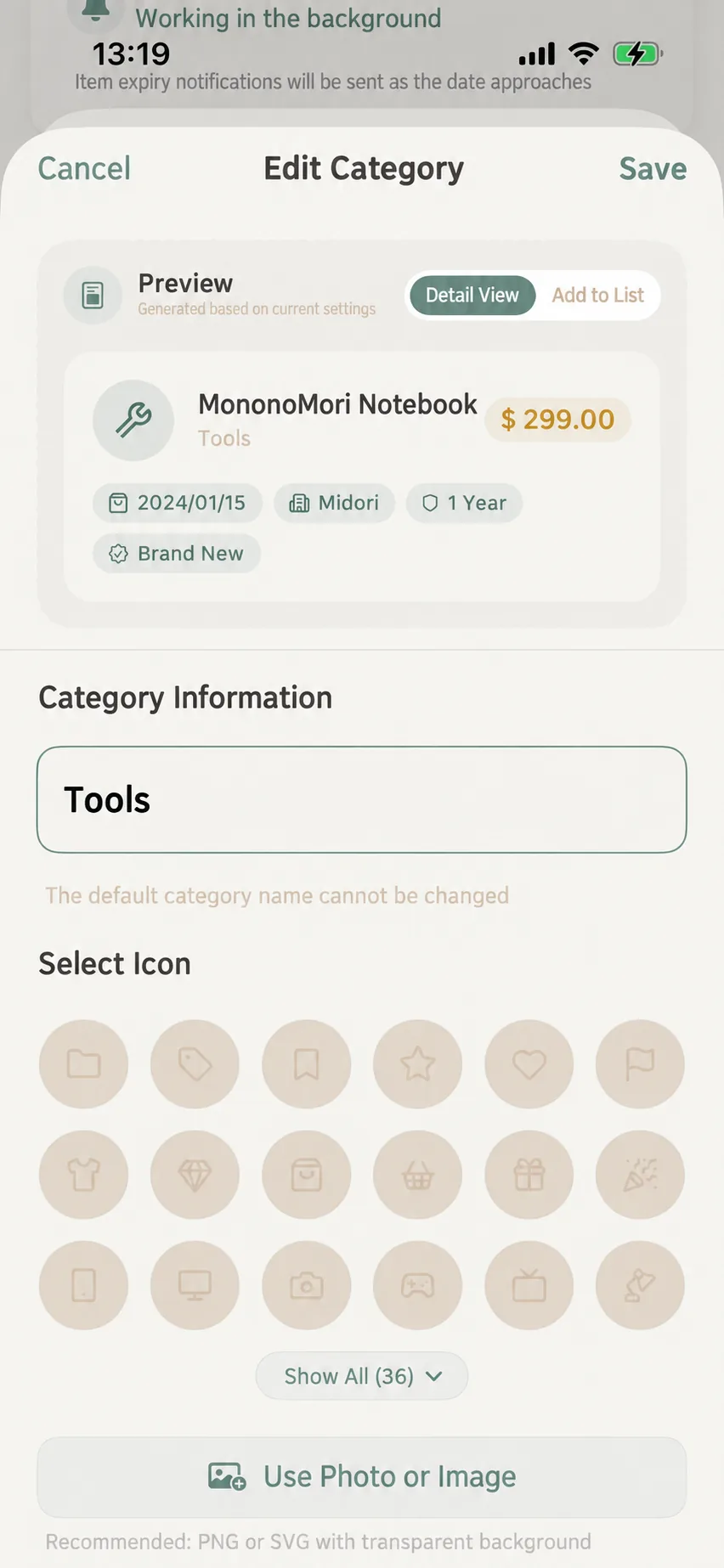
Choose from quiet natural shades including Bamboo Green, Gingko Gold, Sky Blue, and Warm Chestnut. Category badges and card accents adopt this soft tint automatically.
2. Diverse Icon Options (Transparent SVG Highly Recommended)
- Built-in Icons: Over 36 minimalist hand-drawn vector icons;
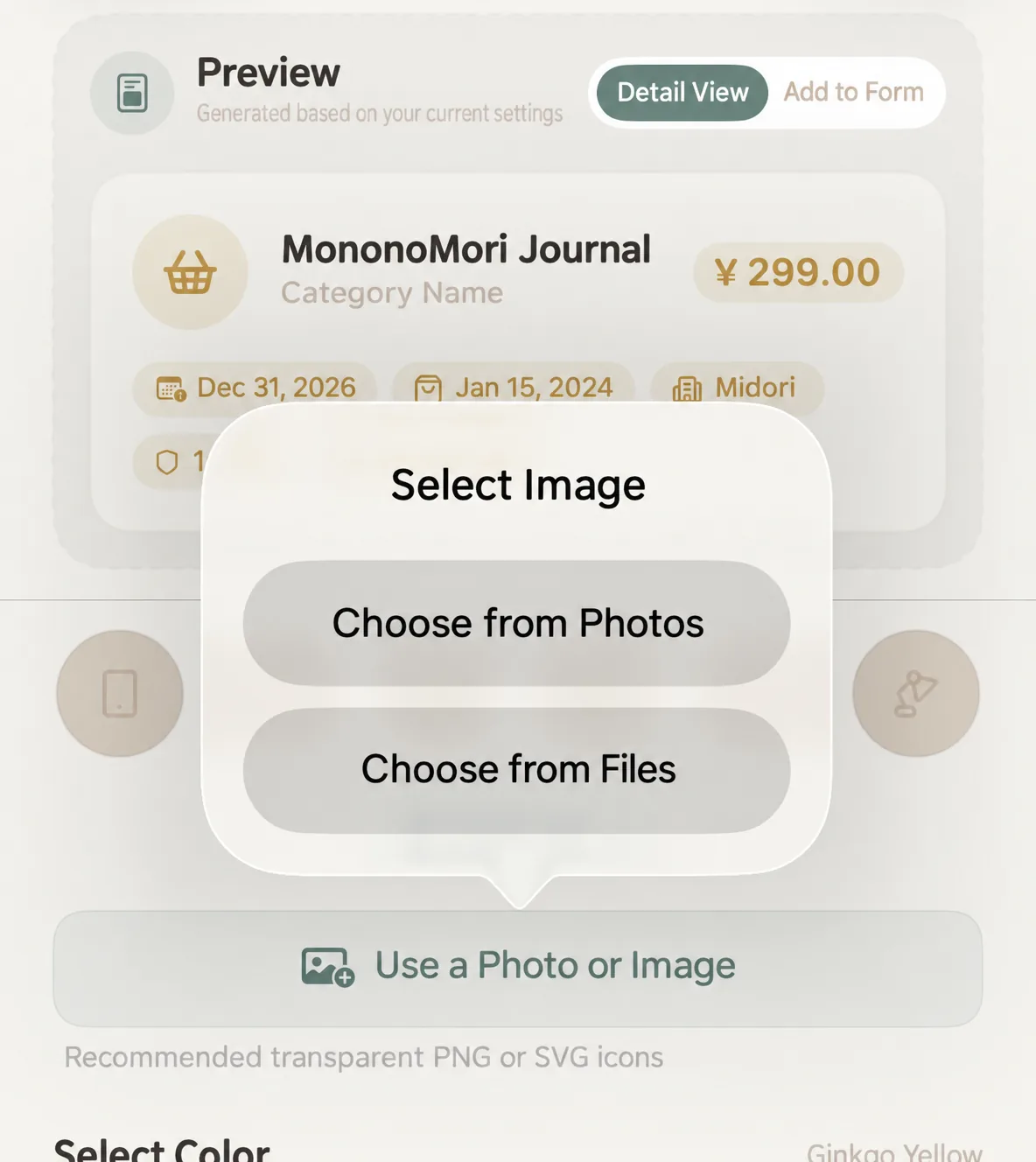
- Photo Library: Select real-life photos or object close-ups;
- Transparent SVG: Delivers razor-sharp vector clarity at any scale across iPhone and iPad screens, blending into light and dark modes without harsh white bounding boxes.
3. What-You-See-Is-What-You-Get Live Preview
The top preview card dynamically renders changes in real time, illustrating both Detail View and Add Item Form appearances:
📋 Custom Attributes & Field Configuration
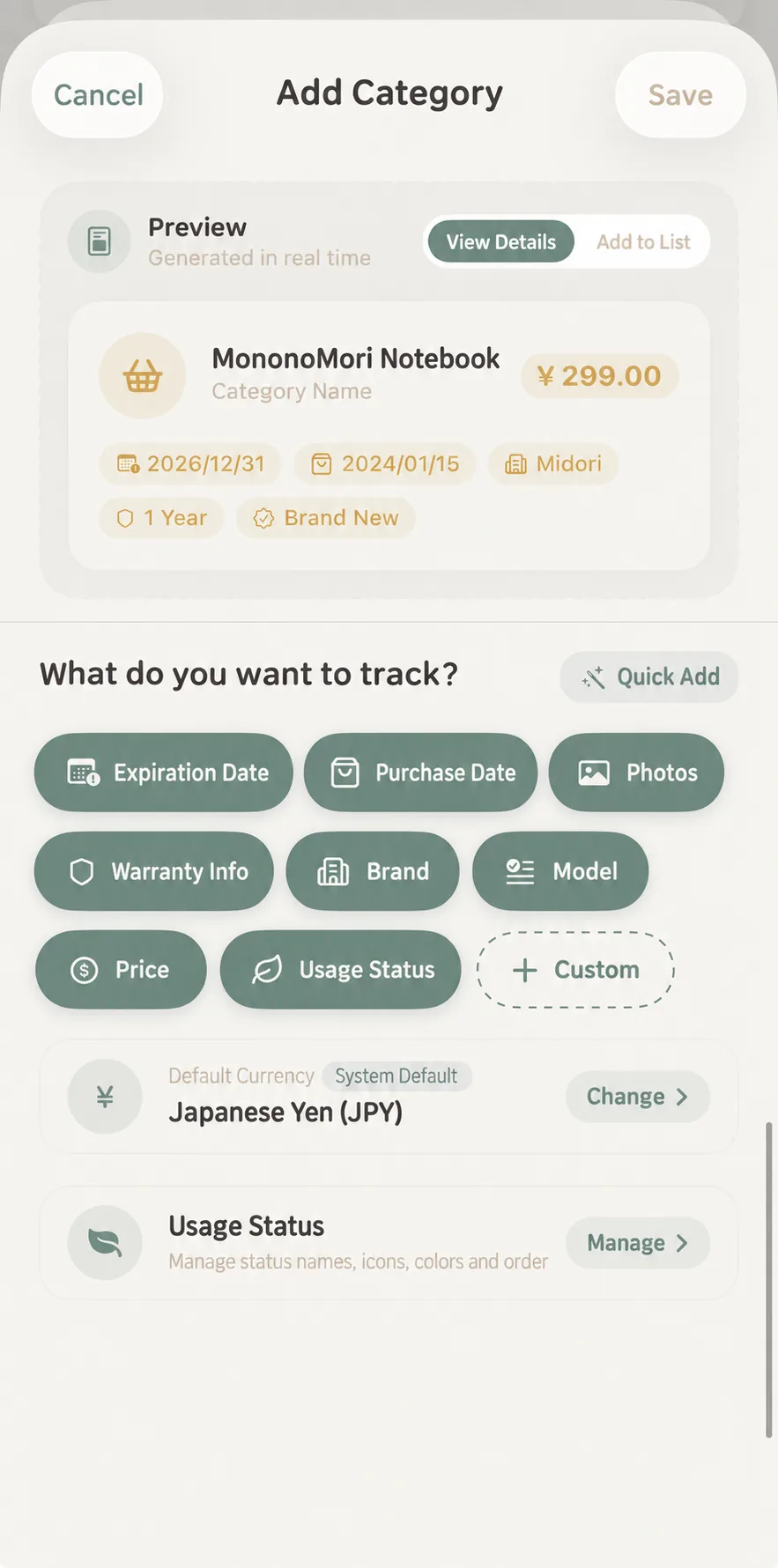
1. Quick Built-in Attributes
Toggle standard properties with a tap:
- 📅 Expiration Date: Enables smart expiration alerts for foods, medicines, and cosmetics;
- 🛍️ Purchase Date & 💰 Price: Records acquisition timing and cost for depreciation tracking;
- 📸 Photos: Determines large image previews;
- 🛡️ Warranty Info: Tracks warranty expiration for appliances and electronics;
- 🏢 Brand & 📟 Model: Captures manufacturer specs;
- 🍃 Status: Enables item lifecycle status tracking.
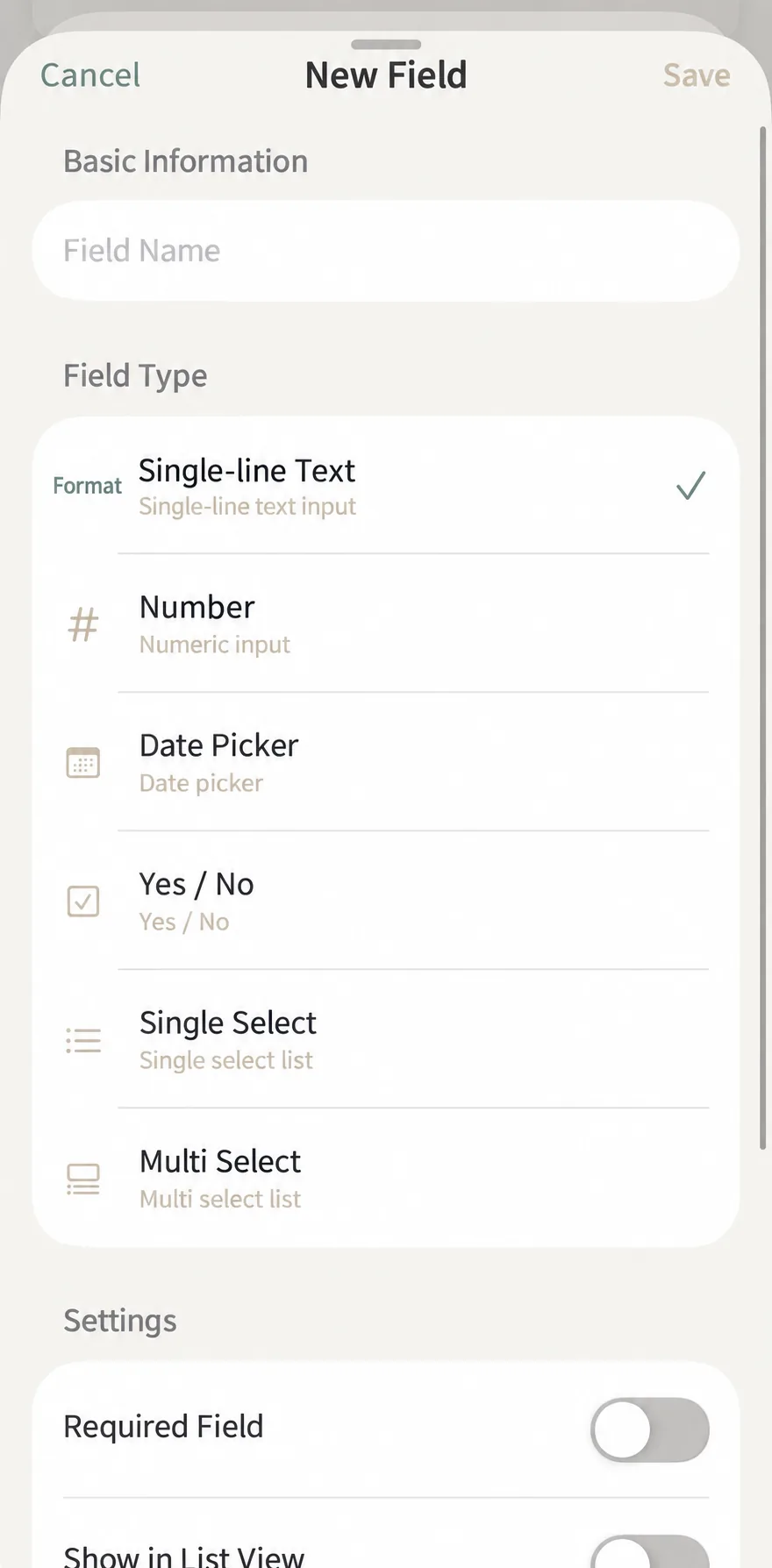
2. Six Custom Field Types
Tap ”+ Custom Field” to add specialized dimensions:
| Field Type | Icon | Everyday Scenarios | Examples |
|---|---|---|---|
| Single-Line Text | Text | Short notes, shades, notes, origin, creators | Lipstick “Shade”, Perfume “Notes”, Book “Translator” |
| Number Input | # | Weight, volume, page count, wattage, ratings | Skincare “Volume (ml)”, Coffee “Net Wt (g)”, Lamp “Watts” |
| Date Picker | 📅 | Key dates, unboxing date, last service date | Cosmetics “Opened On”, Camera “Sensor Cleaned On” |
| Boolean Toggle | ☑️ | Yes/No conditions, attributes | ”Waterproof”, “Contains Alcohol”, “Completed” |
| Single Select | ≡ | Mutually exclusive tiers or sizes | Clothing “Size (S/M/L)”, Coffee “Roast Level (Light/Med/Dark)“ |
| Multi-Select | 🗂️ | Composite traits and scenarios | Skincare “Skin Type”, Outfits “Occasion” |
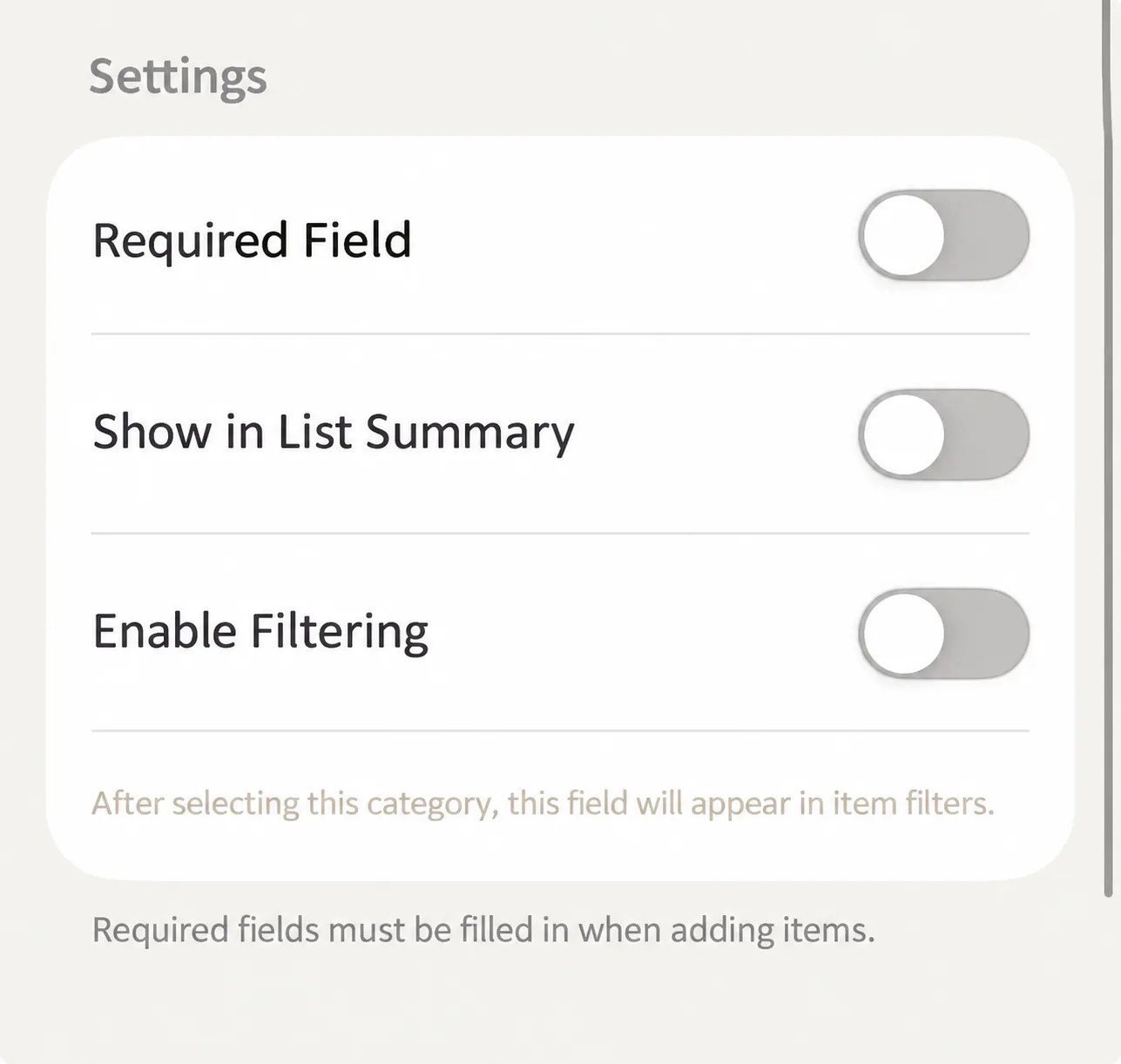
3. Advanced Toggles
- Required: Must be filled during item creation to prevent missing critical data (like medicine dosage);
- Show in List Summary: Displays as a compact capsule pill on main item cards without opening detail sheets;
- Enable Filtering: Turns the attribute into a filter dimension inside the Overview filter drawer.
🌍 Multi-Currency & Ownership Cost
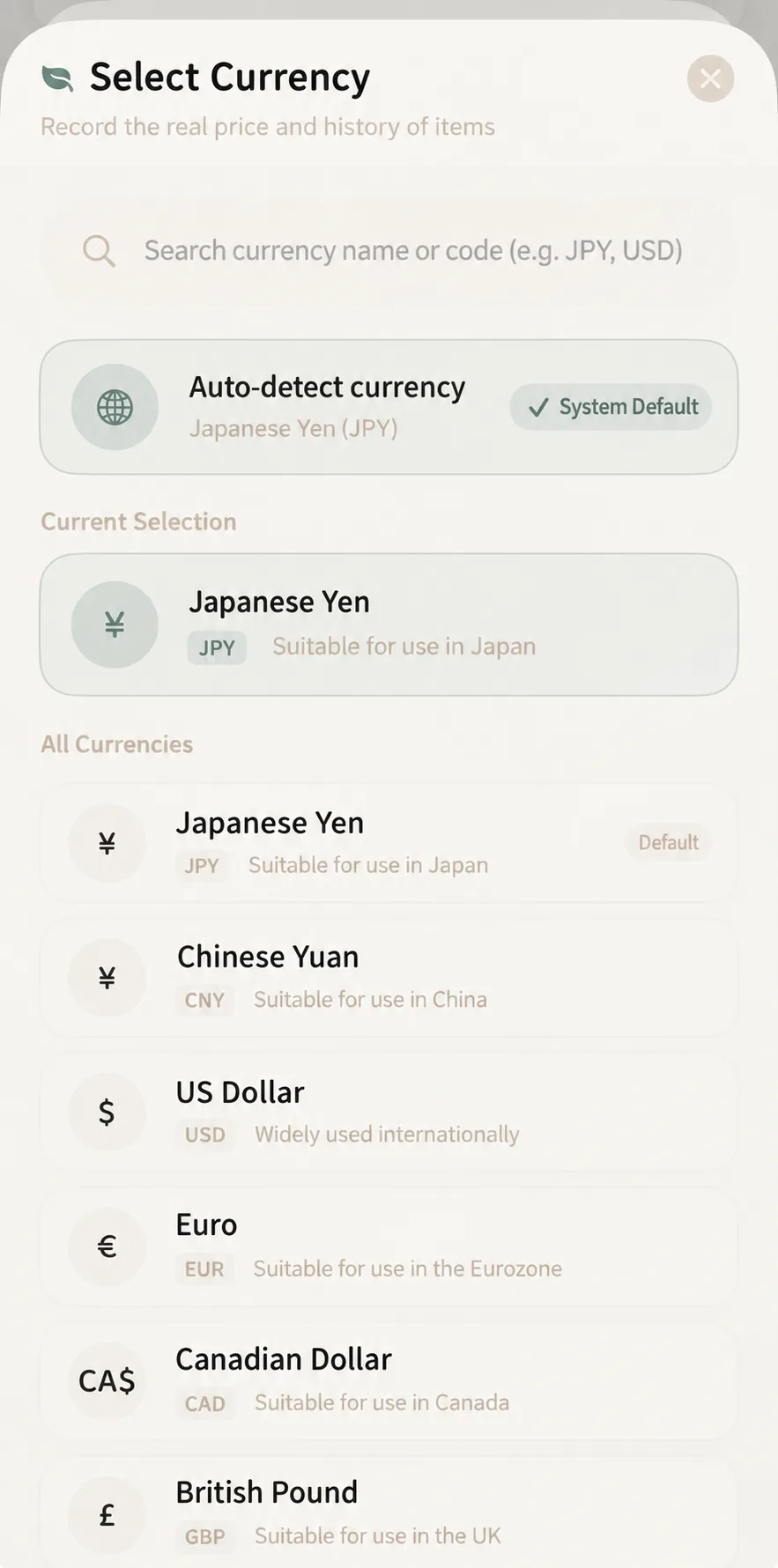
1. Original Currency Recording
Select native currencies (CNY, JPY, USD, EUR, GBP, CAD, etc.) at the category level or individual item form. Record what you actually paid in local currency without manual currency conversion.
2. Approximate Filter Conversions
Filtering by price ranges converts amounts into your default system currency using built-in reference exchange rates. This serves quick browsing and estimation rather than official financial accounting.
3. Daily Cost & Cost per Use
Daily Cost
A $300 high-grade winter jacket cherished for 3 years (1,095 days) costs less than $0.28 per day.
Cost per Use
Log uses with check-ins so a $200 pair of noise-canceling headphones gradually drops in cost per listening session.
❓ Frequently Asked Questions
Q1: Will modifying a category theme or custom field delete existing item data?
No. Modifying category colors, icons, or names immediately refreshes existing items. Adding fields leaves existing items intact until edited.
Q2: Why doesn’t my custom field appear in the filter drawer?
Open the category settings, tap the custom field, and ensure “Enable Filtering” is switched on.