Getting Started
App Version v2.5.1 Recently Updated Interface Overview
Familiarize yourself with the four primary destinations in MononoMori and understand where to begin on day one.
Updated on Sep 27, 2026 ~6 min read
Page Overview
The Bottom Navigation Bar
The heart of MononoMori’s navigation lives in the bottom bar, dividing your experience into four clean destinations: Forest, Overview, Memory, and More.
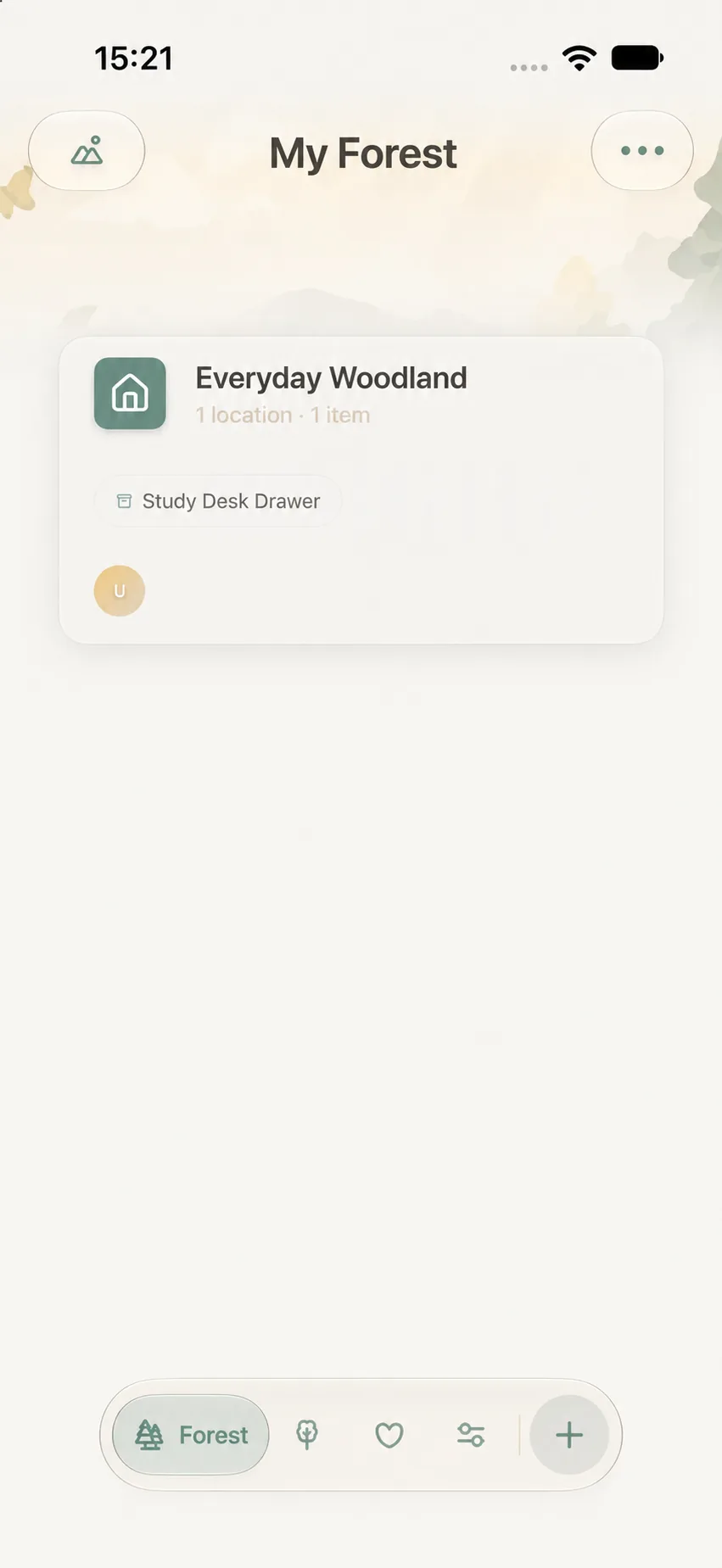
1. Forest: Managing Spaces and Locations
The Forest tab is your spatial home, organizing Woodlands and physical Locations. You can switch between two views:
- Map View: Arranges Woodlands and Locations across a spatial landscape, perfect for seeing overall layouts.
- List View: Displays Woodlands in an orderly list, ideal for rapid scanning and manual reordering.
- The ··· menu in the top-right provides context-sensitive actions, such as creating new Woodlands or entering Gardening Mode.
2. Overview: Browsing All Items
The Overview tab brings all your belongings together in one cohesive feed without needing to drill down through individual rooms. Here you can search, multi-filter, group, and sort items across all spaces. See Smart Search & Multi-Dimensional Filter.
3. Memory: Celebrating Past Belongings and Stories
The Memory tab is your reflective archive:
- Memory Forest & Moments in Time: Honor items that have completed their life purpose with farewell stories, companionship statistics, and “Today’s Reunion”.
- Memory Handbooks: Handcraft personalized digital scrapbooks with photos, text, and sticker decorations.
4. More: Settings and Care Tools
The More tab houses your care toolbox:
- Categories & Tags: Customize item templates and attributes.
- Data Management: iCloud Sync diagnostics, manual backups, file restoration, and storage analysis.
- Trash & Preferences: Review soft-deleted items, switch themes, and send feedback.
Common Gestures and Interactions
- Tap: Open a Woodland, Location, Item, or setting detail.
- Back / Swipe Back: Return to the previous screen via the top-left button or standard iOS edge swipe.
- ··· Menu: Reveal contextual actions for the active screen.
- Save / Done: Commit your edits or dismiss a modal sheet.