AI-Assisted Item Identification
From photo capture to bounding-box verification and AI suggestions, learn how to batch-record items reliably with intelligent recognition.
Page Overview
AI-Assisted Item Identification
AI identification recognizes items in photos and suggests item names, categories, or packaging dates, minimizing repetitive typing. It provides suggestions for you to review, not unverified facts; always inspect and adjust details before saving.
Preparation Before Identification
- Use well-lit photos with clearly visible items. When multiple objects overlap or obstruct each other, detection may be incomplete.
- Process in small batches. The current flow recommends up to 5 items per session, prioritizing on-screen instructions.
- AI name recognition requires an active network connection. Photos are compressed and processed via secure recognition services; avoid uploading sensitive items like government IDs, payment cards, or confidential medical records. See in-app privacy notes for data handling details.
- Photo capture requires camera permissions; photo library imports require iOS photo access.
Capturing Photos & Selecting Items
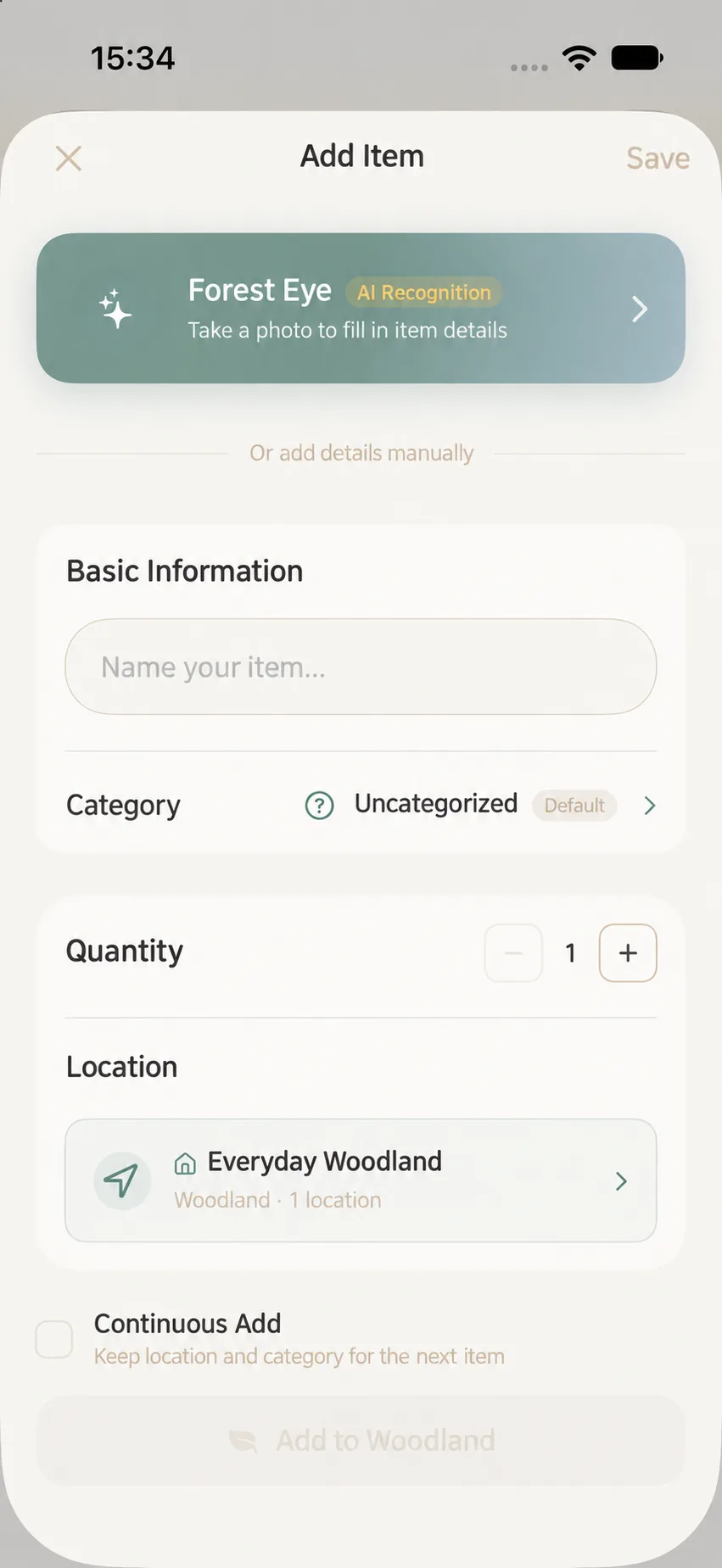
- Open the AI identification tool from the Add Item entry in Forest or Overview.
- Snap a photo or choose an existing image from your photo library.
- Wait for the app to detect item boundaries. If bounding boxes appear, verify that each box frames the intended object; adjust boundaries or dismiss unwanted boxes as needed.
- Proceed to the identification review screen.
If lighting is dim, items are too small, or objects heavily overlap, retaking the photo is often faster than correcting multiple inaccurate detections.
Choosing Recognition Language
At the bottom of the photo crop and preview sheet, locate the language menu with the globe icon. This controls which language AI suggestions will appear in without affecting your app’s general interface language. Options include “Follow System”, Simplified Chinese, Traditional Chinese, English, Japanese, Korean, Spanish, German, and French.
Before starting recognition, check the active language:
- Select “Follow System” to match your device’s system language.
- Select a specific language if you prefer item names generated in another language.
- Tap “Start Recognition”; once completed, verify names, brands, and models. Specific proper nouns may not translate literally into every language.
Your language preference is saved in AI recognition settings and remembered for future sessions.
Reviewing AI Suggestions
- Wait for analysis to complete over your network connection.
- Check proposed names and categories item by item. Exact models or brand names may require manual correction, especially if logos are blurred or packaging is similar.
- If dates or attribute suggestions appear, confirm what they represent (such as expiration date, manufacturing date, or packaging date) before applying them to records.
- Supplement or adjust location, quantity, tags, and notes. Required fields like name and category must be confirmed.
- Dismiss incorrect or unwanted items.
Packaging and physical markings remain the source of truth. If AI misses a field, fill it in manually; if results are ambiguous, you can exit and log items via standard entry.
Optional: Background Removal
When available, toggle background removal to extract clean product cutouts. Background removal and network recognition are separate steps; if extraction artifacts occur, toggle it off to keep the original photo.
Saving & Verifying Records
After reviewing all items, tap the save button at the bottom (“Plant in Forest”) to complete registration. Return to your list and inspect one or two new entries to verify that names, categories, locations, dates, and photos saved cleanly.