Item & Basket Connections
Discover Item Connections and Basket Connections. Learn how to link complementary belongings or related task lists step by step, and unlink them whenever needed.
Page Overview
Every belonging resonates: build mindful bridges between items and packing lists
“The objects of our lives are never isolated islands. A camera understands the breath of its lens; a tent remembers the steadfast grip of its stakes; a book quietly waits for its familiar bookmark. When belongings connect, life begins to resonate.”
In daily home organization, many possessions do not exist in isolation—they naturally travel in pairs or companion sets:
- Digital Photography: A mirrorless camera body, prime portrait lens, telephoto zoom, spare batteries, and high-speed memory cards nestled in different protective pouches;
- Outdoor Camping: A lightweight two-person tent, aluminum stakes, reflective guylines, and a ground tarp—forgetting a single piece can disrupt the entire campsite;
- Skincare Rituals: A restorative essence paired with its matching moisturizing emulsion and soft cotton pads for optimal care;
- Reading Nook: A beloved journal always accompanied by a favorite fountain pen and a brass bookmark brought back from travel.
When items are treated as isolated records, reviewing one piece often leaves you wondering where its matching accessories are stored or whether consumable supplies remain充足.
In MononoMori 2.5.0, we introduced Item Connections and Basket Connections: without rigid hierarchical complexity, a single gentle tap creates a reciprocal bridge between items, and between packing lists.
🍃 The Resonance Model: Symmetric & Mindful
Traditional inventory tools force rigid parent-child trees that overcomplicate straightforward belongings. MononoMori takes a more human approach:
- Symmetric Resonance: Once a connection is made, both items recognize each other. Navigating to either item’s detail view presents reciprocal access to its companion.
- Clear Hibernation Distinctions: Connected companions resting in seasonal hibernation are grouped separately with gentle counts, preserving clarity without cluttering your immediate view.
- Harmonious Basket Linkage: Beyond individual objects, the packing baskets representing your journeys and routines can also connect. A checked luggage basket mirrors a carry-on backpack; a new apartment decor list resonates with a furniture wishlist.
🔗 Item Connections: Linking Belongings
MononoMori respects visual calm. When an item has no linked companions, its detail view remains completely clean without empty placeholder cards. Once an item gains a companion, a warm Item Connections card gracefully appears.
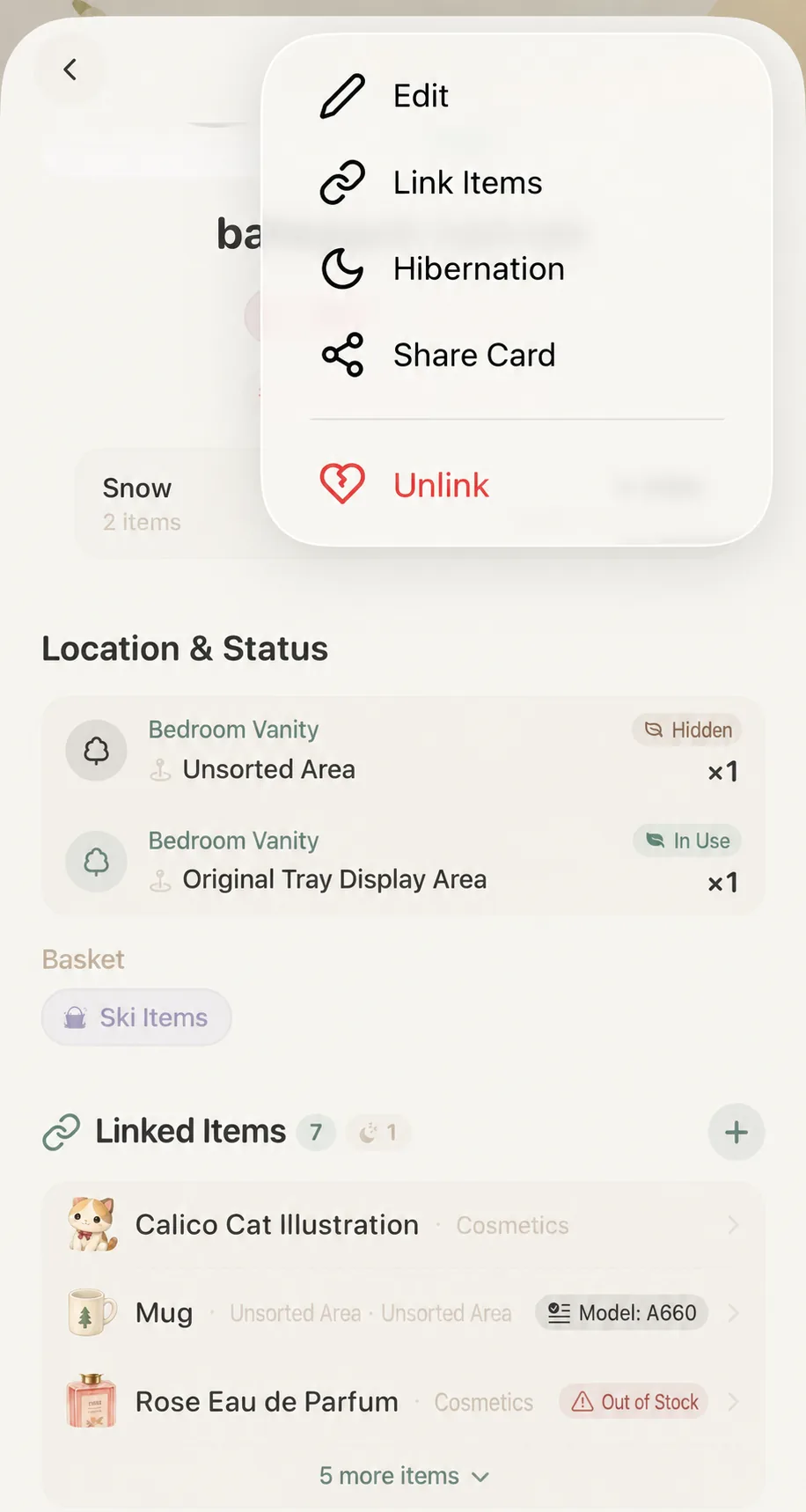
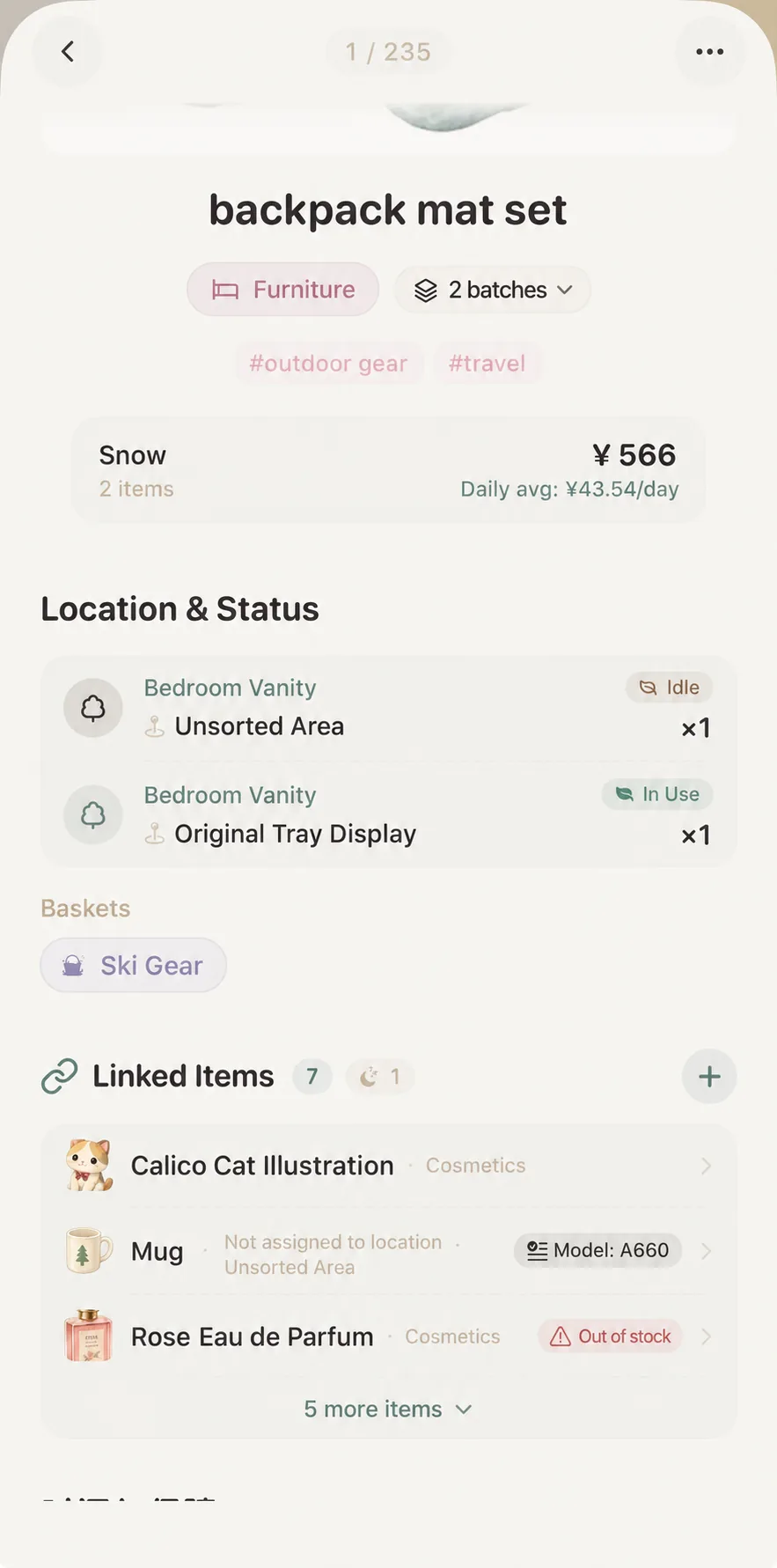
Three Natural Ways to Connect Items:
- Standard Entry (First connection on an existing item): At the top of any item detail view, tap the ”···” menu and select ”🔗 Connect Items”. This entry is always accessible, making it the ideal first step;
- One-Step Linking During Creation (Connect while adding): When logging new accessories, filters, or lenses into the forest, select and associate existing items directly within the Add Item sheet. Upon saving, both detail cards light up in tandem;
- Card Quick-Add (When connections already exist): Once an item has at least one companion, its Item Connections card remains visible. To add further accessories, tap the neat ”+” button at the top right of the card without opening the overflow menu.
Selecting Companion Items
Tapping any connection entry raises an intuitive item picker sheet:
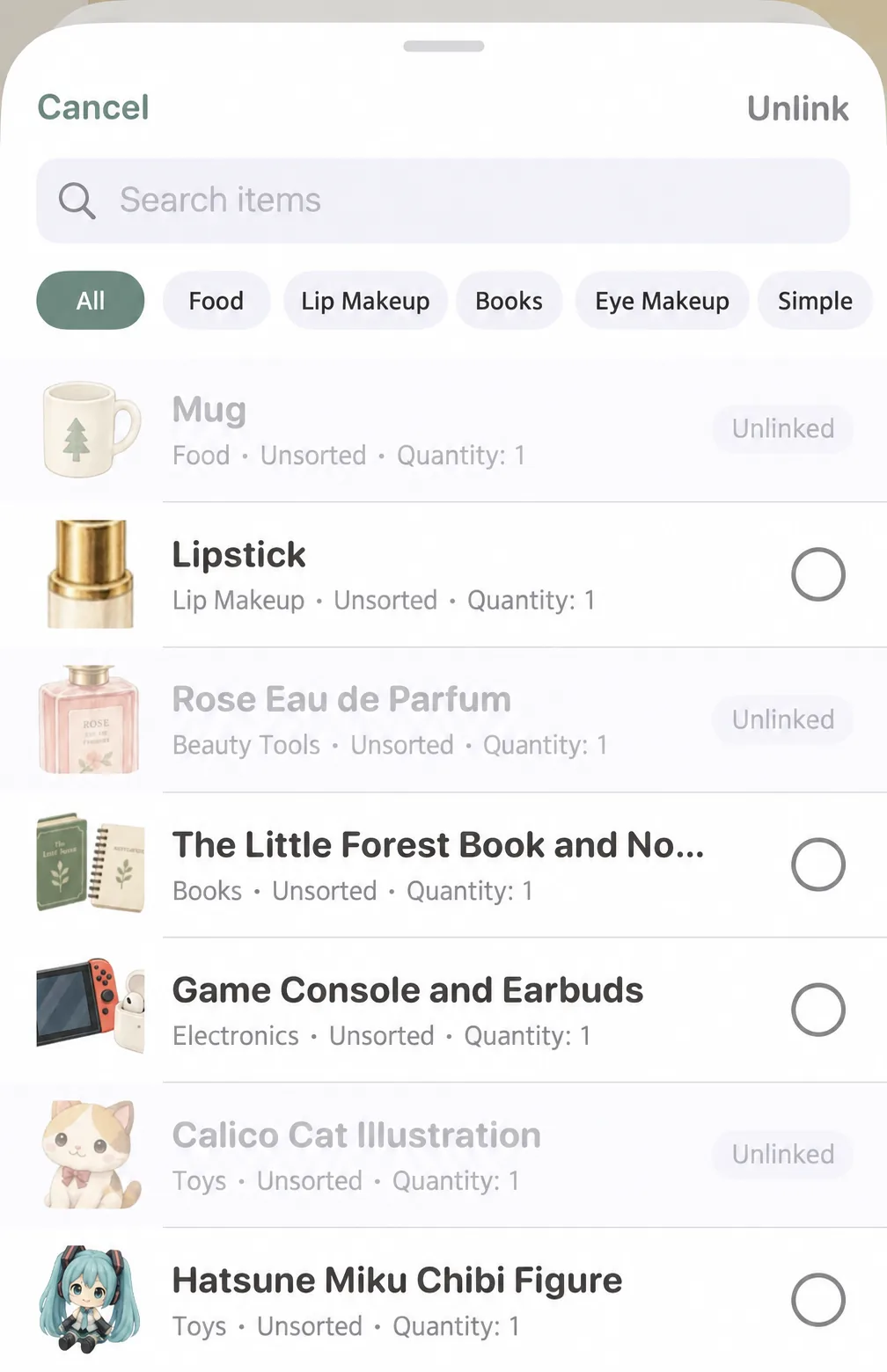
- Search: Enter keywords into the search bar to locate items across all woodlands;
- Category Filter Pills: Tap category tags (such as Foods, Cosmetics, Books) directly beneath the search bar to narrow the field;
- Clear Status Distinctions:
- Unlinked Items: Feature a clean circular checkbox
○, supporting single or multi-item selection; - Already Linked Items: Display an elegant “Linked” badge and remain locked to prevent duplicate entries;
- Unlinked Items: Feature a clean circular checkbox
- Bind with One Tap: After choosing companion items, tap the deep forest-green “Connect” button in the upper corner to seal the relationship.
💤 Companion Health & Instant Awakening
Once connected, companion cards serve as an immediate health monitor for related gear:
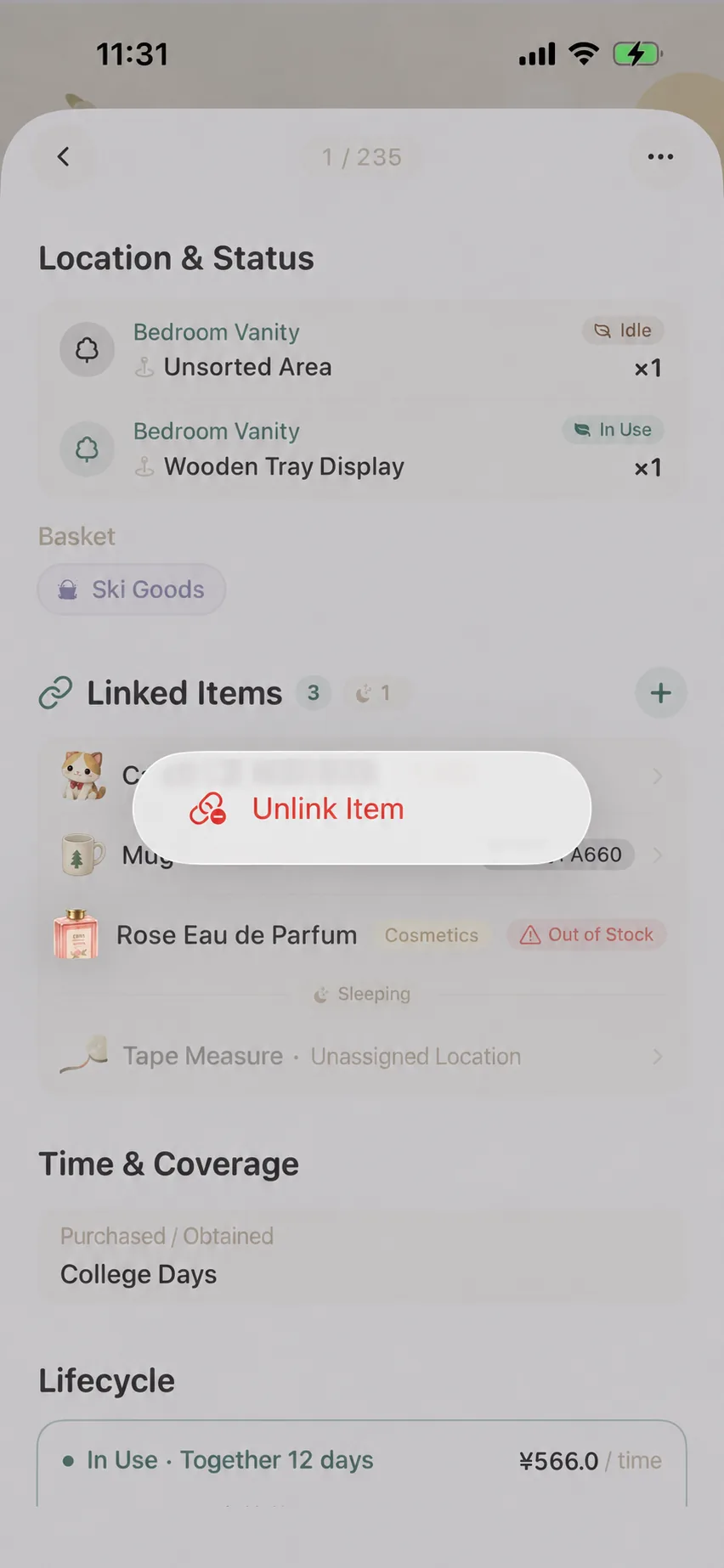
1. Review Linked Companions
Each connected card displays the companion item’s name, category, and woodland location. Tap any entry to jump straight into its detail view.
2. Spotting and Awakening Hibernating Accessories
Seasonal accessories (like cold-weather tent liners or specialized underwater camera housings) often rest:
- Hibernating companions are separated with dedicated counters and
💤 Hibernatingbadges; - Long-press any resting companion and choose “Awaken”, or open its detail view to restore it immediately when the season begins.
✂️ Unlinking Belongings
Life evolves, and equipment setups change. When you upgrade lenses or retire a specific pairing, unlinking items takes just a gesture:
Data Safety Guarantee: Unlinking only removes the connective bridge between the two records. Neither item is deleted, and all photos, tags, locations, and history logs remain completely untouched.
🧺 Basket Connections: Interconnecting Scenarios
In MononoMori, Baskets represent curated sets and packing routines—whether packing for a trip, gathering camping gear, or managing spring cleaning.
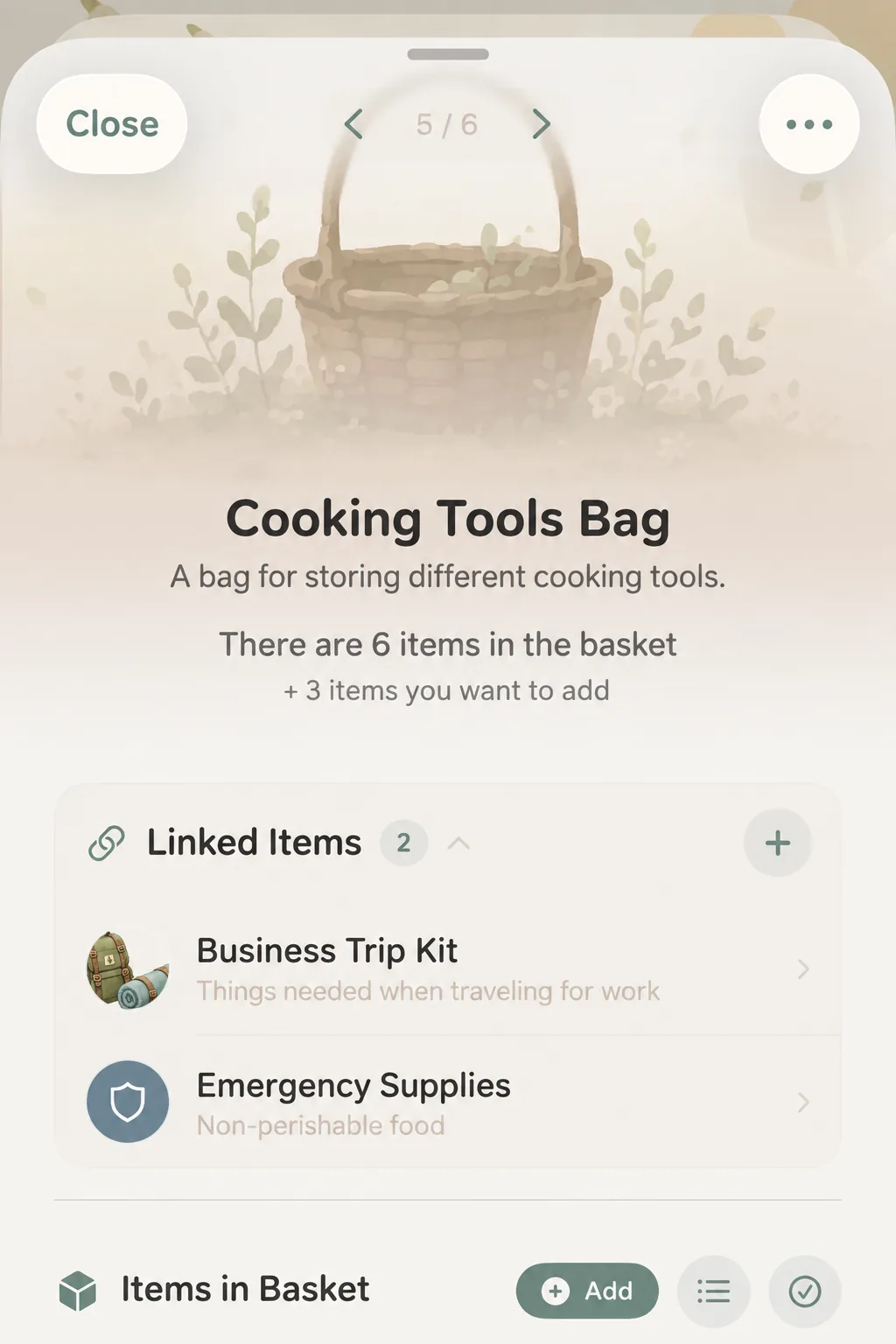
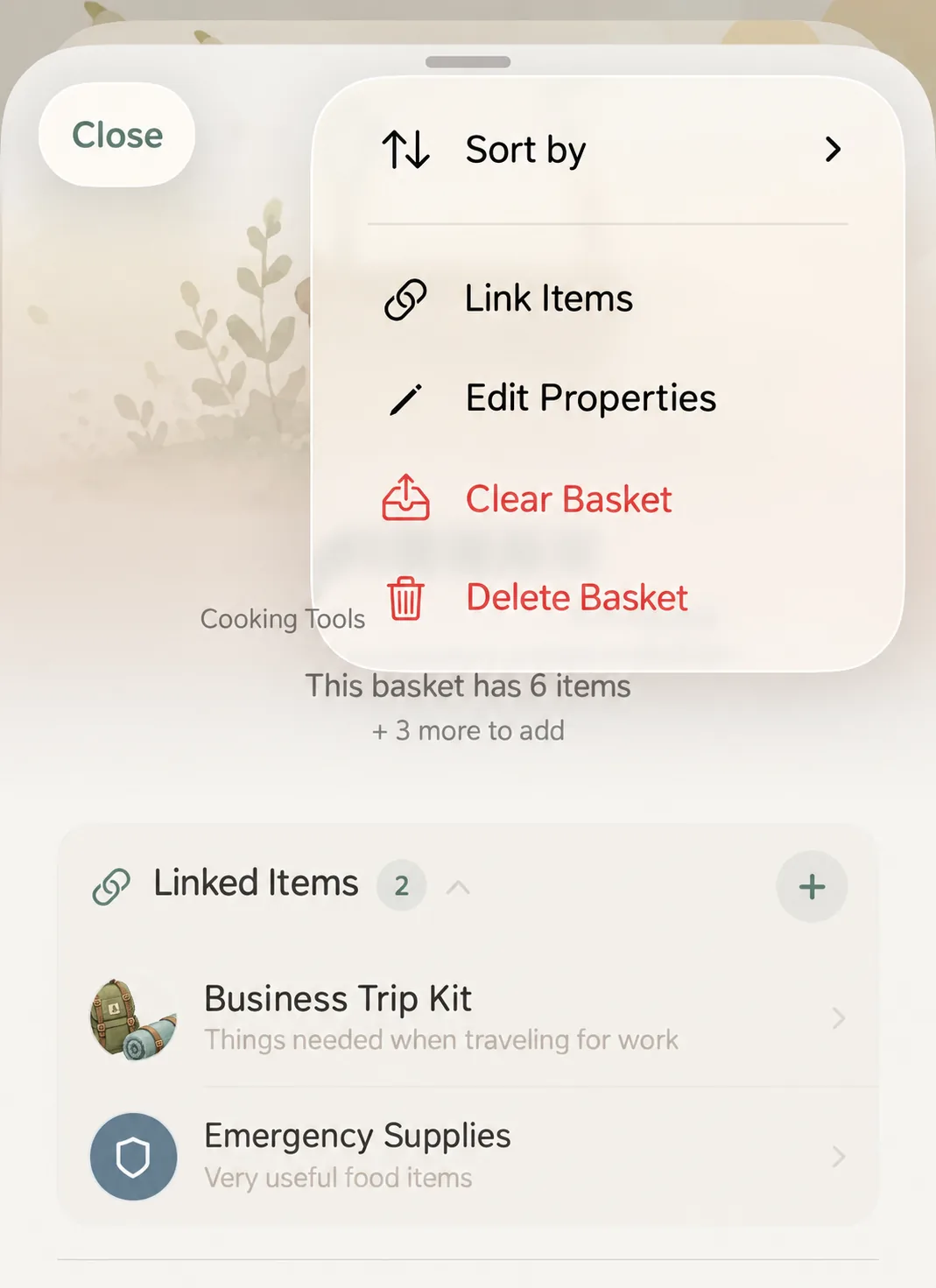
Baskets can also link together, allowing you to move smoothly between related scenarios (such as “Travel Packing” and “Carry-on Essentials”).
1. Why Link Baskets?
Everyday packing scenarios frequently overlap:
- Travel Compartments: Connect a 28-inch checked luggage basket with a carry-on daily backpack;
- Themed Routines: Link an outdoor camp cooking kit with a comprehensive emergency preparedness kit;
- Wishlist & Reality: Pair a home renovation packing list with a furniture wishlist basket.
2. Linking and Unlinking Baskets
- Creating a Connection:
- Open any basket detail view, tap ”···”, and select ”🔗 Basket Connections”;
- If other baskets are already linked, tap the ”+” button directly on the Connected Baskets card;
- Select the target baskets and save.
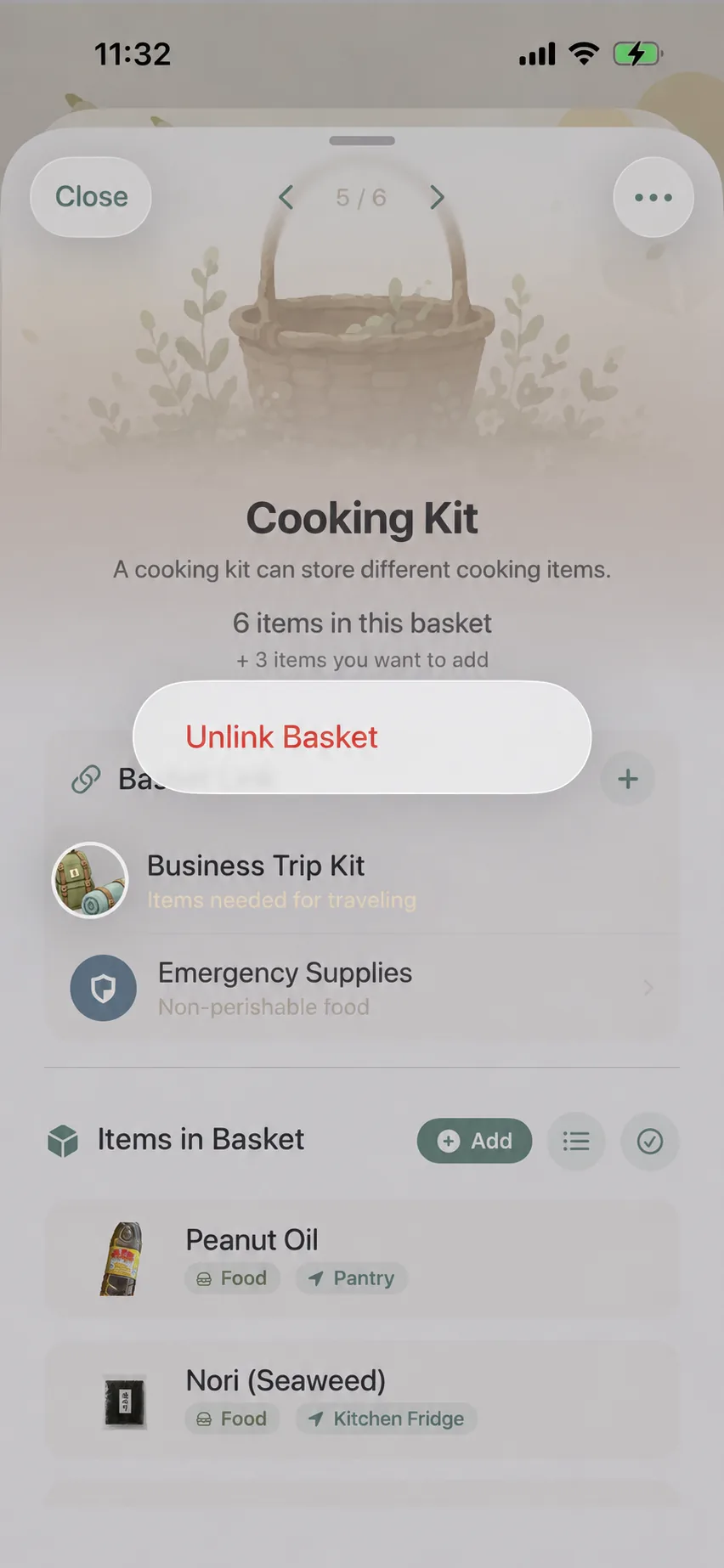
- Removing a Connection:
- Long-press any linked basket card;
- Tap “Unlink” in the popup bubble.
💡 Practical Scenarios & Recommended Pairings
| Life Scenario | Primary Focus | Recommended Item Pairings (Item Connections) | Recommended Basket Linkages (Basket Connections) | Practical Value |
|---|---|---|---|---|
| Digital Photography | Mirrorless Body | Prime lens, zoom lens, spare battery, SD card, sensor blower | [Body Kit] ⇄ [Tripod & Heavy Rig] | Ensure core body and lenses track each other; never leave spare batteries behind. |
| Outdoor Camping | 2-Person Tent | Aluminum stakes, guylines, ground tarp, seam seal tape | [Camp Shelter Kit] ⇄ [Camp Kitchen Kit] | Separate shelter from camp cooking while keeping both checklists synchronized. |
| Morning Skincare | Repair Essence | Balancing lotion, pure cotton pads, facial massager | [Morning Vanity] ⇄ [Travel Toiletry Pouch] | Monitor pairing consumables so cotton pads are replenished before empty. |
| Pour-Over Coffee | Coffee Dripper | Hand grinder, filter papers, digital scale, roasted beans | [Home Coffee Corner] ⇄ [Camp Brew Kit] | Equipment binds to consumables, simplifying home brewing and outdoor travel. |
| Long-Haul Travel | 28” Suitcase | Luggage strap, TSA lock, digital luggage scale | [Checked Luggage] ⇄ [Carry-on Daypack] | Large gear stays coordinated with valuables for effortless transit and check-in. |
❓ Frequently Asked Questions
Q1: Are Item Connections reciprocal? If I link Item B from Item A, will it show inside Item B?
Yes, completely reciprocal. Once connected, navigating to either item’s detail view will show the other in its Item Connections card. If it doesn’t appear immediately, return to the list and reopen the item to refresh.
Q2: Does unlinking or deleting one item delete the other?
No. Unlinking only dissolves the mutual connection. If you delete or bid farewell to one item, the other remains fully intact, with its own notes and history preserved.
Q3: Is there a limit on how many items can be connected together?
You may link as many companion items as you need. When lists grow long, cards neatly paginate or collapse. We recommend linking items that naturally function or travel together.
Q4: Can I connect an item that is currently hibernating?
Yes.
The selection picker lists all items. Connecting a hibernating item simply displays a gentle 💤 Hibernating label, letting you organize accessory bundles ahead of time.
Q5: What is the difference between connecting items and putting them in the same basket?
- Item Connections: Designed for physical or functional permanence (camera and lens, tent and stakes).
- Baskets: Designed for dynamic, task-oriented scenarios (this weekend’s packing list, spring cleaning tasks). Items can be cleared or unpacked from baskets once the task completes.