Search, Filter & Grouping
Master MononoMori's comprehensive retrieval, multi-dimensional filtering, and grouping system. From global search and dual-mode item/tag queries to dynamic custom category attributes and personalized item statuses, keep your collection serene and easily accessible.
Page Overview
Easily find and reorganize every cherished item in your forest
“As your collection grows, life doesn’t have to become cluttered. Viewing belongings from fresh perspectives through thoughtful categorization and gentle rearrangement turns tidying into a quiet conversation with your daily rhythm.”
As you record more belongings in MononoMori, you may find yourself in moments like these:
- Taking Inventory: During seasonal changeovers or spring cleaning, when your screen is filled with clothes and daily necessities, you want to focus exclusively on items stored in the “Storage Room” or the “Top Shelf of the Closet” without endless scrolling;
- Decluttering & Reviewing: You want to quickly gather all “Spare” or “Idle” goods for redistribution, or check which everyday medicines are nearing their expiration date;
- Reminiscing: You suddenly want to revisit the very first fountain pen you bought as a student or a souvenir brought back from a memorable trip—regular searches are fast, but they rarely let you stroll quietly through the rings of time.
MononoMori provides a deeply natural, multi-tiered retrieval and organization architecture: locate items instantly with the top search bar and category capsules, or tap the 「≡ Filter」 button to summon the Sort and Filter panels—rearranging the view of your forest just like inserting dividers into physical bookshelves and storage boxes.
🍃 The Mental Model: Finding and Organizing
In MononoMori’s design philosophy, “finding” and “viewing” are not cold technical queries, but intuitive extensions of physical home organization:
- Global Search & Quick Filters (Freeform Finding): Standing in the center of a room, a simple tap on a category icon or typing a few letters brings the desired item and its associated tags immediately into view;
- Grouping & Sorting (Reframing Perspectives): Inserting wooden dividers into wide drawers or bookshelves—grouping items by room, expiration date, or time of arrival;
- Multi-Dimensional Advanced Filtering (The 4-Drawer Box): A storage box with four distinct compartments—Basic (categories, dynamic custom attributes, tags, and item statuses), Location (woodlands and specific storage spots), Details (brands, models, multi-currency price conversion, and life chapters), and More (hibernation states and story attachments)—layer by layer, revealing only what matters.
🔍 Basic Retrieval & Instant Filtering
During everyday use, the most intuitive lookup and quick-filter tools rest right at the top of your main screen:
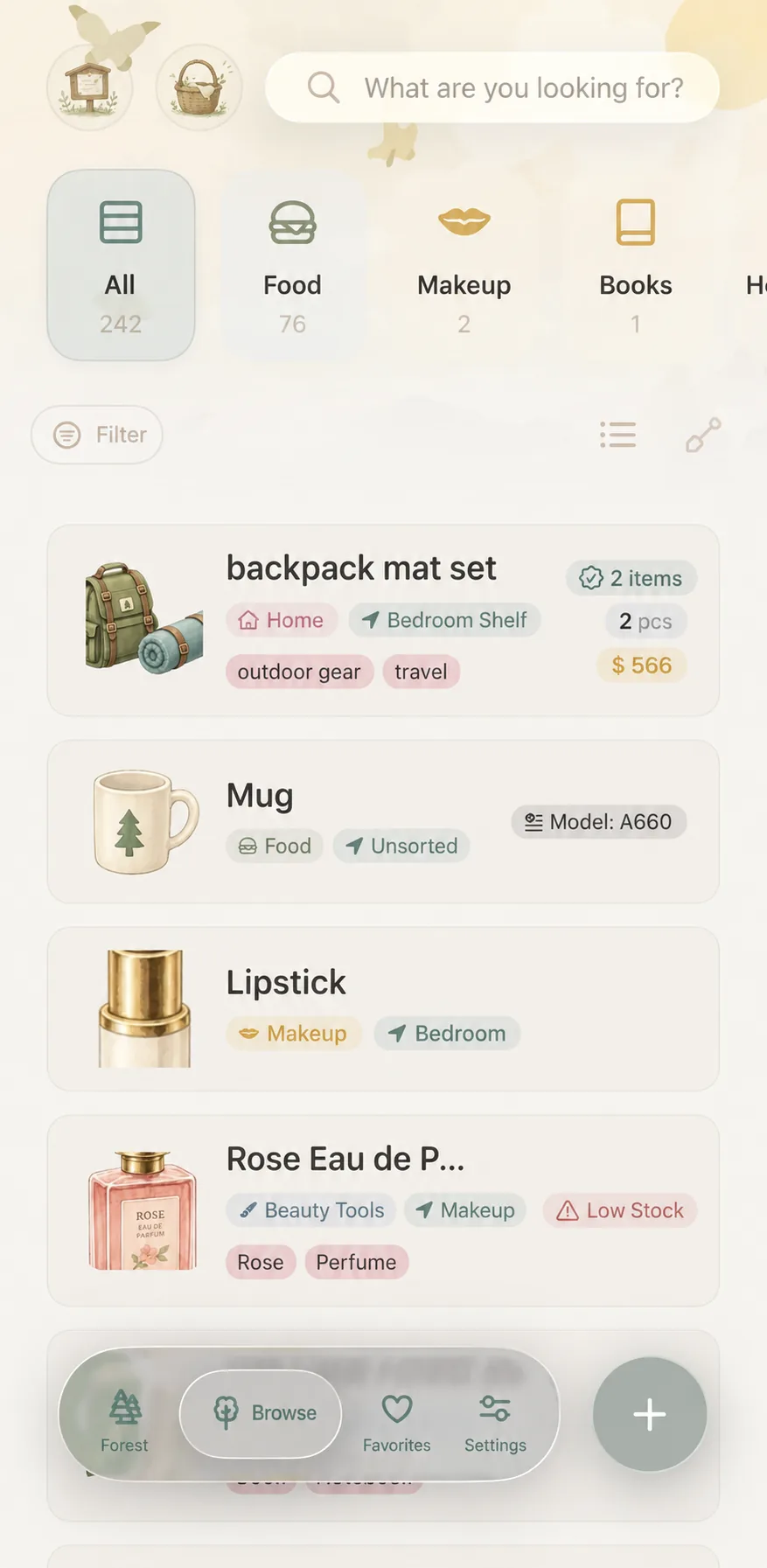 Main screen overview: top search bar, category capsules, and the 「≡ Filter」 entry
1. Hybrid Dual-Mode Search (Unified Items & Tags)
Tap the top search bar “What are you looking for?” to bring up the dedicated search interface:
- Hybrid Matching: Simultaneously matches item names, brand models, notes, and custom tags;
- Smart Pinyin & Romanization: Seamlessly handles phonetic and alphabetical inputs;
- Dual Results Section for 「Items」 and 「Tags」:
When you type any keyword into the search bar, MononoMori presents results cleanly separated into two distinct sections:
- 「📦 Items」: Displays individual item cards whose name, brand, or notes match the keyword. Tap any item to view its complete details;
- 「🏷️ Tags」: Groups all tags matching the keyword along with the number of linked items (e.g.,
Clip (1 item),Traveling (7 items)). Tapping a tag takes you to a dedicated tag view showcasing every item across your forest bearing that tag.
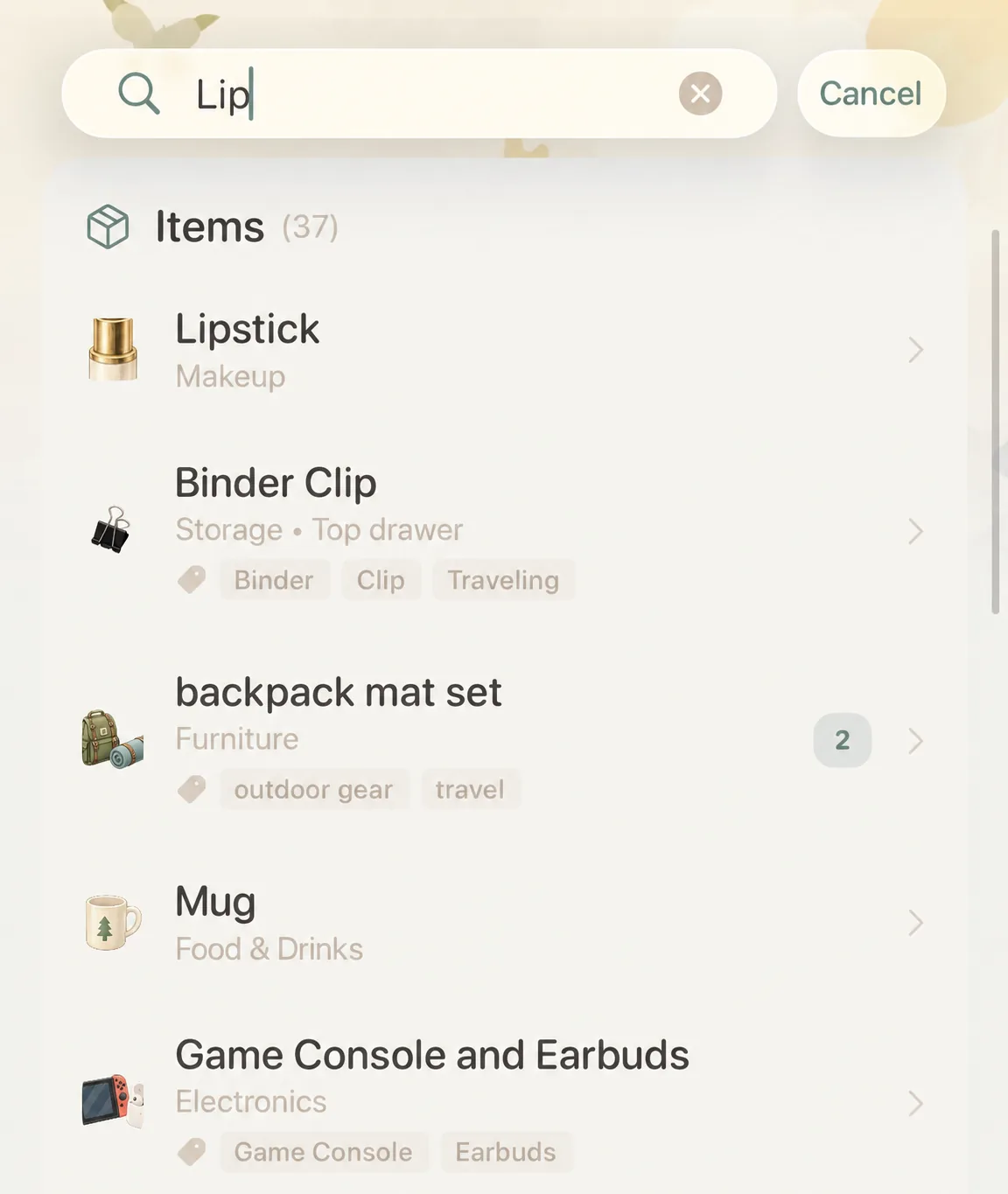 Item Search: Pinpoint names, models, and photo cards
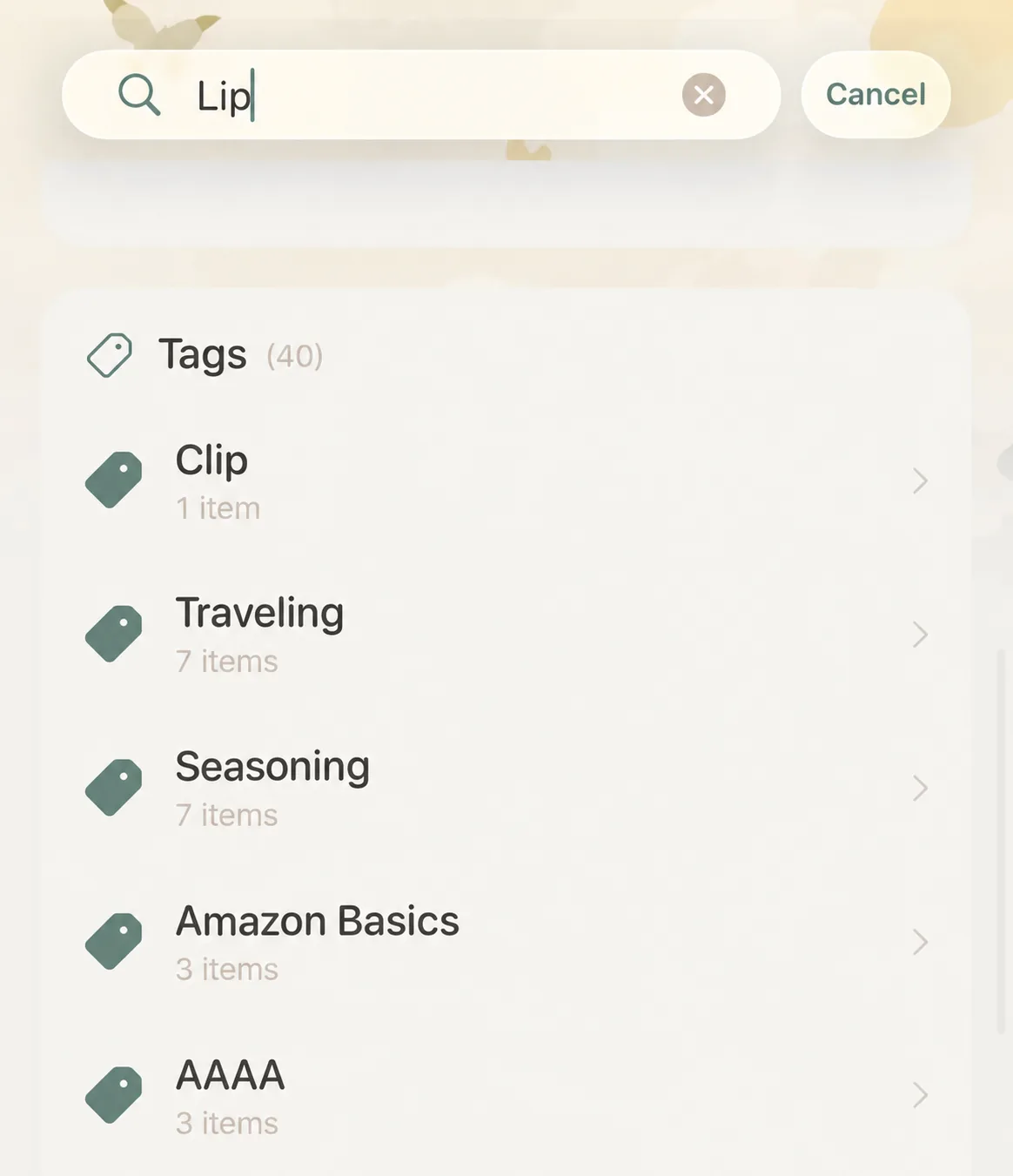 Tag Search: Discover related tags and linked item counts
2. Category Capsule Quick Filters
A row of elegant category icons rests directly below the search bar (such as All, Food, Books, Cosmetics, Digital, etc.):
- Tap Once: Immediately filters the main view to display all items belonging to that category;
- Tap Again: Deselects the capsule, returning smoothly to your entire forest.
3. Three View Modes
Tap the view mode toggle button on the right side of the toolbar to match different daily contexts:
- Card View: Generous photo presentation, visually rich and ideal for leisurely browsing your life records;
- Compact List View: Information-dense text and thumbnail layout, perfect for quick comparison and auditing;
- Grid View: A balanced multi-column photo grid, offering expansive visibility for large collections.
🏷️ Bringing Harmony to Your Forest: Grouping & Sorting
When you wish to reorganize how items are laid out across your screen, tap the 「≡ Filter」 button on the left side of the toolbar, then select the Sort tab on the left of the bottom sheet.
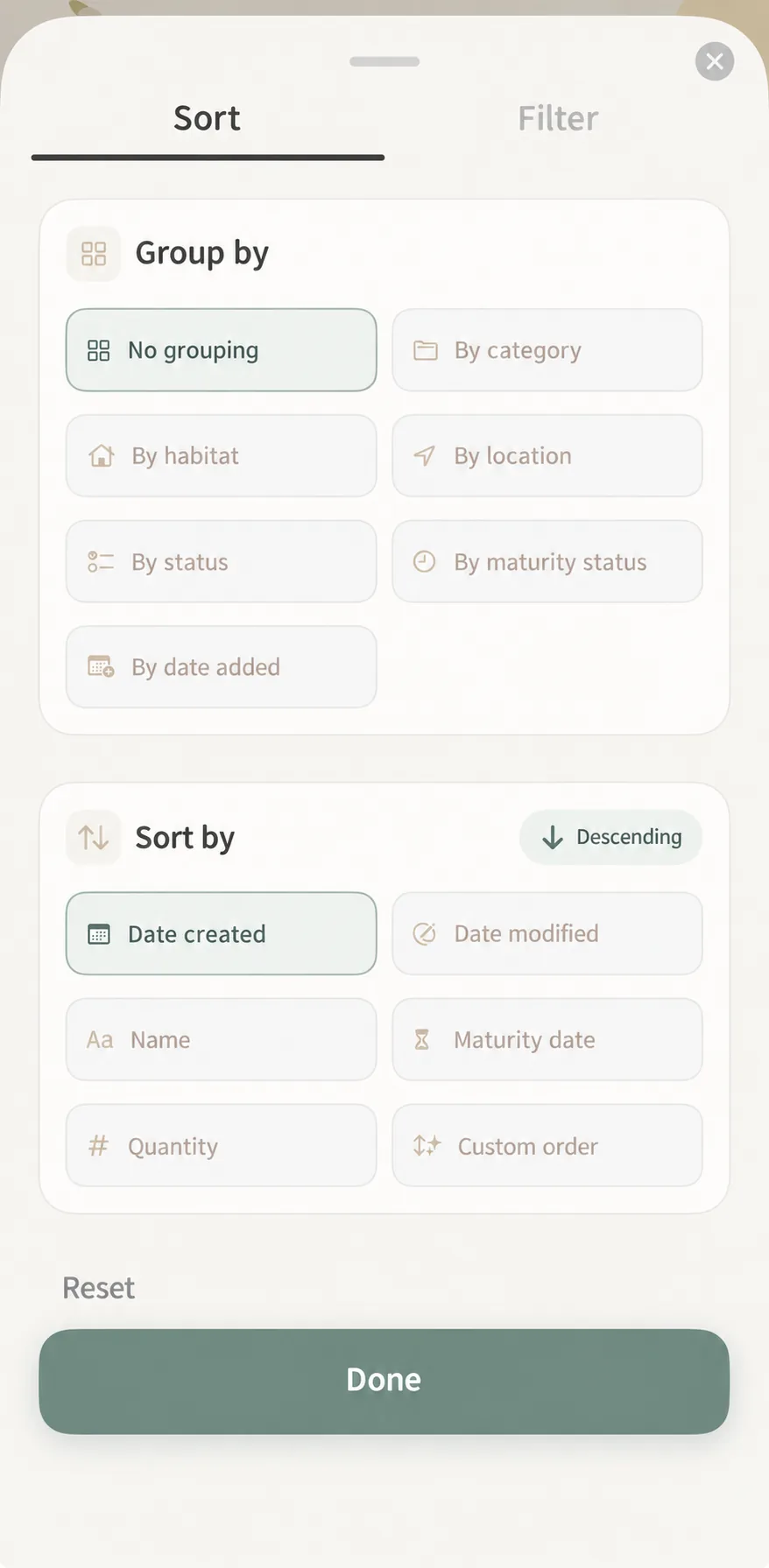 Sort & Group panel: Combine 7 grouping options with 6 sorting rules
1. Group By
Grouping introduces natural visual dividers into your item list, clustering individual pieces into distinct sections:
- None: Default continuous stream layout;
- By Category: Clusters items by category (e.g., Food, Books, Clothing);
- By Woodland: Organizes items by physical living spaces (e.g., Bedroom, Living Room, Studio);
- By Location: Pinpoints specific containers, shelves, or drawers (e.g., Nightstand Drawer, Desk Shelf);
- By Status: Groups items by their lifecycle pace—In Use, Spare, Idle, In Repair, etc.;
- By Expiry Status: Clearly separates items into Expired, Expiring Soon, and Normal;
- By Added Time: Groups items chronologically—Today, Yesterday, This Week, This Month.
2. Sort By
Determines the sequence of items within each group or across the unsegmented list:
- Created Time: (Default recommended) Most recently added items appear first;
- Modified Time: Items with recent tree-ring entries, photo updates, or note edits appear first;
- Name: Alphabetical order (A–Z or Z–A);
- Expiry Date: Items expiring soonest appear first—essential for food and medicine safety;
- Quantity: Ranked by inventory count, handy for managing bulk household supplies;
- Custom Order: Honors your personal drag-and-drop arrangement in the forest.
🎛️ Layer by Layer: The 4-Dimensional Advanced Filter System
Tap the Filter tab at the top of the panel to access MononoMori’s comprehensive 4-dimensional filtering suite: Basic, Location, Details, and More. Conditions across all tabs can be freely layered together.
Dimension 1: Basic (Categories, Dynamic Custom Attributes, Tags & Statuses)
The first step closest to daily habits:
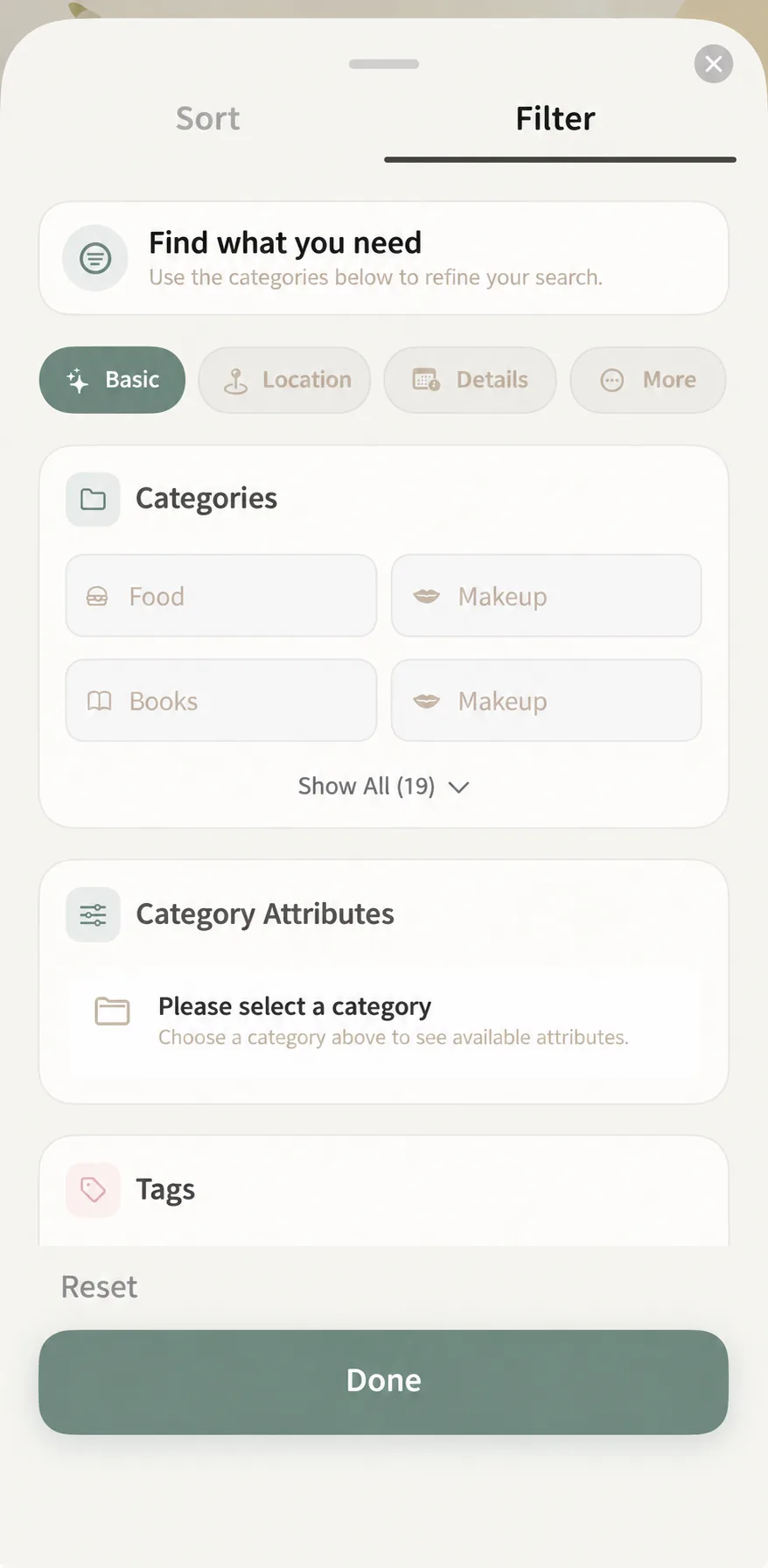 Basic filtering: Cross-select categories with dynamic attribute linkage
- Category Selection: Directly tap one or multiple categories (tap “Show All” to expand custom and preset categories).
- Dynamic Custom Category Attribute Filtering (Signature Feature):
Dynamic Custom Attribute Linkage
If you have configured custom attributes in your custom categories (such as scale for "Scale Figures", roast level for "Coffee Beans", ISO for "Vintage Film", or shade/volume for "Skincare"), selecting that category immediately reveals the Category Attributes filter below! You can directly filter across these specialized fields to find items matching your exact specifications.
- Frequently Used Tags & Search: Common tags appear as sleek tap-to-select capsules, alongside a “Search Tags” button for quickly locating long-tail tags.
- Built-in & Custom 「Item Status」 Multi-Selection:
Item statuses in MononoMori are never rigid or predefined. In addition to thoughtful preset options, custom item statuses are fully supported. Any custom status you add in personalization settings automatically appears here for filtering:
- Common presets:
Brand New,Like New,In Use,In Use (Old Version),Idle,Spare,Low Stock,Lent Out,Under Repair,No Status; - Custom statuses: Personal labels like “Waiting for Resale”, “Seasonal Packing”, or “Loaned to Family” can all be checked and combined seamlessly.
- Common presets:
Dimension 2: Location (Woodlands & Specific Storage Points)
Quickly review the physical distribution of goods across your living spaces:
- Woodlands & Rooms: Check “Master Bedroom”, “Bathroom Vanity”, “Pantry”, etc., to narrow your focus to that specific area;
- Auditing Tools for Unassigned Items:
- Unassigned Woodland: Isolate items that have not yet been assigned to a main living space for quick batch organizing;
- Unassigned Location: Find items placed in a room but lacking a specific drawer, bin, or shelf.
Dimension 3: Details (Brands, Price Conversion, Life Chapters & Expiry)
Explore the history, value, and life narrative behind your belongings:
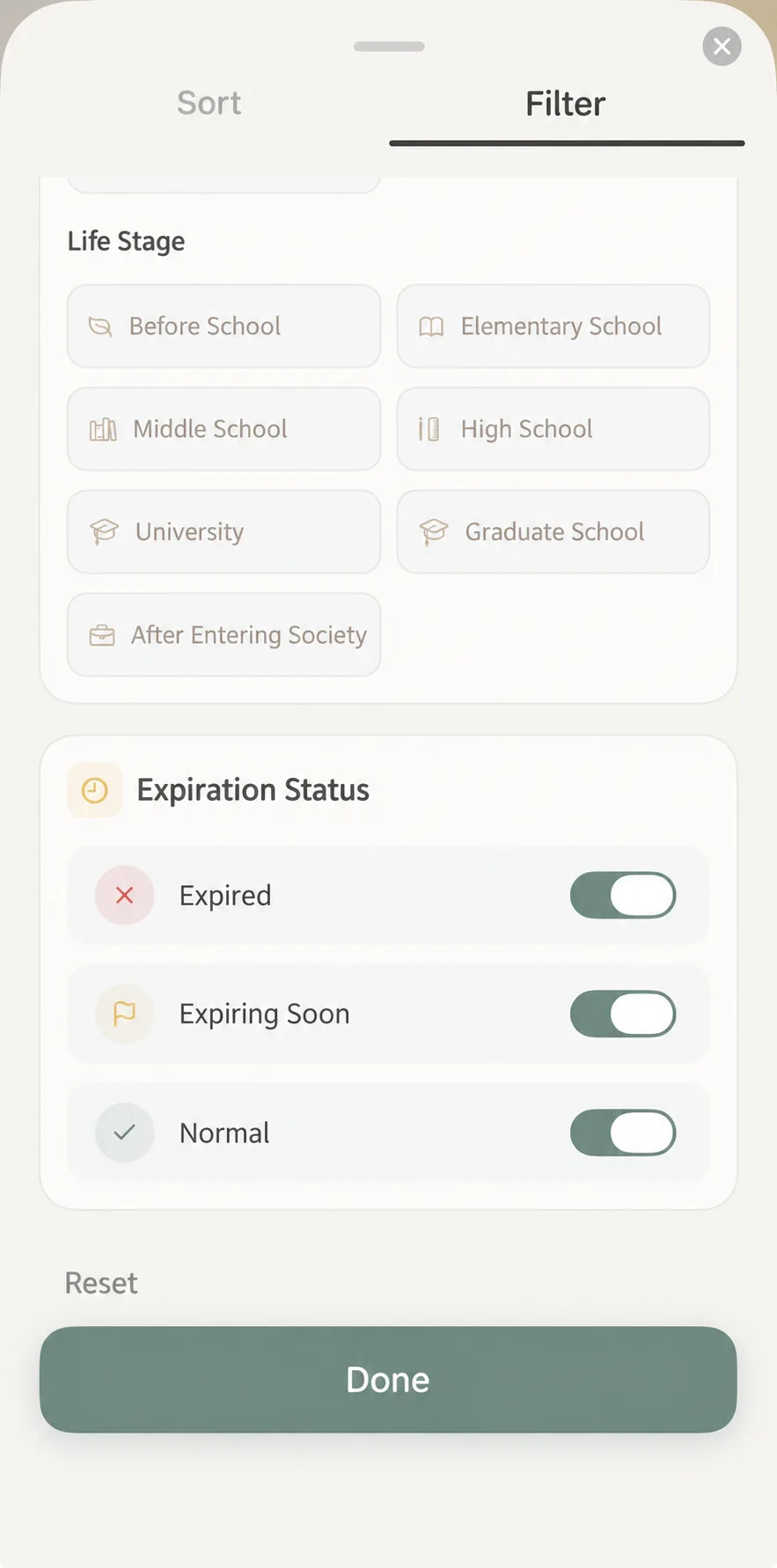 Life Chapters nostalgic timeline and independent expiry controls
- Brand & Model Search: Quick-tap popular brand bubbles, or use the model search box to pinpoint electronics and appliances;
- Price Range & Intelligent Multi-Currency Conversion:
- Freely enter minimum and maximum price ranges;
- Multi-Currency Conversion Toggle: For cross-border shopping or international purchases recorded in different currencies (JPY, USD, EUR, CNY), toggling this switch enables MononoMori to convert all values into your base currency using exchange rates before applying the range filter—ensuring accurate asset tracking;
- Purchase Date Range: Choose “All”, “Last 7 Days”, “This Month”, “This Year”, or custom date spans;
- Life Chapters (Nostalgic Timeline):
- Connect items to the milestones of your life journey (Preschool, Elementary School, Middle School, High School, College, Graduate School, Career, etc.);
- Check a chapter to instantly recall the cherished belongings that accompanied you during those formative years;
- Independent Expiry Switches:
- Dedicated toggles for “Expired”, “Expiring Soon”, and “Normal”, allowing you to inspect any combination with ease.
Dimension 4: More (Hibernation Modes & Story Attachments)
Mindful touches for life’s quiet corners and emotional attachments:
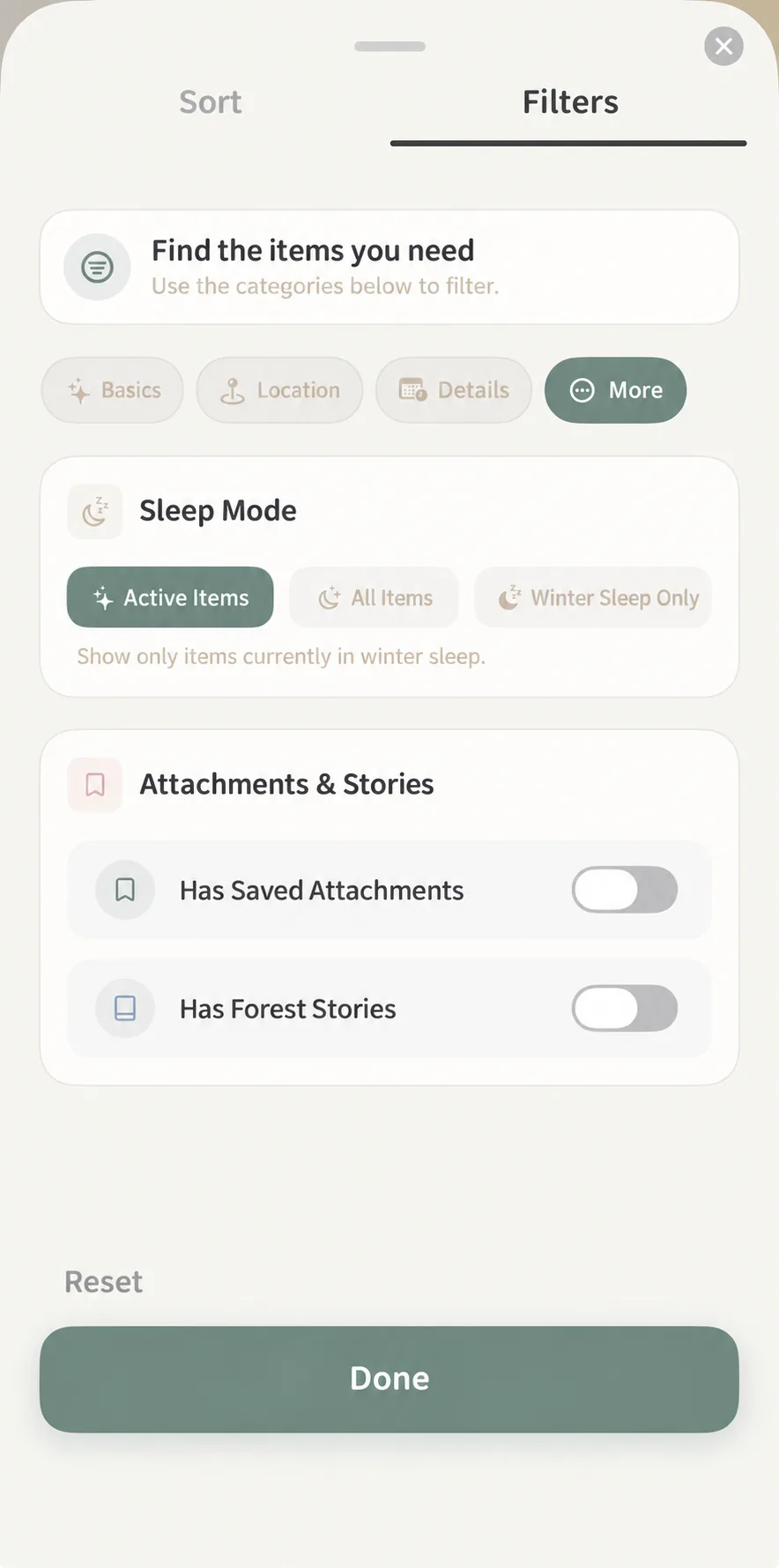 More filters: 3-state hibernation toggle, Treasure Box attachments, and Forest Stories
- Hibernation Mode:
- Active Items Only: (Default recommended) Hides seasonal items or belongings in declutter contemplation, keeping everyday views calm and clean;
- All Items: Simultaneously displays active and hibernating items;
- Hibernating Items Only: Dedicated focus on packed away, deep-storage, or seasonal goods;
- Attachments & Stories:
- Has Treasure Box Attachments: Filters items that have digital user manuals, receipts, warranty slips, or replacement parts attached;
- Has Forest Story: Isolates items enriched with personal diary entries, gift memories, or reflective notes.
🍃 Applying, Resetting, and the Filter Status Bar
After configuring your desired criteria:
- Tap the green 「Done」 button at the bottom of the panel to apply your selections immediately;
- Returning to the main list, an elegant Filter Status Bar rises above the items, displaying active filters and matching item counts;
- How to Reset:
- Open the filter panel and tap the subtle 「Reset」 button in the lower left corner;
- Or tap 「Clear Filter」 on the right side of the main list status bar to restore the entire forest in one touch.
💡 Practical Life Scenarios
| Everyday Scenario | Recommended Grouping & Sorting | Filter Combination | Organizing Mindset |
|---|---|---|---|
| Seasonal Wardrobe Rotation | Group: By Woodland (Closet/Bins) Sort: By Category | Filter: Under [More], switch to “Hibernating Items Only” or check “Idle” status | Awaken items being unpacked for the season, while putting out-of-season clothing into hibernation. |
| Food & Medicine Safety Audit | Group: By Expiry Status Sort: By Expiry Date (Ascending) | Filter: [Basic] check “Food/Medicine”; [Details] toggle “Expired” and “Expiring Soon” | Consume or clear items within 7 days of expiration to safeguard your household’s daily health. |
| Appliance Warranty Lookup | Group: By Category Sort: By Created Time | Filter: [Details] type brand/model; [More] check “Has Treasure Box Attachments” | Instantly pull up electronic manuals and purchase receipts when maintenance or repair is needed. |
| Life Chapters & Nostalgia Walk | Group: By Added Time Sort: By Custom Order | Filter: [Details] check “College Years” or “High School”; [More] toggle “Has Forest Story” | Read stories written years ago and reflect on the companion items that shaped your journey. |
| Lent Out & Repair Tracking | Group: By Status Sort: By Modified Time | Filter: [Basic] check “Lent Out” and “Under Repair” (or your custom statuses) | Keep track of belongings loaned to friends or sent out for servicing—everything accounted for. |
❓ Frequently Asked Questions
Q1: Does adjusting grouping and sorting change my original item records or categories?
Not at all. Grouping and sorting change only how items are viewed on screen, like looking through a different set of lenses. It never alters your items’ physical locations, assigned categories, tree-ring records, or IDs. You can tap “Reset” at any time to return to the original view.
Q2: Are filter conditions retained after closing or quitting the app?
Yes, they are saved locally on your device. MononoMori thoughtfully remembers your active filters and display preferences so that each time you open the app, you can continue browsing exactly how you like. Whenever you wish to reset or change your view, simply tap “Reset” inside the panel or tap “Clear Filter” on the main list’s status bar.
Q3: When do custom category attribute filters appear?
Custom attributes are dynamically linked to specific categories. When you select a category that has custom attributes defined (e.g., custom categories like “Figurines”, “Film Rolls”, or “Coffee”), the system dynamically reveals those unique attribute filters below. If no category is selected, the area gently rests in an informative standby state.
Q4: Where can I customize item statuses?
Navigate to MononoMori’s Settings and Personalization module. You can freely add, rename, or reorder item statuses (e.g., “Ready for Resale”, “Moving Box A”). Once created, they automatically appear under Basic ➔ Item Status in the filter panel.
Q5: How does multi-currency conversion work? Does it work offline?
MononoMori includes built-in conversion models for major global currencies. When enabled, prices recorded in different currencies (such as JPY, USD, EUR, CNY) are automatically converted into your chosen base currency before applying range filters. Because conversion factors are cached locally, price filtering remains fully functional even in airplane mode.
Q6: Why can’t I find an item in my main list?
If an item seems missing from your main forest, follow these three simple checks:
- Check the Filter Status Bar: See if any filter criteria remain active, and tap “Clear Filter”;
- Check for Hibernation: Hibernating items are hidden from daily views. Search for them in the top search bar (marked with
💤 Hibernating), or select “All Items” under the [More] tab in the filter panel; - Check the Memory Forest & Recycle Bin: Items that have undergone a farewell ceremony reside under the stars of the “Memory Forest”, while deleted items rest in the “Recycle Bin”.