Basic Navigation
Practice moving between Forest, Overview, Memory, and More, and learn how to drill down through Woodlands and Locations to find your items.
Page Overview
Switching Between Main Tabs
Tap any of the four tabs on the bottom navigation bar—Forest, Overview, Memory, or More—to reach that destination. For daily use, keep these two core paths in mind:
- Want to drill down by physical storage spot? Use Forest.
- Want to search, filter, or scan items collectively? Use Overview.
Memory is for reviewing past items and handbooks; More provides settings, backup, and category tools.
Finding Items Through the Forest
If you remember roughly where an item is kept:
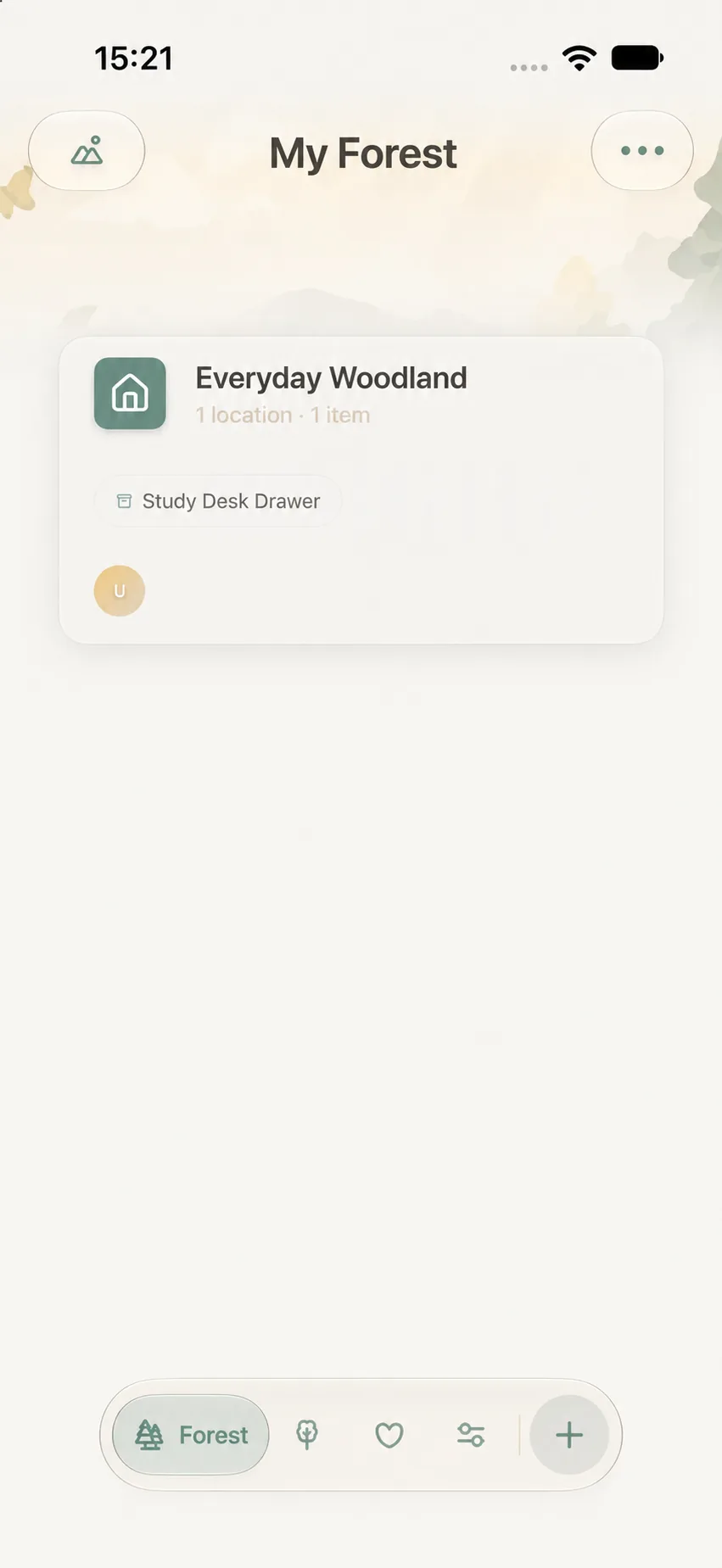
- Tap Forest and open the relevant Woodland card.
- Locate the parent Location (e.g., Wardrobe); if sub-locations exist, tap deeper (e.g., Top Shelf).
- Tap the item card to view its full details.
- To return to the previous level, tap the top-left Back button or swipe from the left edge.
For a deeper look at spatial hierarchies, see Woodlands and Location Architecture. If you cannot recall where an item lives, using Smart Search & Multi-Dimensional Filter is usually faster.
Map View vs. List View
In the Forest tab, you can switch between Map View and List View via the top-left toggle:
- Map View: Great for spatial awareness and visually navigating room layouts.
- List View: Ideal for rapid scanning and manual drag-and-drop reordering.
Switching views only changes the display format; it never alters your items or location data.
Bypassing Hierarchy with Search
When you know an item’s name or tag, tap the search bar at the top of Overview or Forest to bypass spatial drilling entirely.
If an expected item does not appear:
- Check for typos or alternative names.
- Check whether you are searching globally or inside a specific sub-location.
- Verify if active filters or status chips are narrowing your view.
- Check whether the item is in Hibernation (which hides it from daily views) or in the Trash.
Choosing Between Spatial Browsing and Quick Search
| What You Remember | Recommended Starting Point | Next Verification Step |
|---|---|---|
| The room, drawer, or box it lives in | Forest | Open Woodland & Location; verify physical storage path |
| Name, brand, or general keyword | Overview Search | Clear filters, then open item detail to check location |
| A sentimental item you let go of | Memory | Check Memory Forest archives or Memory Handbooks |
| Need to backup, sync, or clean storage | More > Data Management | Confirm operation type, then follow on-screen prompts |
No Complex Gestures Required
Every action in MononoMori can be completed using intuitive taps, standard back arrows, and clean on-screen menus. You never need to memorize complex hidden gestures like three-finger swipes or device shakes.