Basic Features
NEW · Added in v3.1.0Home Screen Widgets: Keep Items and Memories Close
Meet Forest Today, Falling Leaves, Today's Reunion and Today's Treasure. Learn to add widgets, choose their scope, adjust name and photo display, and troubleshoot updates.
Updated on Oct 6, 2026 ~21 min read
On this page
A quick glance at items that need care, or a quiet reunion with a familiar story
‘Leave a small window into your forest on the Home Screen, so care and memories can become part of everyday life.’
Widgets are information cards on your iPhone or iPad Home Screen. They show item or memory content already prepared by MononoMori; tapping a card takes you back to the app. Add and edit your records in the app, then let widgets bring a little of that content to your Home Screen.
If you are new, add your first item and try Today’s Treasure. To watch the dates of everyday supplies, save an item’s expiry date and try Falling Leaves.
Choose One of Four Widgets
| Widget | What it shows | Sizes | When to use it |
|---|---|---|---|
| Forest Today | Today’s Reunion and Falling Leaves side by side | Medium | Keep memories and expiry care in one card |
| Falling Leaves | Expired or soon-to-expire items that still need attention | Small, medium | Watch dated items such as food or skincare |
| Today’s Reunion | An item in the Memory Forest and its story | Small, medium | Revisit a memory each day |
| Today’s Treasure | An item still in use, optionally chosen by category or tag | Small, medium | Notice belongings you already own |
Today’s Treasure does not require a special treasure marker. It chooses from active items; hibernating, deleted and remembered items are outside that pool. Today’s Reunion comes from item memories, not the pages you design in a Memory Book.
Small widgets focus on one item; medium widgets have more space. These are Home Screen sizes. Not finding the same options on the Lock Screen does not mean installation failed.
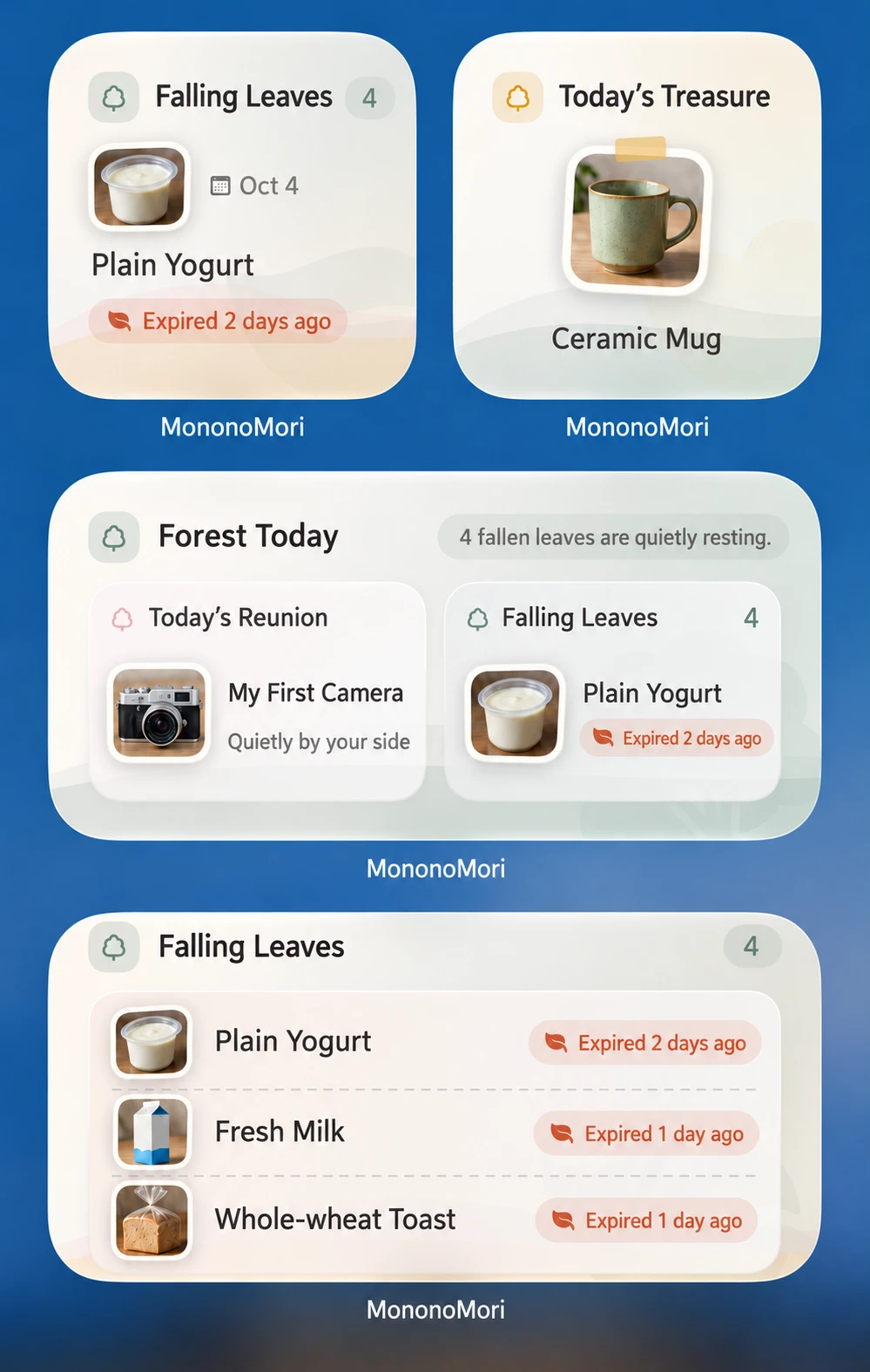
This illustration is based on a real widget screenshot. AI was used to replace example photos, names and dates and to localize the labels. It explains the layout; your records and the system’s refresh schedule determine what actually appears. Expiry ages are examples.
Add Your First Widget
Update to a version with widgets and open MononoMori once so it can prepare your records. The app also explains this feature under More → Explore the Forest → Home Screen Widgets.
On iPhone:
- Go to the Home Screen and touch and hold an empty area until the icons jiggle.
- Tap Edit → Add Widget. Some iOS versions show + instead.
- Search for MononoMori in the widget gallery and open its options.
- Swipe through types and sizes, choose one and tap Add Widget.
- Move the card where you want it and tap Done.
iPad also uses the Home Screen widget gallery. System controls vary by version; see Apple’s widget instructions if needed.
Start with one card. After checking its content and tap destination, add other types as needed. You can add several copies of the same widget and configure each separately.
Choose Scope and Display Options
Touch and hold an installed widget and choose Edit Widget. Tap outside the panel when finished.
Forest Today and Falling Leaves: Choose a Grove
Both provide a Grove option. Leaving it unspecified covers all groves; selecting one limits expiry care to that grove. For example, keep separate cards for Home and Office. The choices come from data prepared locally by the app. If a new grove is missing, confirm it was saved in the app, then return to the widget settings.
The grove selection in Forest Today only limits Falling Leaves. Its reunion panel still shows the day’s item memory; it is not filtered to that grove.
Today’s Treasure: All, a Category or a Tag
Under Selection Scope, choose:
- All: select from active items currently prepared for the widget.
- A category: choose a main category, such as Books.
- A tag: choose a tag, such as Travel Souvenirs.
These are alternative selection modes. Widgets currently filter by main category or tag, with no separate subcategory option. To show a group spanning several categories, give those items a shared tag and choose that tag.
Check the card after changing scope. Candidate categories and tags come from the local widget data and may not match the app’s entire filter catalogue.
Every Widget: Show Names and Show Photos
All four types offer Show Names and Show Photos:
- Turning off names replaces item names with generic wording. Stories or locations may also be hidden depending on the layout.
- Turning off photos retains the card and uses icons or similar visuals instead.
- Configure each copy separately if you have several widgets.
These switches only affect Home Screen display; they do not delete names, photos or stories. Expiry status and other information may still appear. To show fewer item details, turn off both switches.
Understand Falling Leaves
Falling Leaves uses the saved expiry date. The current window covers items expired within the last 30 days and items due within the next 7 days, ordered by expiry. Small cards highlight the most urgent item; medium cards can show several.
If an expected item is absent, check in this order:
- Confirm its expiry date is saved. A purchase date or custom date does not substitute for it.
- Check that the date falls within the current window. Very old expiry dates and distant future dates are not all listed.
- Confirm the item is not in the recycle bin or Memory Forest.
- Check whether the widget is scoped to another grove.
- Items already marked handled, or still snoozed in the app’s Falling Leaves list, temporarily leave the care list.
- Confirm saving succeeded in the app, then allow the system to refresh.
An empty card means there are no items to show within its current scope. It does not mean your forest is empty or every physical item has been checked.
Widgets only display on the Home Screen; they do not change dates. The app sends expiry notifications separately: by default 7, 3 and 1 day before the expiry date at 9:00. You can change the timing and time under Expiry Reminder in Settings. If notifications do not arrive, check that iOS allows MononoMori to send them.
Why Does the Item Not Change on Every Tap?
Today’s Reunion and Today’s Treasure follow the day’s selection. Reopening the app or tapping repeatedly does not necessarily choose another item. With a small candidate pool, an item may reappear on another day.
Today’s Reunion is linked to the daily reunion on the app’s Memories tab. With no item memories, it shows a gentle empty state. There is no need to bid farewell to an item still in use just to fill the widget.
Today’s Treasure shows eligible active items. If the selected category or tag has no candidates, switch to All or another scope. It is a daily display card, not proof that every item has been shown or inventoried.
Where Does a Tap Take You?
| Area tapped | Usual destination |
|---|---|
| Item in Today’s Treasure | That item’s details |
| Memory in Today’s Reunion | That item’s memory |
| Item in small Falling Leaves | That item’s details |
| Item row in medium Falling Leaves | That item’s details |
| Other areas of medium Falling Leaves | Falling Leaves in the app |
| Reunion or care panel in Forest Today | The relevant memory, or Falling Leaves in the app |
Empty or update-needed cards open a related app destination. If an item was deleted, changed state or has not synced locally, the original record may no longer open. Check the app and wait for the widget to update.
Refresh, Adjust and Remove
iOS schedules widget refreshes. Saving data requests an update, but the Home Screen is not guaranteed to change immediately after you leave the app.
For an old name, photo or an ‘Open MononoMori to update’ message:
- Open the app and confirm the record is saved. For another device’s changes, wait for local sync to finish.
- Return to the Home Screen and allow time for a system refresh.
- Check that the grove, category or tag still exists and suits your needs.
- Recheck Edit Widget. If necessary, remove that card and add it again.
To remove it, touch and hold the card and choose Remove Widget. This removes only the Home Screen card, not items or memories in the app.
A Small Practice Exercise
Check and save expiry dates for two everyday supplies, add medium Falling Leaves and select their grove. Confirm the scope, tap an item to open its details, then turn off names and photos to compare the display. You have practised adding, configuring, opening and adjusting a widget.
Continue with Tags, Search and Filters or Memory Forest.