

Farewells & Memories
Updated for v4.0.0Farewell and the Recycle Bin
When an item leaves your life, choose how it left, write a few words, and hold the button so a little bird carries its tag to the Memory Forest; if it was a mistake or you want no record, put it in the Recycle Bin. Also covers saying farewell to several items at once.
Updated on Nov 3, 2026 ~21 min read
On this page
When something is used up, given away or sold, you say farewell to it. A farewell ends in one of two ways: if you want to keep a record, it goes to the Memory Forest, where you can look back on it later; if it was recorded by mistake or you want no record, it goes to the Recycle Bin, where you can get it back within 30 days. Both endings are on the same farewell page, so you do not need to decide before you open it.
MononoMori has no separate Delete button for items. To delete an item, say farewell and choose the Recycle Bin. See “Just delete an item” below.
Where to start a farewell
- One item: open the item page, tap ··· at the top right and choose Farewell.
- Several at once: in Items, tap the small trowel in the tool row (multi-select), or touch and hold an item and choose Select. Tap the items to say farewell to, then tap Farewell in the tidy-up tools at the bottom. See “Say farewell to several items at once” below.
- Expiring items: while looking after items that are about to expire or have fallen in Leaf Gathering, you can let them go right there. See Leaf Gathering and Expiry Letters.
This only matters if you share a grove with others: whether an item in a shared grove stays or goes is up to the person who shared that grove (its keeper). See Shared Groves: Roles, News and Leaving.
Just delete an item
If it was recorded by mistake, recorded twice, or you do not want any record of it:
- Open the item page, tap ··· at the top right and choose Farewell.
- Skip choosing how it left, and tap Move to Recycle Bin · back within 30 days at the very bottom.
- ““Item name” is in the Recycle Bin” appears at the bottom. Tap Undo within 5 seconds to put it back where it was.
To delete several at once: select them in Items, tap Farewell, then tap All to Recycle Bin · back within 30 days. Items in the Recycle Bin can be restored from More › Recycle Bin within 30 days.
The farewell page
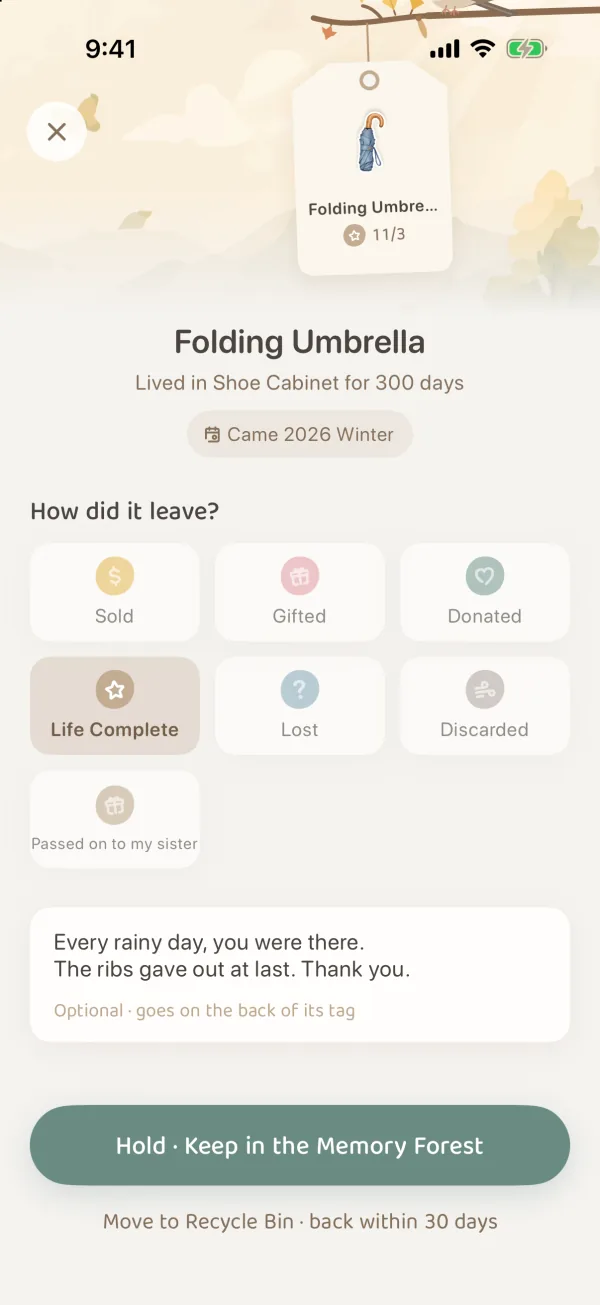
A farewell is a whole page. At the top, the item’s tag hangs from a small twig with a little sparrow perched beside it (a little owl in the Moonlit Night look). Below that come who it is, how it left, what you want to say to it, and at the very bottom, the two endings.
Who it is
Under the name it says where it lived and for how long, such as “Lived in Living Room for 800 days”, and when it came into your life. Tap this line to change when it came to you:
- A year, such as 2018;
- A time chapter, such as Preschool, University or Working Life, or a chapter you have changed yourself;
- Can’t Remember: just leave it blank.
Time chapters are set in More › Memories › Time Chapters.
How it left
Each way of leaving is a small stamp. Choose one:
| How it left | What the stamp says |
|---|---|
| Sold | Gained new value through sale |
| Gifted | Became a precious gift to others |
| Donated | Helped those in need |
| Life Complete | Fulfilled its purpose |
| Lost | Started a new journey somewhere |
| Discarded | Returned to nature’s embrace |
Ways you add in More › Memories › Farewell Options (such as “Left to my sister”) show up here too.
What you want to say to it
This is optional, up to 300 characters. Your words are written on the back of the tag, and you can read them again in the Memory Forest later. The prompt changes with how it left. For example, with Gifted it asks “Any message for its new owner?”.
The two endings
| Ending | How | Afterward |
|---|---|---|
| Hold · Keep in the Memory Forest | Keep holding until the bird pecks the knot open and flies off with the tag. Tap anywhere during the flight to skip it | Takes you to Memories to see it hang on a branch |
| Move to Recycle Bin · back within 30 days | Tap once | ”“Item name” is in the Recycle Bin” appears at the bottom. Tap Undo within 5 seconds to put it back as it was |
If you hold the button before choosing how it left, you are asked to Choose how it left first. If you have not made up your mind, tap the close button at the top left, and the item stays where it is.
Say farewell to several items at once
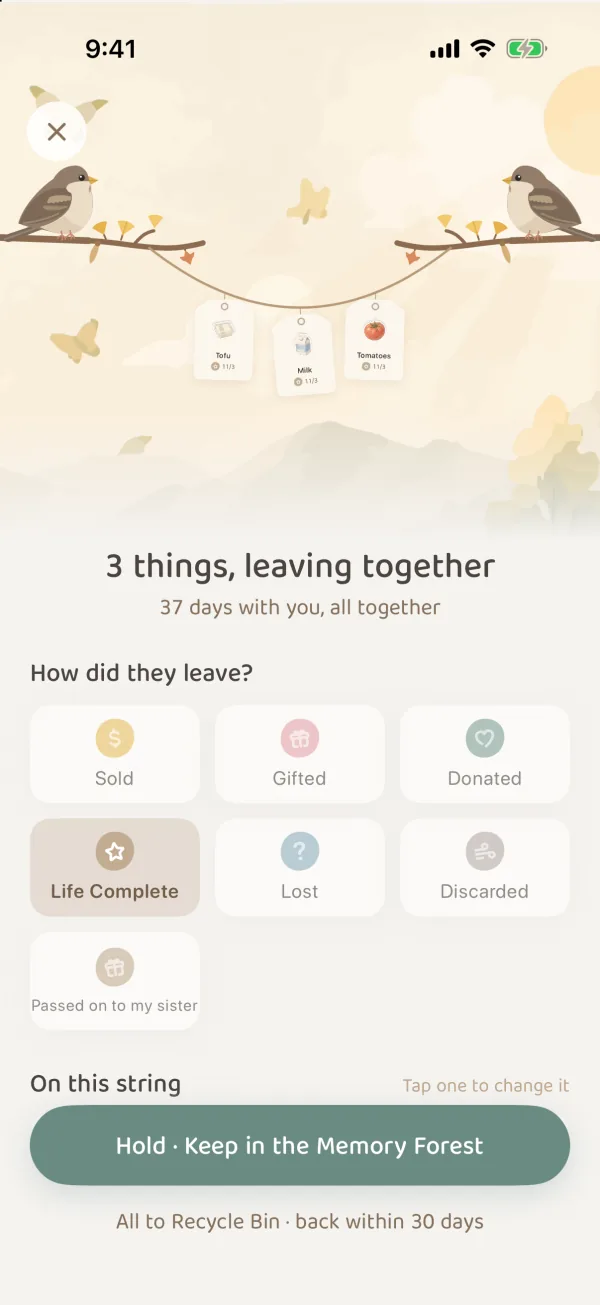
When you clear out a drawer, several things often leave together. They hang on the same string and say farewell at once:
- In Items, tap the small trowel in the tool row (multi-select), or touch and hold an item and choose Select, then tap the other items to say farewell to.
- Tap Farewell in the tidy-up tools at the bottom. If you selected only one, it is a single farewell.
- The top of the page says “N things, leaving together” and “N days with you, all together”. Choose how they left, and the stamp is pressed on the whole string of tags.
- If one or two are different, tap it under On this string (“Tap one to change it”): give it a different way of leaving, choose Same as the others, choose Hang it back on the string, or Move to Recycle Bin to drop it into the small wooden box below.
- A note is optional; if you write one, it goes on the back of every tag.
- Hold to finish: the ones in the wooden box go to the Recycle Bin, and the ones on the string go to the Memory Forest. You can also tap All to Recycle Bin · back within 30 days.
If any of the selected items are in a shared grove, they do not hang on this string, and the page says “N from shared groves stay; their keeper decides”.
The first time you keep two or more items in the Memory Forest at once, you get the Garland of Thanks stamp. See Forest Stamp Book.
Bring it back to a grove
Whether an item in the Memory Forest can come back depends on how it left:
- Life Complete, Lost, Discarded: can come back.
- Sold, Gifted, Donated: cannot come back.
- Farewell options you added: turn on Allow ‘Re-collection’ when you create or edit one, and it can come back. It is marked Restorable in the list.
To bring it back:
- Open its tag in the Memory Forest and tap Restore at the bottom.
- Choose where to keep it, add tags if needed, and write a few lines in Update Its Little Story.
- Tap Confirm.
Once it is back, how it left and the words on the back of its tag are removed. To keep those words, copy them into Update Its Little Story first. If its old grove is now a shared grove, its photos, notes and attachments will also be shared with that grove’s companions once it is back; the page tells you this first.
The Recycle Bin
The Recycle Bin is in More › Recycle Bin. Items in the Recycle Bin no longer show up in Forest, Items or statistics. You can restore them within 30 days; after 30 days they are cleared away.
- The Recycle Bin is not a long-term archive. If you want to keep a record, use the Memory Forest.
- Tags in the Memory Forest can be moved to the Recycle Bin too: open the tag and tap Move to Trash at the bottom (this sends it to the Recycle Bin). Until it is cleared away, you can bring it back along with its memories.
For things you are just not using for now, Item Hibernation is a better fit. If it has only moved, just change its place.
Common questions
What is the difference between the Memory Forest and the Recycle Bin?
The Memory Forest keeps how it left, when it came to you and what you wrote, so you can look back on it later. The Recycle Bin keeps no record and clears items away after 30 days.
Does the item count in my forest go down after a farewell?
Yes. With either ending, the item no longer counts as an item in your forest.
Why does nothing happen when I hold the button?
You have not chosen how it left yet. Choose a stamp under How did it leave? first, then hold.
I regret moving it to the Recycle Bin right away. What do I do?
Tap Undo on the note within 5 seconds. Once the note is gone, restore it from More › Recycle Bin.