Advanced Features
NEW · Added in v3.1.0Forest Stamp Book: New Stamps and Everyday Collecting
Open the Forest Stamp Book, check stamps and progress, learn the ten new conditions, and understand saving, recognition of existing data, streaks and cross-device records.
Updated on Oct 6, 2026 ~22 min read
On this page
Keep small acts of everyday care as watercolor marks to revisit
‘An item finds its place, a page of stories is finished, a forest backup is safely stored. Ordinary acts deserve to be remembered.’
The Forest Stamp Book keeps commemorative stamps for using MononoMori. Each corresponds to a saved record or milestone, such as your first item, assigned locations or a full backup. Once the condition is met and saving succeeds, the app records it automatically; there is no separate manual claim.
This version has 19 stamps, including 10 new ones for locations, expiry dates, pinning, hibernation, baskets, Memory Books and backups. Their watercolor artwork can be viewed in Day and Moonlight themes. Available stamps may change by version; the app’s current conditions take precedence.
These illustrations are based on real iPhone 17 screenshots of v3.1.0. AI was used to localize labels and example text. Your dates and progress may differ.
Open the Stamp Book
- Open More in the bottom navigation.
- Tap Explore the Forest near the top in My Forest.
- Tap the Forest Stamp Book card to enter its overview.
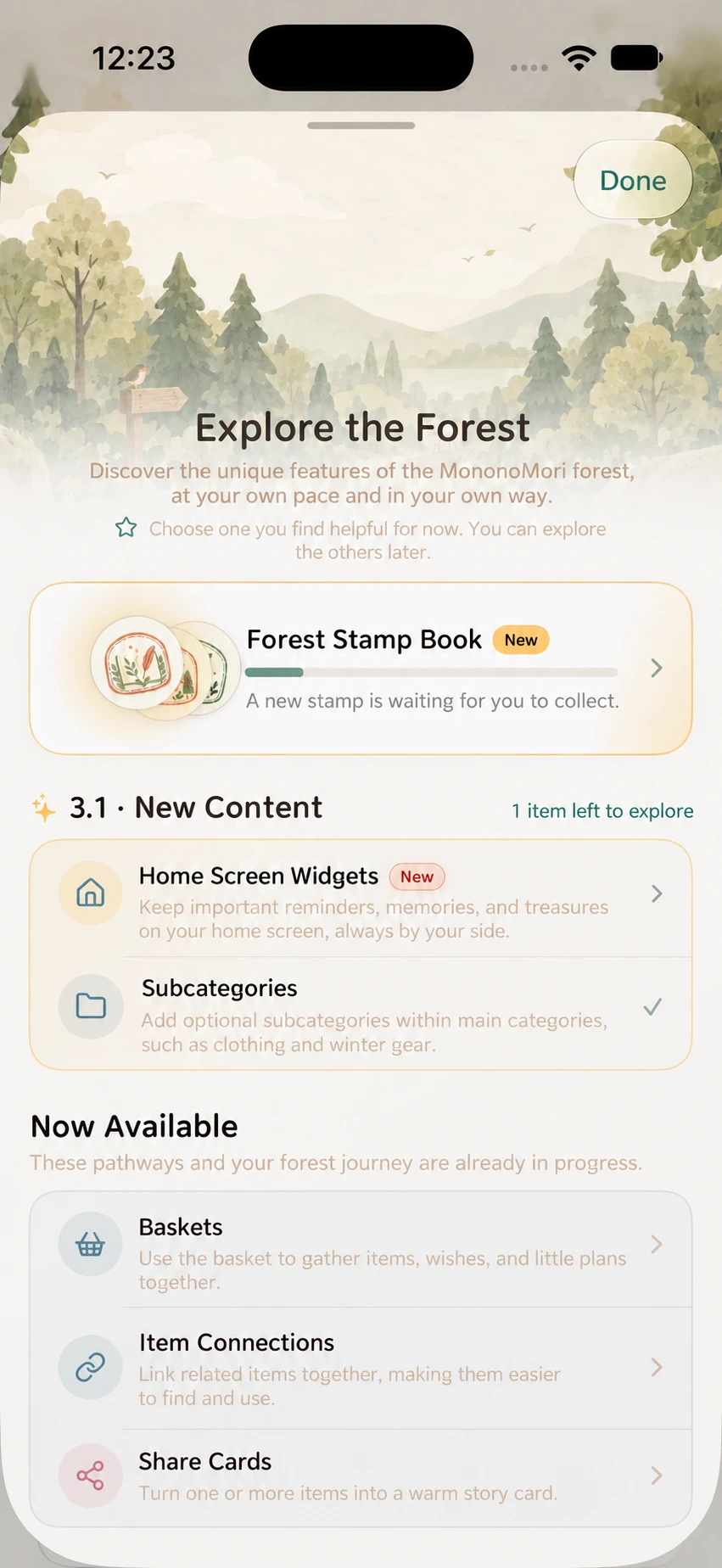
A new stamp may also bring a notification or marker on the entry. If that hint has disappeared, use the same route; you do not need to create another item to bring it back. See Explore the Forest for the guide itself.
Overview and Details
What the Overview Shows
The top shows collected / total, collection progress and recent stamps. The groups below are Milestone, Activity, Exploration and Special. Collected stamps show color, a name and a date; locked ones may show pale outlines, a lock or ‘???’, with progress for count-based goals. A suggested next goal is only a reference. You can use features in any order.
Open a Stamp
- Tap a stamp to open its individual page.
- Collected pages show the name, date and commemorative note.
- Locked pages show condition hints and, where applicable, progress.
- Swipe left or right to browse adjacent stamps; the page number shows your position.
- Tap “Stamp Book” at the top left to return to the overview, then close the book.
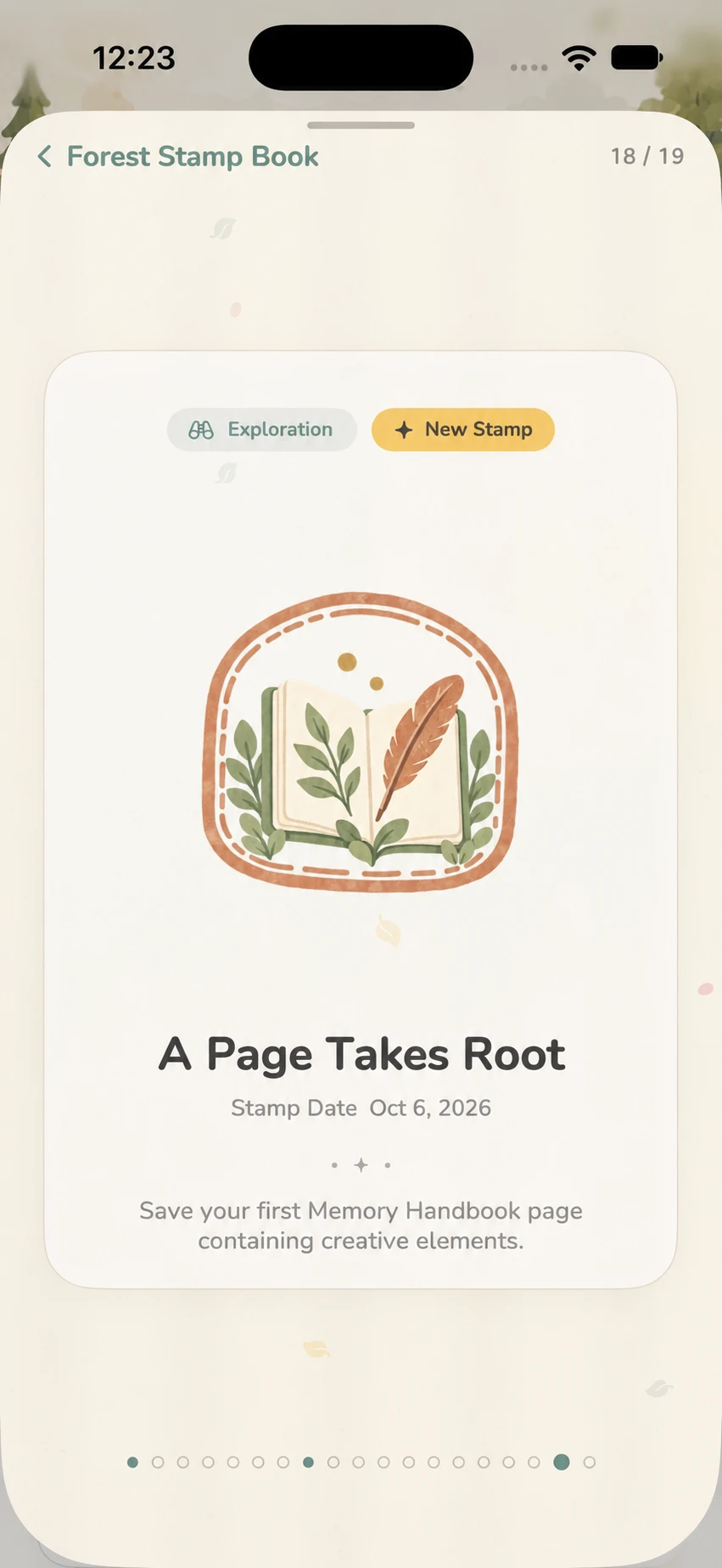
When new stamps await a reveal, the app opens their pages and plays the stamping ceremony. Navigation may briefly be unavailable while the animation and its state are saved. Several stamps can reveal one after another. Reduce Motion makes the reveal simpler without changing collection results.
The Ten New Stamps
Use this list when the corresponding feature is useful to you. There is no need to add unwanted data just for a stamp.
| Stamp | Saved condition | Common detail to check |
|---|---|---|
| Woodland Neighbors | Create 3 groves | Three locations inside one grove do not equal three groves |
| Collected Glimpses | Reach 10 photo additions | Previewing a photo without saving does not count |
| Stories in Bloom | Save memories for 5 items | Five photos in a Memory Book are not five item memories |
| Everything at Home | Give 10 distinct inventory items a concrete location | A grove alone is not a location; multiple lots still count as one item |
| Timely Care | Save expiry dates for 5 inventory items | Purchase or custom dates do not substitute for expiry dates |
| Close at Hand | Pin 5 inventory items | Pinning groves or fixing map layout does not count |
| A Gentle Rest | Put at least one item into hibernation | Reading the explanation alone is not enough |
| Ready for the Journey | Add at least one actual inventory item to a basket | An empty basket or only a wishlist entry is not enough |
| A Page Takes Root | Save a Memory Book page containing elements | Text, photos, stickers or items count; blank pages or paper changes alone do not |
| Forest Safekeeping | Successfully create a complete manual .forest backup | Automatic backups, CSV exports, merely opening sharing or a failed backup do not qualify |
Location, expiry and pinning goals count distinct item records. Editing or pinning one item repeatedly, or setting its quantity to 10, does not create ten records. Photo progress instead follows recorded photo additions; it does not necessarily require ten different items.
See Create a Grove, Hibernation, Baskets and Connections, Memory Book Pages and Backup and Restore.
Keep Collecting the Original Nine
| Stamp | Condition |
|---|---|
| First Seed | Save your first item |
| Taking Shape | Item-addition progress reaches 15 |
| Lush Greenery | Item-addition progress reaches 50 |
| Forest of All Things | Item-addition progress reaches 100 |
| First Memory | Save your first item memory |
| Perseverance | Open the app on 7 consecutive calendar days |
| Memory Capture | Save your first item photo |
| New Territory | Create your first grove |
| Wisdom Forest | Use AI recognition to save 15 new items |
How Are Seven Days Counted?
The device’s calendar dates record app openings. Several openings in one day count as one day. Skipping a day restarts the current streak; the best previous progress remains. A stamp already earned is not taken away after a later interruption.
Is Running AI Recognition Enough?
No. Save recognition results as new items. Taking a photo, starting analysis, previewing results or cancelling does not add an item. Saving several new items from one analysis counts the actual saved records. See AI Identification.
Why Does ‘Saved’ Matter?
Perform the action → Save successfully → The app checks the condition → A stamp is recorded → Open the book to see it.
Explore the Forest’s reading and experience markers track understanding or feature use. Stamps have separate conditions. Tapping Try It, making a subcategory or adding a widget does not mean each action has its own stamp.
For A Page Takes Root, opening the editor is not enough: add an element and save the page. Forest Safekeeping requires a successfully created complete manual backup; you do not have to send it to anyone.
Updates, Deletion and Other Devices
Can Existing Data Be Recognized?
The app can recognize some conditions from saved data on the current device: existing items, groves, locations or Memory Book pages with elements. Several stamps may therefore appear after an update.
Some historical actions cannot be inferred from current data, including whether an item was originally added through AI on another device or an old full manual backup succeeded here. Complete retroactive credit is not guaranteed; a stamp date may differ from the original record’s date.
Does Deleting an Item Remove a Stamp?
An earned stamp is not withdrawn when everyday edits or deletion reduce current counts. It records an achieved milestone, so its progress may differ from the visible item count in the Items tab. It cannot restore deleted items; use the recycle bin or backups for recovery.
Why Can Devices Show Different Progress?
Earned stamps are saved app data. They can travel through enabled, completed iCloud sync and are included in newer full forest backups. Some unfinished counters, such as streaks and AI additions, may be local. Do not assume actions on two devices combine into one continuous counter.
Finish syncing or restoring before comparing collected stamps. A temporarily smaller count on one device does not establish loss. See Backup and Sync.
Met the Condition but Cannot See the Stamp?
- Confirm saving succeeded: find the item, reopen the page with its elements, or check that the backup is complete and available.
- Check what is counted: grove versus location, item versus quantity, item memory versus Memory Book page, full manual backup versus other exports.
- Reopen the Stamp Book after saving. For other devices’ changes, wait for local sync.
- Read errors and use Retry if loading or progress saving failed. No animation does not mean no award; check colored stamps, counts and dates.
- If still unsure, send feedback with the app version, stamp name, saved action and displayed message.
Do not repeatedly redo completed actions. If a backup fails, address the error first; repeated imports, cleanup or resets are not a way to catch up on stamps.
Where Can Beginners Start?
As you record your first item, consider its photo and real location. Hibernate an item you temporarily do not use but want to keep. Try baskets or a Memory Book when they help organize your life, then make a complete backup after important work. Each action is useful in itself; stamps can arrive naturally as you use the features.