

Farewells & Memories
NEW · Added in v4.1.0Forest Press: Print Your Things on a Sheet
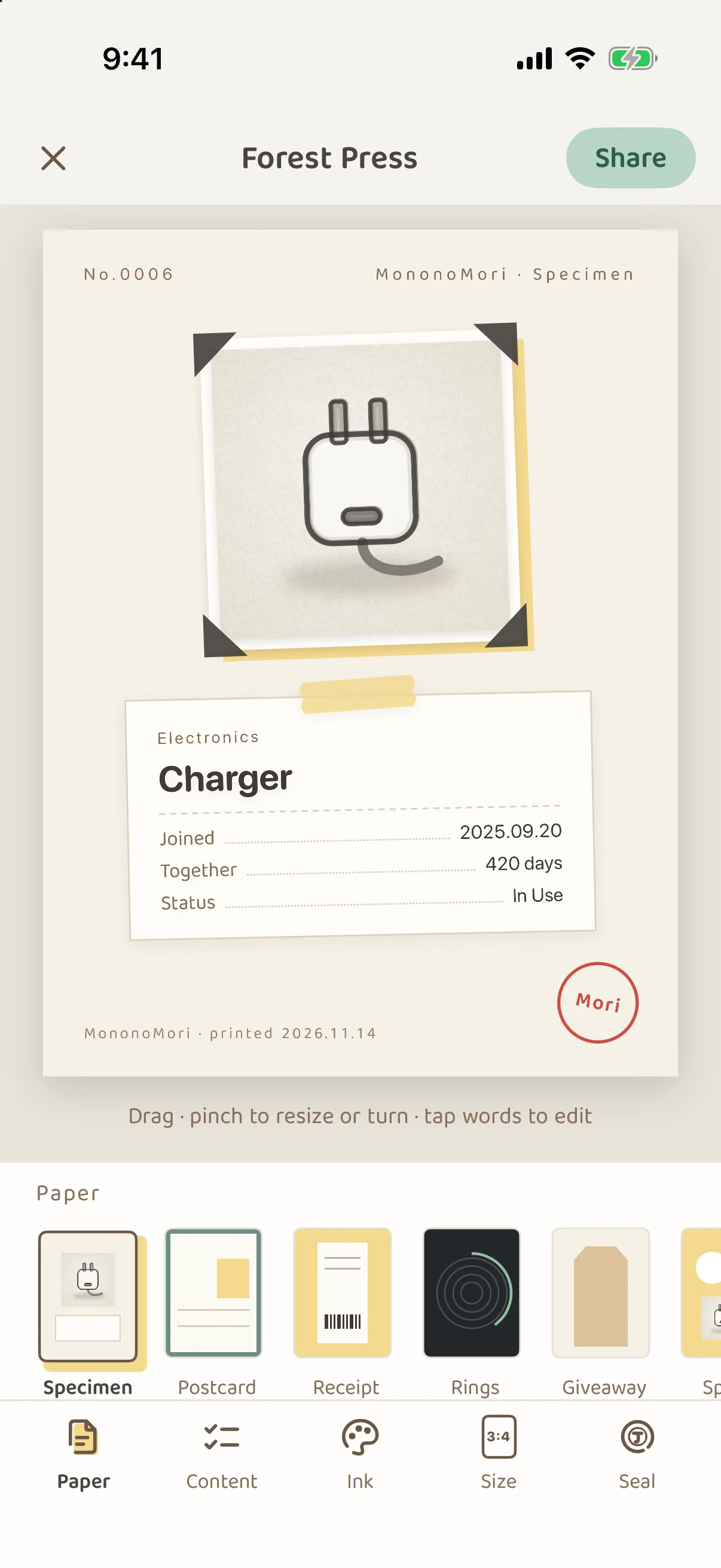
Sharing an item opens the Forest Press: print one or several things as a Specimen, Postcard, Receipt, Rings, Giveaway tag or Field Guide page, choose the ink, paper and size, then save it to Photos, save it as a sticker or add it to a Memory Book.
Updated on Nov 15, 2026 ~16 min read
On this page
When you want to show a friend something you love, or make a tag for something you are giving away, use Share. It opens the Forest Press: choose a paper first, then decide what to print, which ink to use and how big, and save or send it when it is printed.
The Forest Press replaces the old Share Card. Every place you could share from is still there, and now it opens the press.
Where to open it
| From | How | What it prints |
|---|---|---|
| An item page | ··· › Share at the top right (the second line reads “As a postcard, receipt, sticker…”) | This item |
| Items, or a grove page | Pick up several items with the small trowel, then tap Share in the Tidy-up tools | The items you picked |
| The Memory Forest | Open a tag and tap the share button at the top | This memory, with its farewell date and story |
| Forest Insights | The share button at the top right | A Forest Card of your whole forest |
Choose a paper
The row at the bottom holds the papers. Tap one to print that way. Each paper has its own layout, and the contents are laid out again to fit it.
| Paper | What it looks like |
|---|---|
| Specimen | Like a museum specimen label. |
| Postcard | The item is the stamp on the postcard. |
| Receipt | A shop receipt listing your days together, care and the cost per day. |
| Rings | The days it has been with you, drawn as tree rings. |
| Giveaway | A tag that says “Free to a Good Home”, for things you are giving away. |
| Field Guide | Several things on one field guide page. |
| Spread | Several things spread out like stickers on colored paper. |
| Farewell | Only when you share from the Memory Forest, written to something you have said farewell to. |
| Forest Card | Only when you share from Forest Insights, printing what Forest Insights shows. |
Print several at once
When you share several items, choose:
- One Sheet: print them all on one sheet, as a Field Guide or Spread.
- Set: a cover, one sheet for each item and an end sheet. Swipe left and right to go through them. A set gives a sheet each to the first 16 items only; if you picked more and want them all printed, print one Field Guide instead.
In a set, the strip below lists every sheet. Touch and hold a sheet to Move earlier, Move later or Leave out of this set.
The panels
The row at the bottom has five panels:
| Panel | What you can do |
|---|---|
| Paper | Switch to another paper. |
| Content | Choose what is printed on the sheet, such as Category, Date joined, Days together and Tags. You can also change the name on the sheet. |
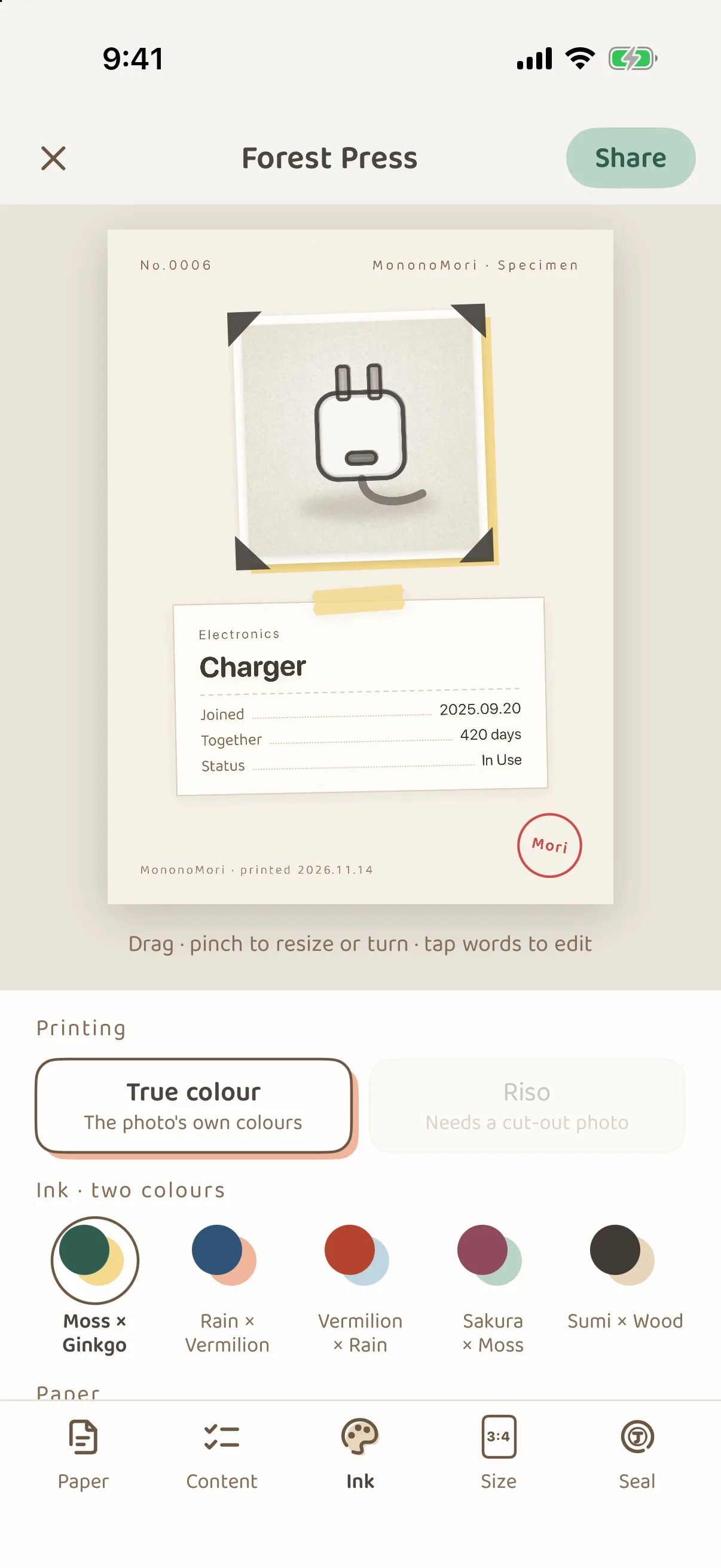
| Ink | Choose the printing method, one of five two-color inks and one of five papers (Washi, Kraft, Recycled, Night, Tinted). The ink can also follow the season. |
| Size | Four sizes: 3:4, 4:5, 9:16 and 1:1. Each size lays the sheet out again instead of just adding blank edges. |
| Seal | The seal stamped on the sheet. |
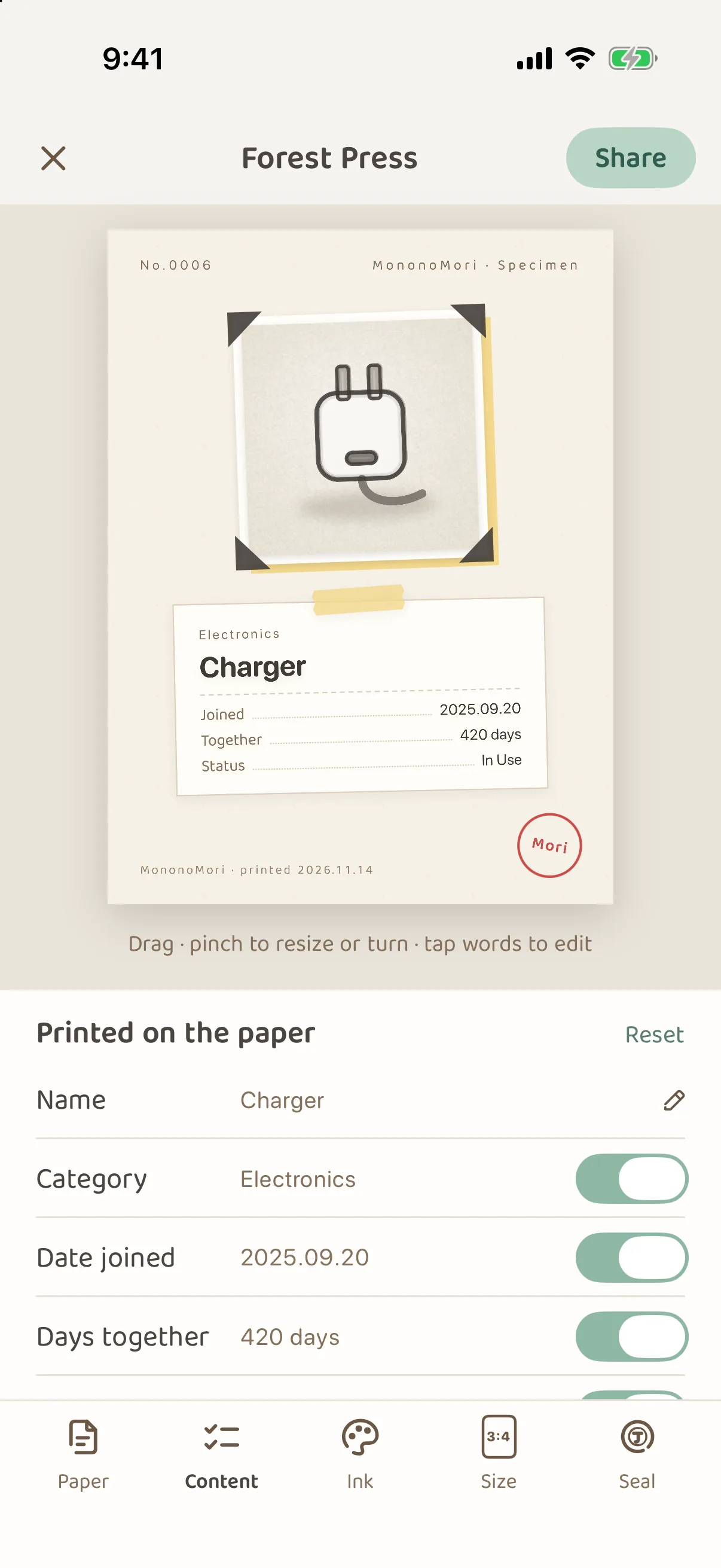
There are two Printing methods: True colour keeps the photo’s own colors; Riso prints one-color dots with an offset plate, and works only with cut-out item photos.
The Seal is the MononoMori seal by default. Using your own words (up to 8 characters) or no seal at all (which also leaves the MononoMori line off the foot) needs Plus or Premium, as it did with the old Share Card.
Edit right on the sheet
- Drag an item to where you want it, and pinch to resize or turn it.
- Tap the name, title or line on the sheet to edit it. Renaming only changes this sheet; the item keeps its name.
- If things get messy, tap Put things back.
Price and place stay off
Price, cost per day, where it lives and notes are off by default, and are printed only when you switch them on. These switches are never remembered either: the next time you share, they are off again.
When it is printed
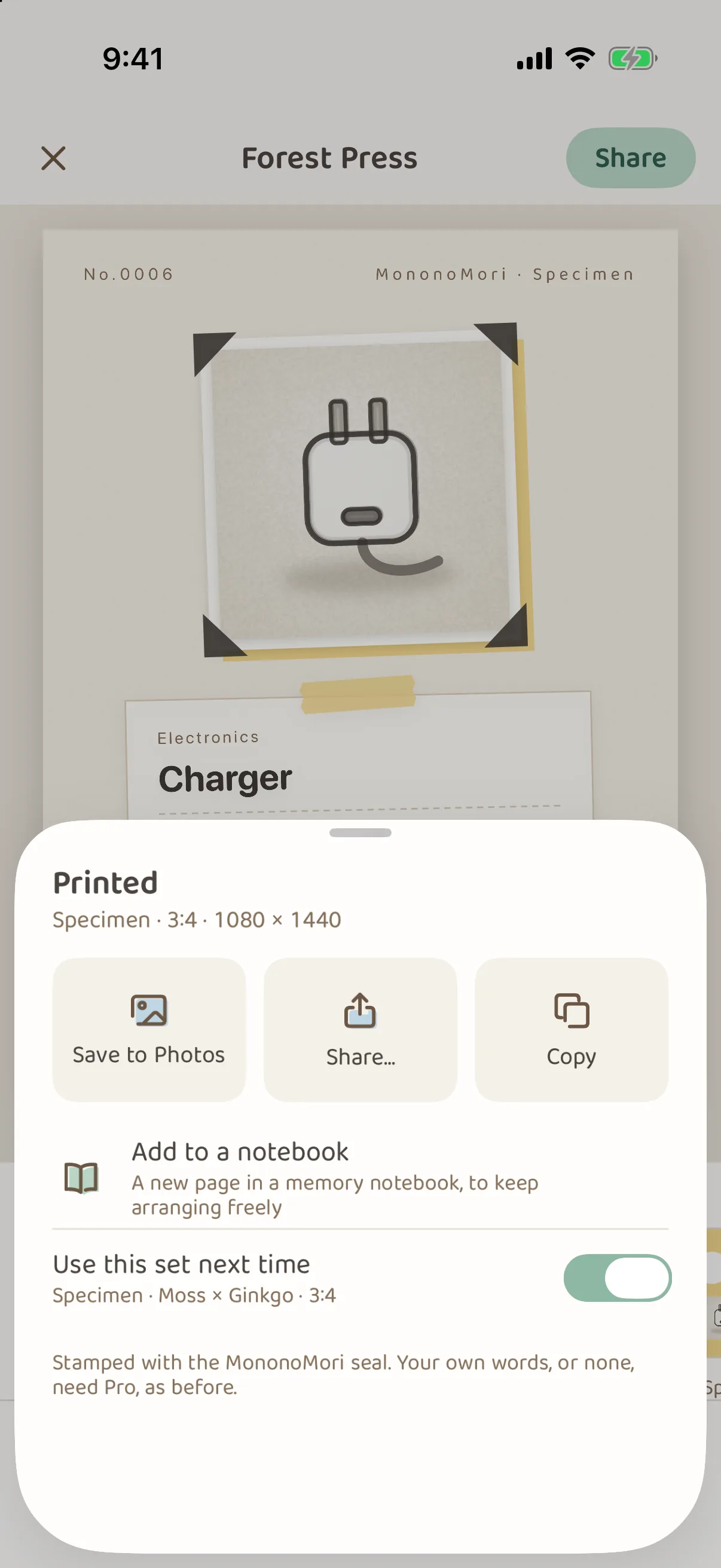
Tap Share at the top right, and Printed opens:
| Option | What it does |
|---|---|
| Save to Photos | Saves it to Photos. A set saves one image per sheet. |
| Share… | Opens the system share sheet, to send it to someone or post it. |
| Copy | Copies the image so you can paste it anywhere. |
| Save as sticker | Keeps just the item, with a white die-cut edge and a clear background, for stories and chats. Only there when the item’s photo has its background removed. |
| Add to a notebook | Starts a new page in one of your Memory Books, where you can keep arranging it freely. |
Turn on Use this set next time to start from the same paper, ink, paper color and size next time (the price and place switches are not included).
Common questions
Where did Style Settings, Re-arrange and the templates go?
They are all part of the press now: the templates are the papers, the style is under Ink and Size, and you arrange things by dragging them on the sheet.
Why can’t I choose Riso?
Riso only works with cut-out item photos. At least one of the items you picked needs a cut-out photo before you can choose it.
Add to a notebook says I have no notebooks yet?
Start a Memory Book in Memories first. See Memory Books: Start One and Arrange It on the Desk.
Are the seal words I set before still there?
Yes. The seal words you set for the old Share Card carry over to the press.